
Logitech Gamepad F310 D-Pad Replacement

Lucas Stovall and 2 other contributors
Last updated on Jun 12, 2024
Views: 1.5K
View statistics:
- Past 24 Hours:
- 2
- Past 7 Days:
- 20
- Past 30 Days:
- 97
- All Time:
- 1,463
Comments: 1
1 comment on steps.
Completed: 2 3
2 people have marked this guide "completed." Will you be next?
3 people have marked this guide "completed." Including you — great job!
Favorites: 0 1
No one has favorited (and subscribed to) this guide. Will you be the first?
1 person has favorited (and subscribed to) this guide — and that's you!
Introduction
Go to step 1 ↓Use this guide to replace a damaged or malfunctioning D-Pad on a Logitech Gamepad F310. The D-Pad is a directional, plus sign shaped pad on the left side of the controller. It is used for precise movement and controls in most games.
Make sure to check to see if it is the D-Pad that is not working, and not a different control. Also try and restart your game, and unplug and plug back in your controller. This often times fixes the problem easily.
If your D-Pad is not working or is damaged, follow this guide to replace your D-Pad so you do not miss out on any important features of your games. Make sure the device is unplugged before beginning this guide.
No special tools or skills are required to complete this replacement.
What you need
Tools


-
-
-
Use a Phillips #1 screwdriver to remove all seven 3 mm screws that secure the rear case.
 Ask FixBot
-
-
-
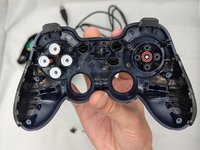
Press along the seams of the controller and gently pull the front and rear case apart.
-
-
-
-
-
-
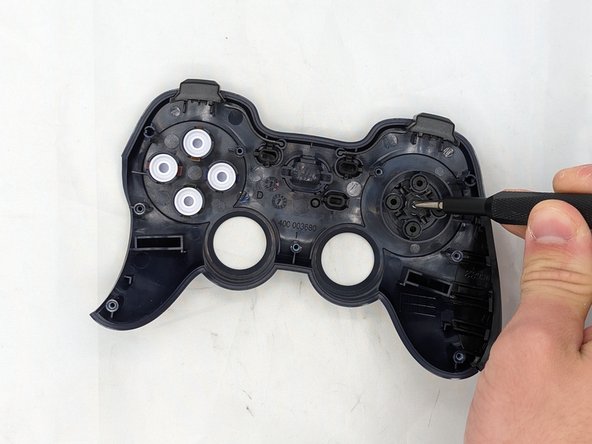
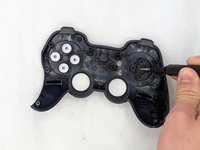
Remove the silver 3 mm screw in the middle of the D-pad with a Phillips #1 screwdriver.
-
Remove the D-pad
-
-


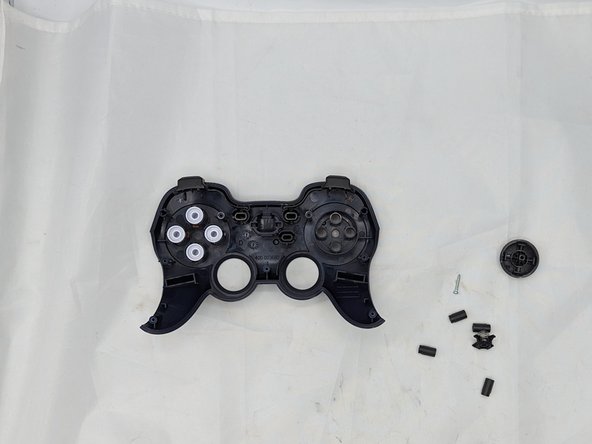
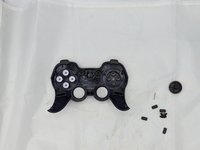
This is how to replace a D-Pad on a Logitech Gamepad F310. To reassemble your device, follow these instructions in reverse order.
Cancel: I did not complete this guide.
2 other people completed this guide.

Team

University of North Texas, Team 2-6, Kilpatrick Spring 2024 Member of University of North Texas, Team 2-6, Kilpatrick Spring 2024
UNT-KILPATRICK-S24S2G6
4 Members
72 Guides authored
