
Logitech Gamepad F310 Bumpers Replacement

Graydon and 3 other contributors
Last updated on Jun 12, 2024
Views: 1.4K
View statistics:
- Past 24 Hours:
- 4
- Past 7 Days:
- 28
- Past 30 Days:
- 108
- All Time:
- 1,366
Comments: 1
1 comment on steps.
Completed: 1 2
1 person has marked this guide "completed." Will you be next?
2 people have marked this guide "completed." Including you — great job!
Favorites: 0 1
No one has favorited (and subscribed to) this guide. Will you be the first?
1 person has favorited (and subscribed to) this guide — and that's you!
Introduction
Go to step 1 ↓During this guide you will learn how to replace the bumpers on the Logitech Gamepad F310. The bumpers are the first set of buttons on the top part of the controller. They are small and rectangular.
The bumpers are special function for controller. So the bumpers are necessary tool for controller to play the functions for gaming purpose such as zooming, aiming, and etc.
No special tools or skills are required.
What you need
Tools


-
-
-
Use a Phillips #1 screwdriver to remove all seven 3 mm screws that secure the rear case.
 Ask FixBot
-
-
-
Press along the seams of the controller and gently pull the front and rear case apart.
-
-
-
-


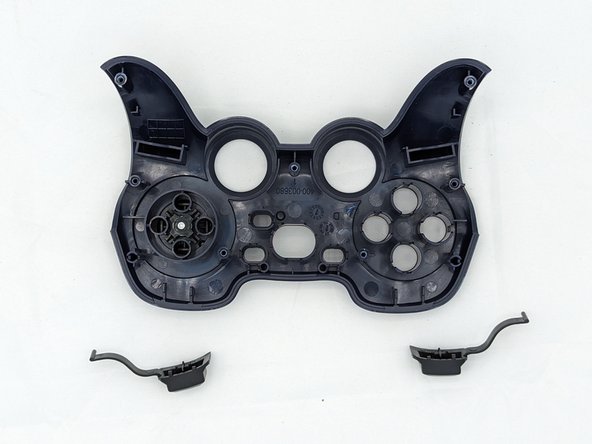
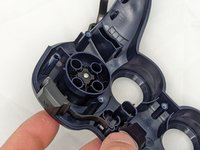
You're all finished! To reassemble your device, follow these instructions in reverse order.
Cancel: I did not complete this guide.
One other person completed this guide.

Team

University of North Texas, Team 2-6, Kilpatrick Spring 2024 Member of University of North Texas, Team 2-6, Kilpatrick Spring 2024
UNT-KILPATRICK-S24S2G6
4 Members
72 Guides authored
