Free Shipping on Domestic Orders $75+

Logitech G915 X Lightspeed TKL Battery Replacement

What you need

  1. Logitech G915 X Lightspeed TKL Battery Replacement, Prepare your keyboard for disassembly: step 1, image 1 of 3 Logitech G915 X Lightspeed TKL Battery Replacement, Prepare your keyboard for disassembly: step 1, image 2 of 3 Logitech G915 X Lightspeed TKL Battery Replacement, Prepare your keyboard for disassembly: step 1, image 3 of 3
    • Slide the power switch on the top edge of the keyboard to the OFF position.

    • A red indicator should be visible beneath the switch.

    • Unplug all cables from your keyboard.

    • Lay your keyboard down with the feet facing up on a clean work surface.

    • If your work surface might scratch the keyboard, place a soft towel under it.

  2. Logitech G915 X Lightspeed TKL Battery Replacement, Remove the battery cover sticker: step 2, image 1 of 2 Logitech G915 X Lightspeed TKL Battery Replacement, Remove the battery cover sticker: step 2, image 2 of 2
    • The Logitech sticker hides two battery cover screws.

    • Heat an iOpener and lay it on the Logitech sticker for one minute.

    • Alternatively, you can use a hair dryer to heat the sticker. Make sure it's on the Low setting to avoid warping the plastic.

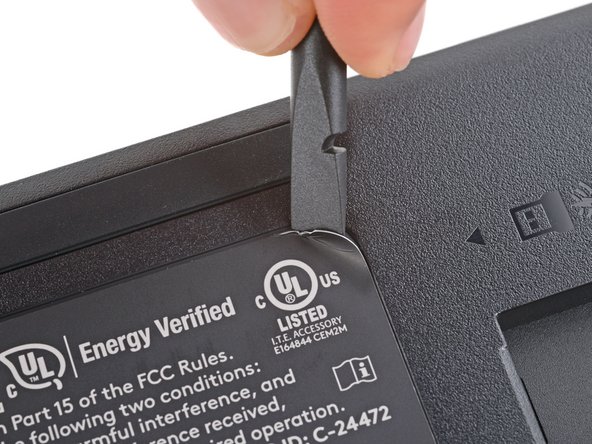
  3. Logitech G915 X Lightspeed TKL Battery Replacement: step 3, image 1 of 3 Logitech G915 X Lightspeed TKL Battery Replacement: step 3, image 2 of 3 Logitech G915 X Lightspeed TKL Battery Replacement: step 3, image 3 of 3
    • You can either peel up the bottom corners of the sticker until you can access the screws, or you can remove the sticker entirely.

    • Use a spudger or your fingernail to peel up a corner of the sticker until you can grip it with your fingers.

    • Peel up the sticker with your fingers and remove it.

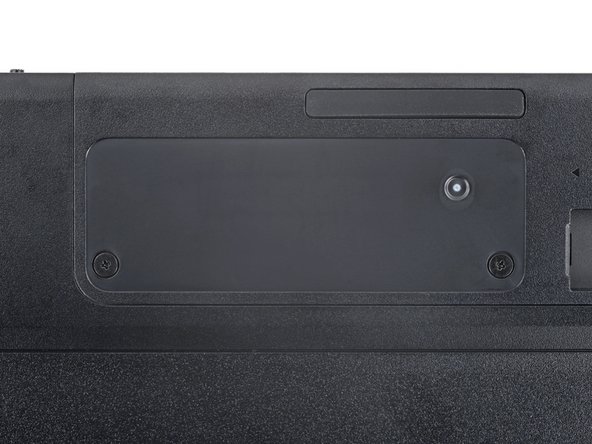
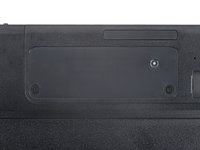
  4. Logitech G915 X Lightspeed TKL Battery Replacement, Remove the battery cover screws: step 4, image 1 of 2 Logitech G915 X Lightspeed TKL Battery Replacement, Remove the battery cover screws: step 4, image 2 of 2
    • Use a Phillips screwdriver to remove the two 4 mm‑long screws securing the battery cover.

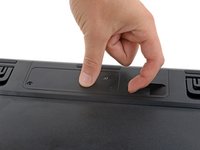
  5. Logitech G915 X Lightspeed TKL Battery Replacement, Remove the USB receiver: step 5, image 1 of 3 Logitech G915 X Lightspeed TKL Battery Replacement, Remove the USB receiver: step 5, image 2 of 3 Logitech G915 X Lightspeed TKL Battery Replacement, Remove the USB receiver: step 5, image 3 of 3
    • If you have a USB receiver stored in the battery cover compartment, use your finger to slide it out and remove it.

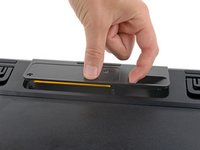
  6. Logitech G915 X Lightspeed TKL Battery Replacement, Reposition the battery cover: step 6, image 1 of 3 Logitech G915 X Lightspeed TKL Battery Replacement, Reposition the battery cover: step 6, image 2 of 3 Logitech G915 X Lightspeed TKL Battery Replacement, Reposition the battery cover: step 6, image 3 of 3
    • Plastic clips secure the edges of the battery cover.

    • Insert your finger in the USB receiver compartment on the battery cover.

    • Pull up the bottom edge of the cover to release the clips.

    • Don't try to fully remove the cover yet, as it's still connected by the battery cable.

    • Gently pull the cover to the right so you can access the battery connector on the left side of the recess.

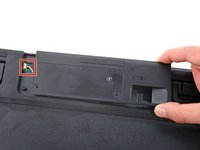
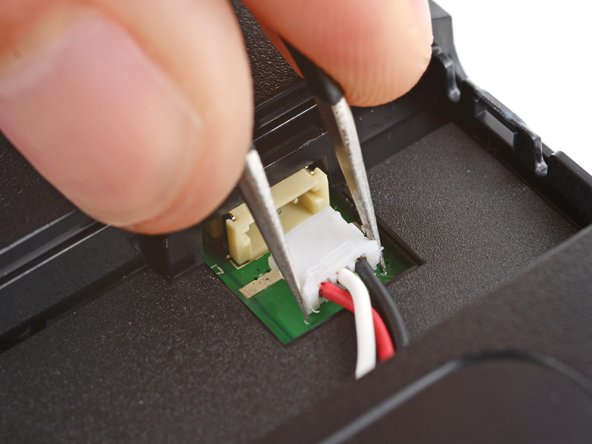
  7. Logitech G915 X Lightspeed TKL Battery Replacement, Disconnect the battery: step 7, image 1 of 2 Logitech G915 X Lightspeed TKL Battery Replacement, Disconnect the battery: step 7, image 2 of 2
    • Be careful not to scratch the board during this step.

    • Use a pair of angled tweezers to firmly grip the battery connector.

    • Hold the tweezers with your fingers as close to the connector as possible to get a firm grip.

    • Gently rock the connector side‑to‑side and slide it straight out of the socket.

  8. Logitech G915 X Lightspeed TKL Battery Replacement, Remove the battery cover: step 8, image 1 of 1
    • Remove the battery cover.

    • Congratulations on completing disassembly! The remaining steps will show you how to install your replacement battery and reassemble your device.

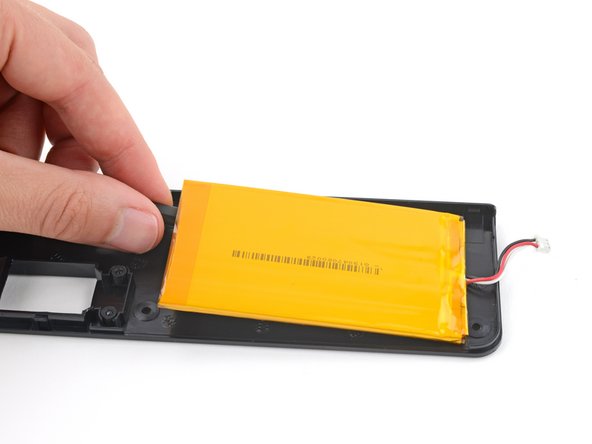
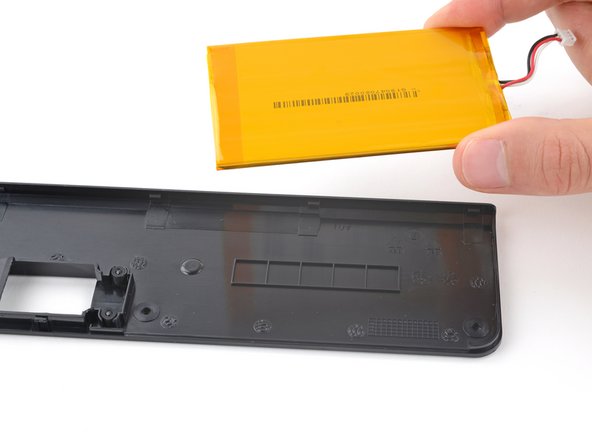
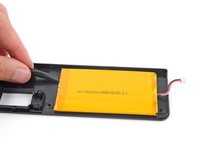
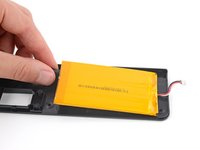
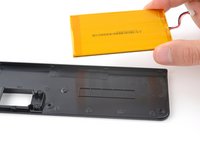
  9. Logitech G915 X Lightspeed TKL Battery Replacement, Install your new battery: step 9, image 1 of 3 Logitech G915 X Lightspeed TKL Battery Replacement, Install your new battery: step 9, image 2 of 3 Logitech G915 X Lightspeed TKL Battery Replacement, Install your new battery: step 9, image 3 of 3
    • Light adhesive secures the battery to its cover.

    • Gently slide the flat end of a spudger under one of the short edges of the battery and lift to separate the adhesive.

    • Be very careful not to puncture the battery, as it can leak dangerous chemicals or catch fire.

    • Remove the battery from its cover.

  10. Logitech G915 X Lightspeed TKL Battery Replacement: step 10, image 1 of 3 Logitech G915 X Lightspeed TKL Battery Replacement: step 10, image 2 of 3 Logitech G915 X Lightspeed TKL Battery Replacement: step 10, image 3 of 3
    Tool used on this step:
    Tesa 61395 Tape
    $8.95
    Buy
    • The adhesive likely stuck to the old battery. If not, remove it from the battery cover.

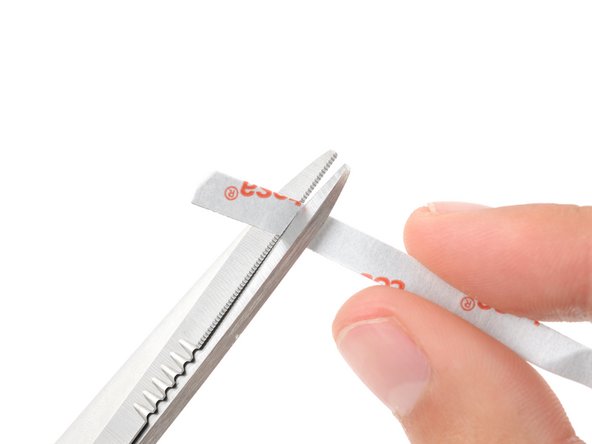
    • Cut a piece of double-sided tape so it fits on the row of squares on the bottom of the battery cover.

    • Press the tape firmly into place on the squares and remove the liner.

  11. Logitech G915 X Lightspeed TKL Battery Replacement: step 11, image 1 of 1
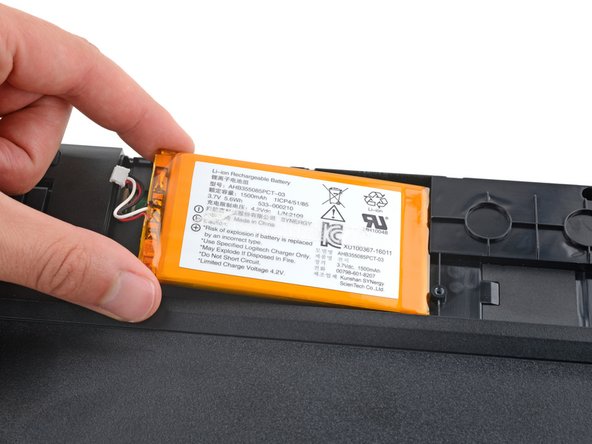
    • Lay your new battery into its recess in the keyboard so the cable is nearest the battery connector.

  12. Logitech G915 X Lightspeed TKL Battery Replacement, Reconnect the battery: step 12, image 1 of 2 Logitech G915 X Lightspeed TKL Battery Replacement, Reconnect the battery: step 12, image 2 of 2
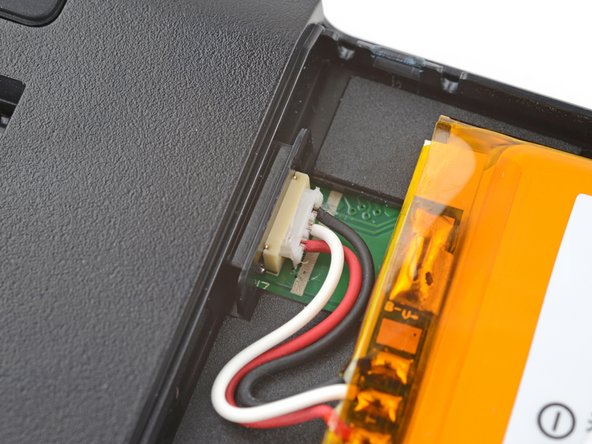
    • Insert the new battery's connector into its socket so the side with exposed pins is on the bottom.

    • Use a spudger to push the battery connector fully into its socket.

    • Press only on the connector itself, and not on the wires.

  13. Logitech G915 X Lightspeed TKL Battery Replacement, Install the battery cover: step 13, image 1 of 1
    • Set the battery cover into place and firmly press down around its edges to engage all the clips.

    • You should feel and hear "clicks" as the clips engage.

  14. Logitech G915 X Lightspeed TKL Battery Replacement, Install the battery cover screws: step 14, image 1 of 2 Logitech G915 X Lightspeed TKL Battery Replacement, Install the battery cover screws: step 14, image 2 of 2
    • Use a Phillips screwdriver to install the two 4 mm‑long screws securing the battery cover.

  15. Logitech G915 X Lightspeed TKL Battery Replacement, Apply the battery cover sticker: step 15, image 1 of 1
    • Use your fingers to apply the sticker to the battery cover.

    • To help the sticker adhere better, you can apply some heat with an iOpener or hair dryer.

Conclusion

Congratulations on completing your repair!

Repair didn’t go as planned? Try some basic troubleshooting, or ask our Answers community for help.

Reuse or Recycle—Never put discarded electronic parts in household waste. Visit Logitech Recycling to find your nearest recycling points, including the option to mail back old devices to Logitech for free if there’s no convenient solution in your area. You can also take your e-waste to any R2 or e-Stewards certified recycler. And don’t let good working parts or repaired devices die a slow death in your sock drawer—pass them along to someone who can use them.

Share your experience—Leave a comment here or send your feedback directly to Logitech at repair@logitech.com to help shape future repair guides and product design.

Spencer Day

Member since: 09/14/22

187,441 Reputation

1,187 Guides authored

0 Guide Comments

Add Comment

View Statistics:

Past 24 Hours: 3

Past 7 Days: 25

Past 30 Days: 88

All Time: 386