Introduction
Use this guide to remove and replace a keyswitch on the Logitech G915 TKL keyboard. A keyswitch may need to be replaced if the key is no longer registering inputs, and you've confirmed that the issue isn't the keycap.
Before using this guide, ensure that the issue with your key isn't due to a broken keycap or a buildup of dust or debris in the area around the key.
Steps 7 and 8 require you to desolder the broken keyswitch and solder a new one in place.
A Phillips #00 Screwdriver is required to complete this guide, as well as a soldering iron, solder, and a desoldering braid.
What you need
-
-
-
Remove all of the keycaps on the keyboard.
-
Unscrew the 2mm #00 Phillips screws circled in the picture provided.
 Ask FixBot
-
-
-
Turn the keyboard around and peel back the Logitech sticker near the top center of the keyboard, as well as the plastic layer underneath.
-
Unscrew the two 2.5mm #0 Phillips screws circled in the picture provided.
-
Remove the backplate by grabbing the notch to the right and pulling up.
-
-
-
Remove the foam strips shown in the picture provided.
-
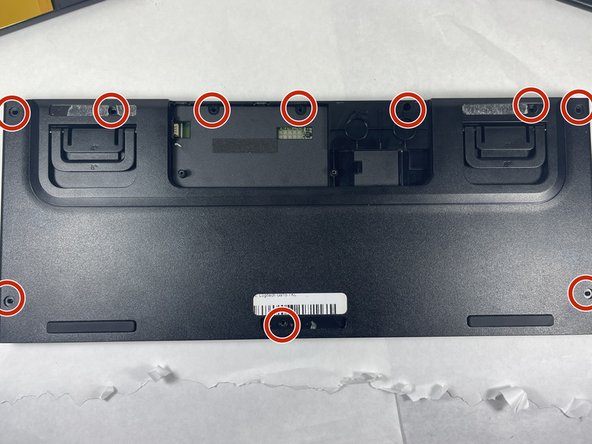
Unscrew all the 2mm #00 Phillips screws on the back of the keyboard circled in the picture provided.
-
-
-
-
Find the corresponding soldering point for the keyswitch you wish to replace.
-
-
-
Insert your new keyswitch in place of the old one.
-
Solder the new keyswitch into place.
-
-




To reassemble your device, follow these instructions in reverse order.
Cancel: I did not complete this guide.
3 other people completed this guide.

Team

UMass Dartmouth, Team 3-6, Petersen Spring 2023 Member of UMass Dartmouth, Team 3-6, Petersen Spring 2023
UMASSD-PETERSEN-S23S3G6
4 Members
60 Guides authored
