
Logitech G910 Lights Replacement

Nasser and 8 other contributors
Last updated on Jan 14, 2026
Views: 8.7K
View statistics:
- Past 24 Hours:
- 2
- Past 7 Days:
- 22
- Past 30 Days:
- 106
- All Time:
- 8,693
Comments: 7
3 comments on steps, 4 guide comments.
Go to guide commentsCompleted: 5 6
5 people have marked this guide "completed." Will you be next?
6 people have marked this guide "completed." Including you — great job!
Favorites: 0 1
No one has favorited (and subscribed to) this guide. Will you be the first?
1 person has favorited (and subscribed to) this guide — and that's you!
Missing Steps
Oops! This guide is currently missing one or more important steps.
Introduction
Go to step 1 ↓Use this guide to replace the lights of your Logitech G910.
What you need
Tools


-
-
-
Flip the keyboard and unscrew the 15 back screws. The screws in the palm rest must be unscrewed and the palm rest removed to access the 6 screws at the bottom of the keyboard. (There are 2 lengths of screws the shorter ones are for the palm rest) There are also 2 screws under the nonslip pads of the palm rest.
-
-
-
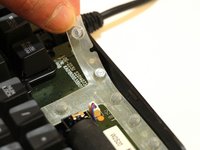
Release the front part using a spudger or flat screwdriver to gently pry. Lift off carefully.
-
-

 Ask FixBot


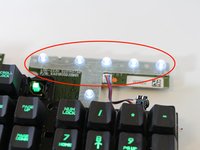
To reassemble your device, follow these instructions in reverse order.
Cancel: I did not complete this guide.
5 other people completed this guide.

Team

Eastern Washington University, Team S2-G2, Munoz Winter 2018 Member of Eastern Washington University, Team S2-G2, Munoz Winter 2018
EWU-MUNOZ-W18S2G2
5 Members
48 Guides authored
4 Guide Comments
So what do I do after I take apart my keyboard?
Desolder and replace LEDs the size of a grain of sand xD
This is definitely not a job I'd mark as "easy".
This is just a guide to open the keyboard, not a light replacement. Finish or rename the guide.
