
Logitech G432 Speaker Replacement

Lara Vasquez and 3 other contributors
Last updated on Jun 1, 2023
Views: 1.7K
View statistics:
- Past 24 Hours:
- 1
- Past 7 Days:
- 19
- Past 30 Days:
- 98
- All Time:
- 1,682
Comments: 1
1 guide comment.
Go to guide commentsCompleted: 0 1
No one has marked this guide "completed." Will you be the first?
1 person has marked this guide "completed." It's you — great job!
Favorites: 0 1
No one has favorited (and subscribed to) this guide. Will you be the first?
1 person has favorited (and subscribed to) this guide — and that's you!
Needs More Images
A few more images would make this guide's procedures crystal clear.
Missing Steps
Oops! This guide is currently missing one or more important steps.
Introduction
Go to step 1 ↓If the speaker in your Logitech G432 is blown out, damaged, or makes a static sound, the speaker is most likely faulty and requires replacement. Use this guide to access your speaker.
A functional speaker provides the sound for your headset. After long periods of loud usage, the speaker will eventually become more susceptible to damage. Turning up the volume to its loudest point can cause the speaker to blow out, which will require replacement. Before deciding to replace the speaker, check to make sure the volume is working properly to confirm that the issue is with the speaker, not the volume button. If the volume button appears to be working, it is likely time to replace the speaker.
Make sure to power the headset down before beginning this replacement.
What you need
Tools
-
Spudger4.9


-
-
-
-
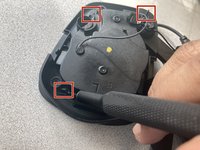
Remove the three 1.0 mm screws from the edge of the earpiece using a Phillips #0 screwdriver.
-
Use the pointed end of a spudger to remove the black sticker covering the fourth screw.
-
Remove the single 1.0 mm screw from beneath the sticker using a Phillips #0 screwdriver.
-
-
-
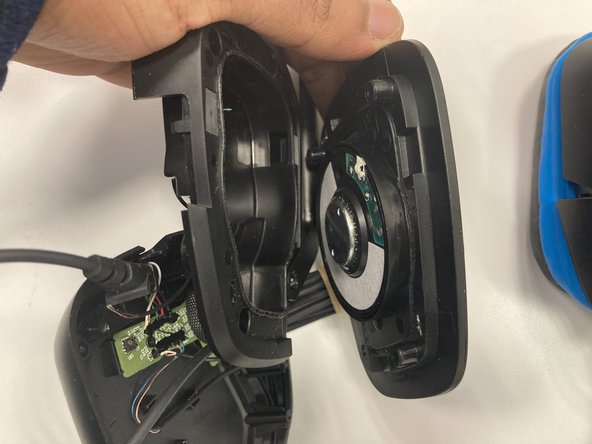
Gently open the headpiece to prevent accidentally pulling apart any of the internal wiring.
-
-
-
-
Using an iFixit opening tool, separate the four black tabs by pushing them away from each other to unclip them.
-
Gently pull apart the outside shell of the headpiece to reveal the speaker.
-
-


 Ask FixBot


To reassemble your device, follow these instructions in reverse order.

Team

Marist, Team 1-2, Chaterdon Spring 2023 Member of Marist, Team 1-2, Chaterdon Spring 2023
MARS-CHATERDON-S23S1G2
3 Members
60 Guides authored
1 Guide Comment
Hey, I have issues trying to remove the speaker itself from the other piece, so I cant place the new one, any suggestions?
