
Logitech G305 Mouse Left Clicker Replacement

Juan Iniguez and 2 other contributors
Last updated on Jan 12, 2026
Views: 3.6K
View statistics:
- Past 24 Hours:
- 17
- Past 7 Days:
- 91
- Past 30 Days:
- 439
- All Time:
- 3,649
Comments: 0
No one has left comments on this guide. Will you be first?
Go to guide commentsCompleted: 1 2
1 person has marked this guide "completed." Will you be next?
2 people have marked this guide "completed." Including you — great job!
Favorites: 0 1
No one has favorited (and subscribed to) this guide. Will you be the first?
1 person has favorited (and subscribed to) this guide — and that's you!
Introduction
Go to step 1 ↓If the left clicker on your Logitech G305 mouse stops responding or begins having delayed clicks, this guide will assist and show how to repair or replace the part.
The left clicker is one of the mouse’s most essential components as it serves the main ability for selecting, dragging, and interacting with nearly all devices.
Before using this guide you should check what part is not working, if its the bottom of the clicker, dust could be caught up in where it does not allow the clicker to function. You can carefully lift the clicker and gently blow to remove any excess dust that disables the mouse to work properly.
What you need
Parts
Tools


-
-
-
Remove the battery cover by pressing the top of the cover and pulling it downwards.
-
Remove the battery.
 Ask FixBot
-
-
-
Carefully use a box cutter to follow the grooves of the mouse skate pads and slowly lift them off.
-
Use a Phillips #00 screwdriver to remove the four screws.
-
-
-
Use a spudger to carefully separate the two halves of the mouse near the battery compartment.
-
-
-
Open the compartment and slowly separate the halves until the internal wires are exposed.
-
Carefully disconnect the two wires by hand from the base.
-
-
-
Remove the three screws from the center battery compartment using a Phillips #00 screwdriver.
-
Remove the two screws securing the left clicker.
-
-
-
-
Lift the battery compartment to gain easy access to the clicker.
-
Remove the left clicker.
-
-
-
Insert the replacement component and slide it into position until it securely clicks into place.
-
-


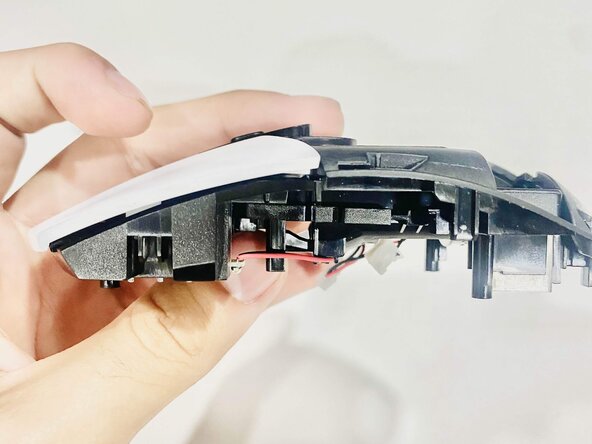


To reassemble your device, follow these instructions in reverse order.
Cancel: I did not complete this guide.
One other person completed this guide.

Team

CSU Los Angeles, Team 8-9, Grodsky Fall 2025 Member of CSU Los Angeles, Team 8-9, Grodsky Fall 2025
CSULA-GRODSKY-F25S8G9
2 Members
12 Guides authored
