
Logitech G Pro X Wireless Ear Pads Replacement

Spencer Day and one other contributor
Last updated on Dec 31, 2024
Views: 8.9K
View statistics:
- Past 24 Hours:
- 10
- Past 7 Days:
- 84
- Past 30 Days:
- 402
- All Time:
- 8,887
Comments: 0
No one has left comments on this guide. Will you be first?
Go to guide commentsCompleted: 2 3
2 people have marked this guide "completed." Will you be next?
3 people have marked this guide "completed." Including you — great job!
Favorites: 0 1
No one has favorited (and subscribed to) this guide. Will you be the first?
1 person has favorited (and subscribed to) this guide — and that's you!
OEM Guide
iFixit collaborated with the manufacturer to make this guide.
Introduction
Go to step 1 ↓Use this guide to replace one or both of the ear pads (also called ear cushions, headset cushions, or headphone cushions) on your Logitech G Pro X Wireless gaming headset.
Once the ear pads are removed, you can clean the speaker grille of any dirt, dust, or gunk that has built up.
What you need
Parts

-
-
-
Slide the power switch on the bottom of the left ear cup down so it's in the OFF position.
-
Unplug all cables from your headset and remove the microphone.
 Ask FixBot
-
-
-
-
-
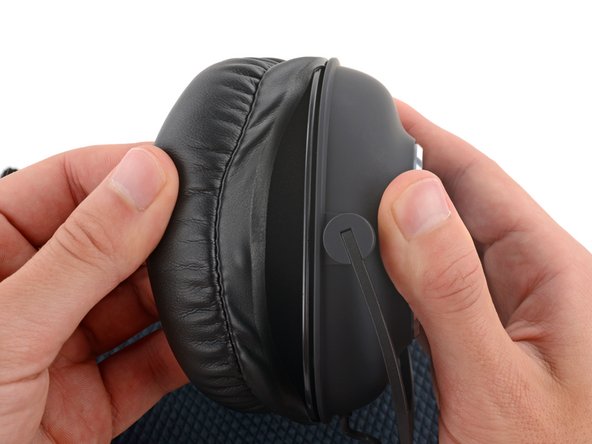
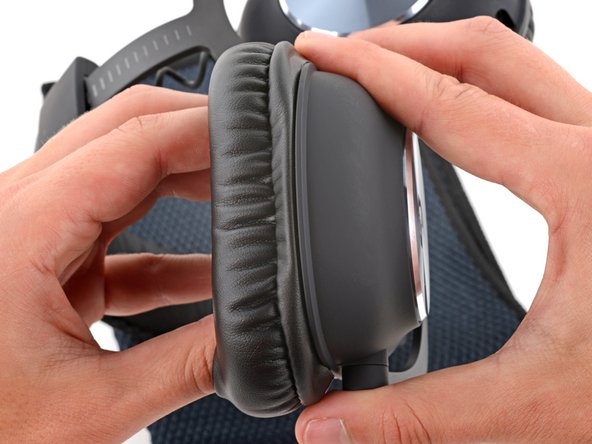
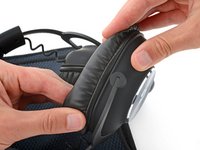
With one hand, firmly hold an ear cup steady.
-
With your free hand, slowly pull the ear pad away from the cup until it slides completely off its plastic lip.
-
Repeat the process to remove the other ear pad.
-
-
-
-
With one hand, firmly hold an ear cup steady.
-
With your free hand, put your fingers into the corresponding ear pad and extend them outwards to stretch the pad.
-
Place the pad over the top of the cup so the fabric flap slides over the cup's plastic lip.
-
Hold the top of the pad firmly in place and thread the rest of the fabric flap over the lip, working your way around the entire cup. Gently stretch the pad as necessary.
-
Check the entire perimeter of the cup to make sure the ear pad is fully on. If any of the fabric flap is sticking out, try to push it over the lip or remove the ear pad and try again.
-
-





Repair didn’t go as planned? Try some basic troubleshooting, or ask our Answers community for help.
Cancel: I did not complete this guide.
2 other people completed this guide.


