
Logitech Circle Speaker Replacement

Emma Cochran and 2 other contributors
Last updated on Jan 2, 2018
Views: 1.1K
View statistics:
- Past 24 Hours:
- 1
- Past 7 Days:
- 16
- Past 30 Days:
- 103
- All Time:
- 1,068
Comments: 1
1 comment on steps.
Completed: 1 2
1 person has marked this guide "completed." Will you be next?
2 people have marked this guide "completed." Including you — great job!
Favorites: 1 2
1 person has favorited (and subscribed to) this guide. Will you be next?
2 people have favorited (and subscribed to) this guide — including you!
Introduction
Go to step 1 ↓This guide will allow you to remove and replace the speaker inside of the Logitech Circle. This guide is relatively simple, but requires the removal of several screws and gently prying out the speaker from the base. Be sure to keep the screws organized for easier reconstruction.
What you need
Tools


-
-
-
Wedge the plastic opening tool under the black circle lens to gently pry it off.
 Ask FixBot
-
-
-
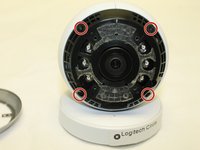
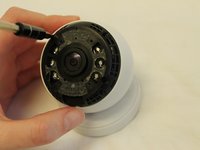
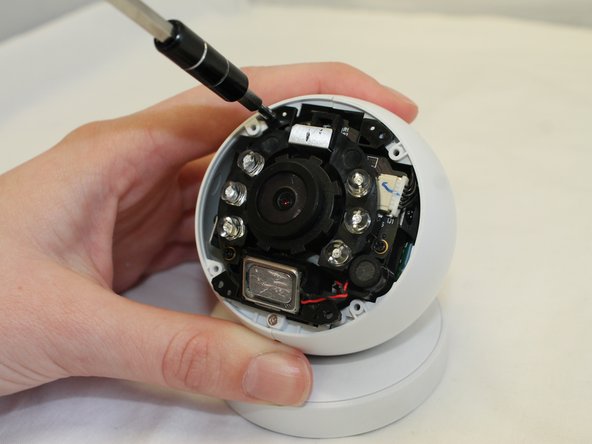
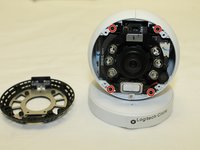
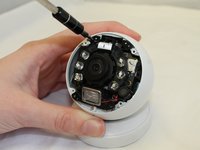
Remove the four 3mm Phillips #0 screws that hold down the final ring. Do not remove the lens/battery bundle yet.
-
-
-
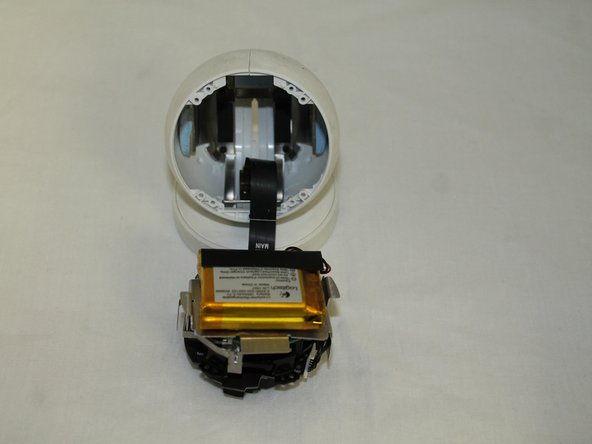
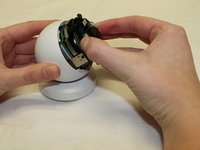
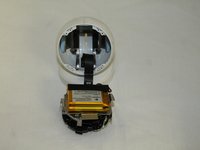
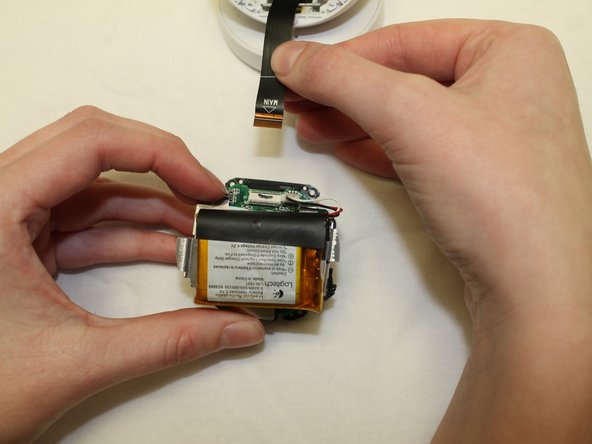
Gently remove the lens/battery bundle from the base of the circle, being mindful of the ribbon cable.
-
-
-
-
Locate the speaker attachment, and carefully remove the speaker plug from the lens.
-
-
-
Remove the speaker using a plastic opening tool. The battery is attached with glue, so use gentle prying motions to remove speaker.
-
-







To reassemble your device, follow these instructions in reverse order.
Cancel: I did not complete this guide.
One other person completed this guide.

Team

University of Maine, Team S1-G4, Diaz Fall 2017 Member of University of Maine, Team S1-G4, Diaz Fall 2017
UMAINE-DIAZ-F17S1G4
3 Members
36 Guides authored
