Free Shipping on Domestic Orders $75+

Lian Li PC-011 Hard Drive Replacement

Views: 9.4K

View statistics:

Past 24 Hours:
4
Past 7 Days:
40
Past 30 Days:
136
All Time:
9,363
Comments: 1

1 guide comment.

Go to guide comments
Completed: 7

7 people have marked this guide "completed." Will you be next?

Favorites: 0

No one has favorited (and subscribed to) this guide. Will you be the first?

Time Required: 30 minutes
Difficulty: Easy
Needs Better Images

Better photos will improve this guide. Help out by taking, editing, or uploading new ones!

Lian Li PC-011 Hard Drive Replacement

Introduction

Go to step 1 ↓

This guide is for first time builders or people that bought prebuilt computers in a Lian Li PC-011 case. This guide will walk you through how to install or replace a 3.5 hard drive in the case. It is not a very difficult task and it should only take you 30 minutes to complete.

What you need

Parts

Tools

    1. Lian Li PC-011 Hard Drive Replacement, Hard Drive: step 1, image 1 of 1
      • Power off the system using the button on the back of the computer.

      • Remove the power cord from the computer.

      Ask FixBot

      Add Comment

    2. Lian Li PC-011 Hard Drive Replacement: step 2, image 1 of 3 Lian Li PC-011 Hard Drive Replacement: step 2, image 2 of 3 Lian Li PC-011 Hard Drive Replacement: step 2, image 3 of 3
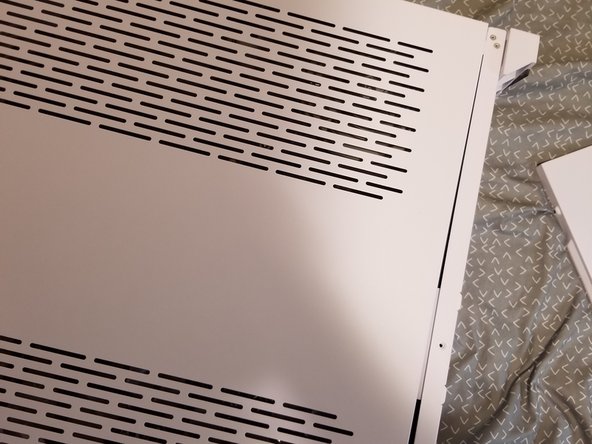
      • Remove two thumb screws from the back of the case.

      • Slide the top panel backwards.

      Ask FixBot

      Add Comment

    3. Lian Li PC-011 Hard Drive Replacement: step 3, image 1 of 3 Lian Li PC-011 Hard Drive Replacement: step 3, image 2 of 3 Lian Li PC-011 Hard Drive Replacement: step 3, image 3 of 3
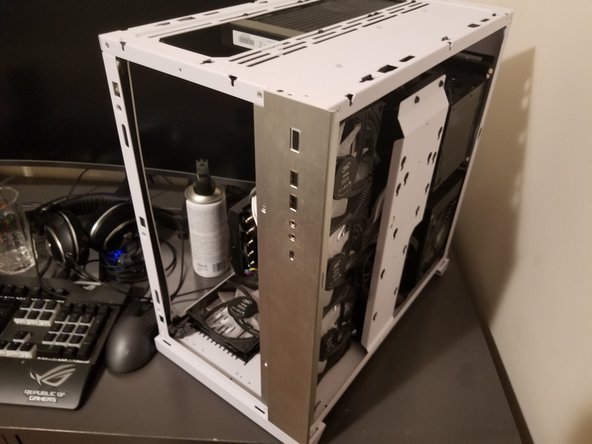
      • Remove the remainder of the panels by pulling upwards on them.

      Ask FixBot

      Add Comment

    4. Lian Li PC-011 Hard Drive Replacement: step 4, image 1 of 1
      • Remove the two 3 mm Phillips #2 screws from the wire cover.

      Ask FixBot

      Add Comment

    5. Lian Li PC-011 Hard Drive Replacement: step 5, image 1 of 1
      • Unplug the two cables from the hard drive.

      Ask FixBot

      Add Comment

    6. Lian Li PC-011 Hard Drive Replacement: step 6, image 1 of 2 Lian Li PC-011 Hard Drive Replacement: step 6, image 2 of 2
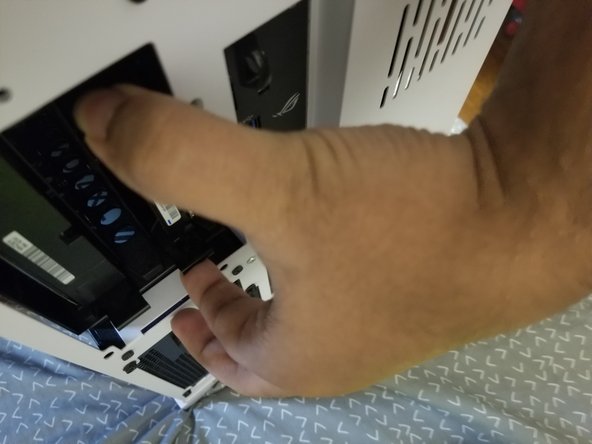
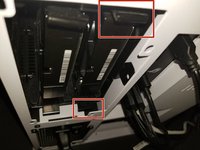
      • Push together the bottom and top tabs and pull the hard drive tray out of the case.

      Ask FixBot

      Add Comment

    7. Lian Li PC-011 Hard Drive Replacement: step 7, image 1 of 1
      • Remove four #2 Phillips screws from the hard drive case in a cross pattern.

      Ask FixBot

      Add Comment

    8. Lian Li PC-011 Hard Drive Replacement: step 8, image 1 of 1
      • Replace the old hard drive with the new hard drive.

      Ask FixBot

      Add Comment

Conclusion

To reassemble your device, follow these instructions in reverse order.

Cancel: I did not complete this guide.

7 other people completed this guide.

Suhaib Rahman

Member since: 09/19/20

470 Reputation

2 Guides authored

1 Guide Comment

Il ni à pas de languette chez moi et sa veut pas sortir

Antho - Reply Share

Add Comment

View Statistics:

Past 24 Hours: 4

Past 7 Days: 40

Past 30 Days: 136

All Time: 9,363