Free Shipping on Domestic Orders $75+

Lenovo Yoga 3 11 Screen Replacement

What you need

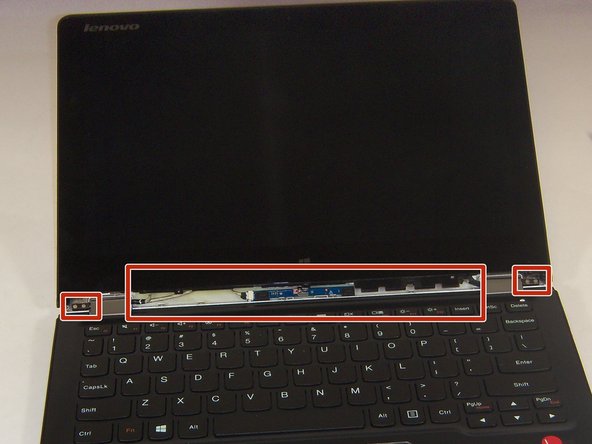
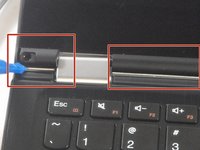
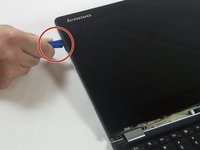
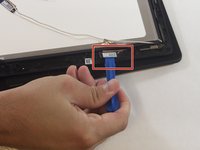
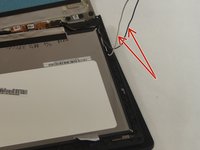
    1. Lenovo Yoga 3 11 Screen Replacement, Screen: step 1, image 1 of 2 Lenovo Yoga 3 11 Screen Replacement, Screen: step 1, image 2 of 2
      • Use a plastic opening tool or the pointed end of a spudger to pry up the 2 rubber inserts in the bottom left and right corners of the screen.

      Ask FixBot

      Add Comment

    2. Lenovo Yoga 3 11 Screen Replacement: step 2, image 1 of 1
      • Remove the single silver 5 mm screw found beneath each rubber insert.

      Ask FixBot

      Add Comment

    3. Lenovo Yoga 3 11 Screen Replacement: step 3, image 1 of 2 Lenovo Yoga 3 11 Screen Replacement: step 3, image 2 of 2
      • Use the plastic opening tool to pry off the three plastic trim pieces.

      Ask FixBot

      Add Comment

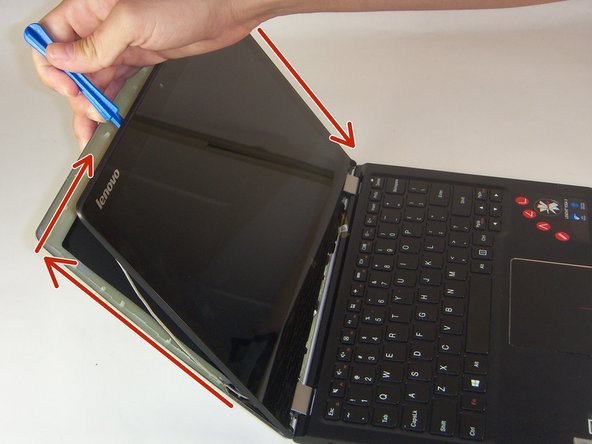
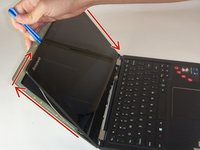
    4. Lenovo Yoga 3 11 Screen Replacement: step 4, image 1 of 2 Lenovo Yoga 3 11 Screen Replacement: step 4, image 2 of 2
      • Work the plastic opening tool in between bezel and the upper case.

      • Once the plastic opening tool is wedged in between the two, work the plastic opening tool around the perimeter of the screen, separating the bezel from the display.

      Ask FixBot

      Add Comment

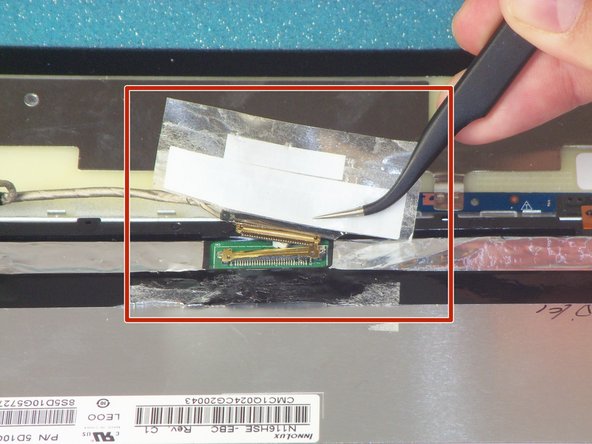
    5. Lenovo Yoga 3 11 Screen Replacement: step 5, image 1 of 1
      Tool used on this step:
      Tweezers
      $4.99
      Buy
      • Use the tweezers to unplug the screen connector in the middle.

      Ask FixBot

      Add Comment

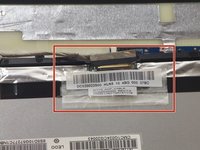
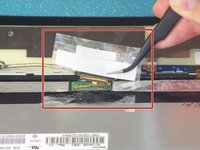
    6. Lenovo Yoga 3 11 Screen Replacement: step 6, image 1 of 2 Lenovo Yoga 3 11 Screen Replacement: step 6, image 2 of 2
      • Use the tweezers to pull the tape upwards. The tape will pull the wires up with it, separating the connection.

      Ask FixBot

      Add Comment

    7. Lenovo Yoga 3 11 Screen Replacement: step 7, image 1 of 1
      • Use the tweezers to follow the wires and move them out from under the plastic hooks.

      Ask FixBot

      Add Comment

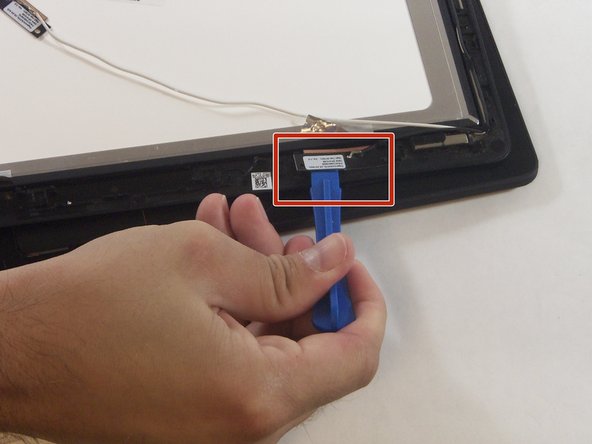
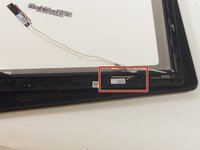
    8. Lenovo Yoga 3 11 Screen Replacement: step 8, image 1 of 1
      • Use the tweezers to unplug the connector near the top of the screen.

      Ask FixBot

      Add Comment

    9. Lenovo Yoga 3 11 Screen Replacement: step 9, image 1 of 1
      • Use the tweezers to pull the tape upwards in order to free the wires underneath it.

      Ask FixBot

      Add Comment

    10. Lenovo Yoga 3 11 Screen Replacement: step 10, image 1 of 1
      • Use the tweezers to pull up the camera by simply pulling upwards on the tape that is over it.

      Ask FixBot

      Add Comment

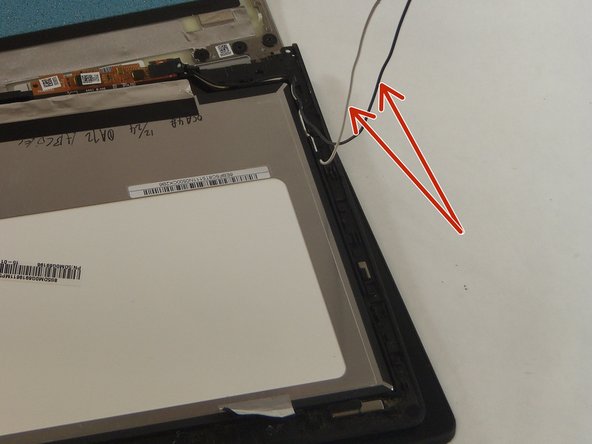
    11. Lenovo Yoga 3 11 Screen Replacement: step 11, image 1 of 1
      • Use the tweezers to follow the wires and to pull them out from under the plastic black hooks. Also pull up any tape that is over the wires.

      Ask FixBot

      Add Comment

    12. Lenovo Yoga 3 11 Screen Replacement: step 12, image 1 of 3 Lenovo Yoga 3 11 Screen Replacement: step 12, image 2 of 3 Lenovo Yoga 3 11 Screen Replacement: step 12, image 3 of 3
      • Use the plastic opening tool to work the black component up and out of its original spot, then pull out the following connected wires.

      Ask FixBot

      Add Comment

    13. Lenovo Yoga 3 11 Screen Replacement: step 13, image 1 of 1
      • Use the tweezers to unplug the black connection near the hinge of the laptop, taking the yellow tape off with it.

      Ask FixBot

      Add Comment

    14. Lenovo Yoga 3 11 Screen Replacement: step 14, image 1 of 1
      • Gently lift and remove the screen for replacing.

      Ask FixBot

      Add Comment

Conclusion

To reassemble your device, follow these instructions in reverse order.

Cancel: I did not complete this guide.

One other person completed this guide.

Miles Davis

Member since: 08/27/15

134 Reputation

2 Guides authored

Team

USF Tampa, Team 2-3, Blackwell Fall 2015 Member of USF Tampa, Team 2-3, Blackwell Fall 2015

USFT-BLACKWELL-F15S2G3

4 Members

71 Guides authored

0 Guide Comments

Add Comment

View Statistics:

Past 24 Hours: 0

Past 7 Days: 2

Past 30 Days: 24

All Time: 1,360