Free Shipping on Domestic Orders $75+

Lenovo Y50-70 Touch Trackpad Replacement

What you need

    1. Lenovo Y50-70 Touch Trackpad Replacement, Trackpad: step 1, image 1 of 3 Lenovo Y50-70 Touch Trackpad Replacement, Trackpad: step 1, image 2 of 3 Lenovo Y50-70 Touch Trackpad Replacement, Trackpad: step 1, image 3 of 3
      • Use a Phillips #1 screwdriver to unscrew and remove the ten 6 mm screws on the back of the laptop.

      • Grab and pull off the back.

      Ask FixBot

      Add Comment

    2. Lenovo Y50-70 Touch Trackpad Replacement: step 2, image 1 of 3 Lenovo Y50-70 Touch Trackpad Replacement: step 2, image 2 of 3 Lenovo Y50-70 Touch Trackpad Replacement: step 2, image 3 of 3
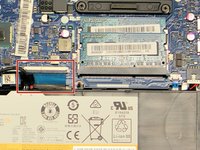
      • Use a Phillips #1 screwdriver to unscrew and remove the four 6 mm screws that secure the battery.

      • Grab the battery cable and gently pull it free from the cable connector.

      • Remove the battery from the laptop.

      Ask FixBot

      Add Comment

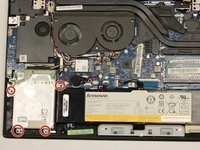
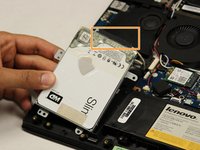
    3. Lenovo Y50-70 Touch Trackpad Replacement: step 3, image 1 of 3 Lenovo Y50-70 Touch Trackpad Replacement: step 3, image 2 of 3 Lenovo Y50-70 Touch Trackpad Replacement: step 3, image 3 of 3
      • Use a Phillips #1 screwdriver to unscrew and remove the four 6 mm screws that secure the hard drive.

      • Grab the marked cable attached to the hard drive, and gently pull to unplug.

      • Remove the hard drive from the laptop.

      Ask FixBot

      Add Comment

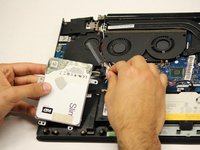
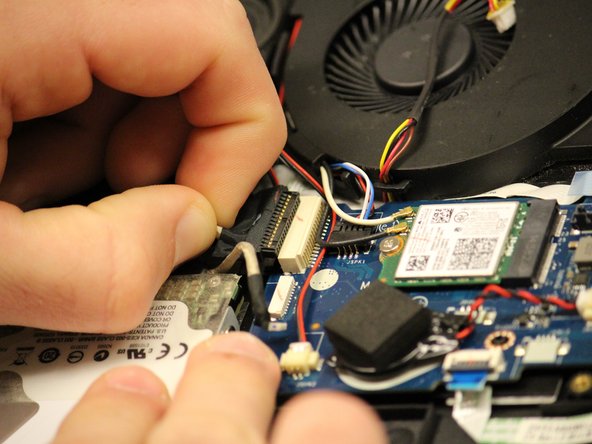
    4. Lenovo Y50-70 Touch Trackpad Replacement: step 4, image 1 of 3 Lenovo Y50-70 Touch Trackpad Replacement: step 4, image 2 of 3 Lenovo Y50-70 Touch Trackpad Replacement: step 4, image 3 of 3
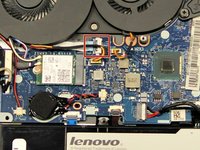
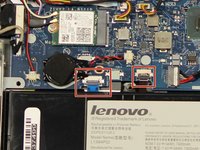
      • Grab marked cables and pull them out from their plug-in.

      Ask FixBot

      Add Comment

    5. Lenovo Y50-70 Touch Trackpad Replacement: step 5, image 1 of 3 Lenovo Y50-70 Touch Trackpad Replacement: step 5, image 2 of 3 Lenovo Y50-70 Touch Trackpad Replacement: step 5, image 3 of 3
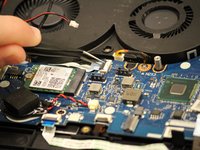
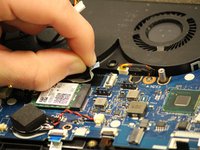
      • Grab the top set of marked cables and pull up to remove them.

      • Grab the lower marked cable and pull it out from the plug.

      Ask FixBot

      Add Comment

    6. Lenovo Y50-70 Touch Trackpad Replacement: step 6, image 1 of 3 Lenovo Y50-70 Touch Trackpad Replacement: step 6, image 2 of 3 Lenovo Y50-70 Touch Trackpad Replacement: step 6, image 3 of 3
      • Grab marked cables and pull up to unplug.

      Ask FixBot

      Add Comment

    7. Lenovo Y50-70 Touch Trackpad Replacement: step 7, image 1 of 2 Lenovo Y50-70 Touch Trackpad Replacement: step 7, image 2 of 2
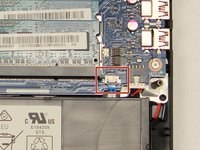
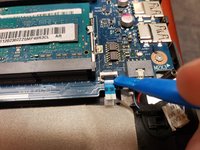
      • Grab the marked cable and pull out to unplug.

      Ask FixBot

      Add Comment

    8. Lenovo Y50-70 Touch Trackpad Replacement: step 8, image 1 of 3 Lenovo Y50-70 Touch Trackpad Replacement: step 8, image 2 of 3 Lenovo Y50-70 Touch Trackpad Replacement: step 8, image 3 of 3
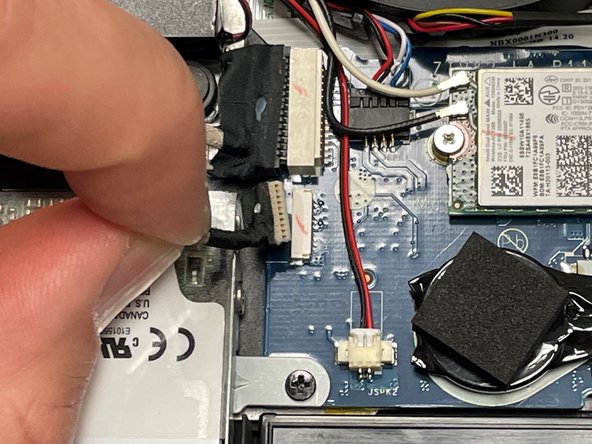
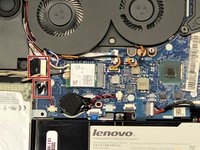
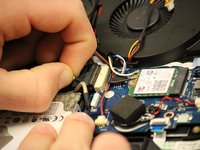
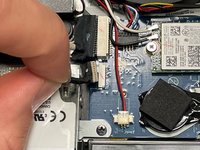
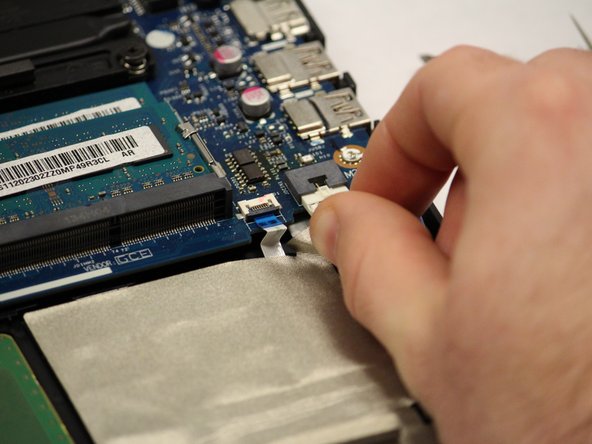
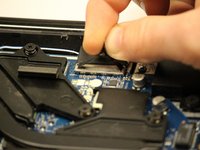
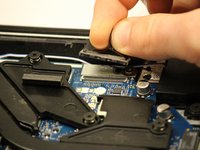
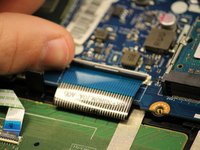
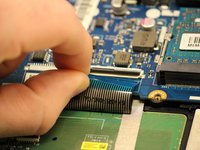
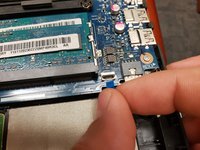
      • Grab the black tab on top of the cable and pull up to unplug.

      Ask FixBot

      Add Comment

    9. Lenovo Y50-70 Touch Trackpad Replacement: step 9, image 1 of 3 Lenovo Y50-70 Touch Trackpad Replacement: step 9, image 2 of 3 Lenovo Y50-70 Touch Trackpad Replacement: step 9, image 3 of 3
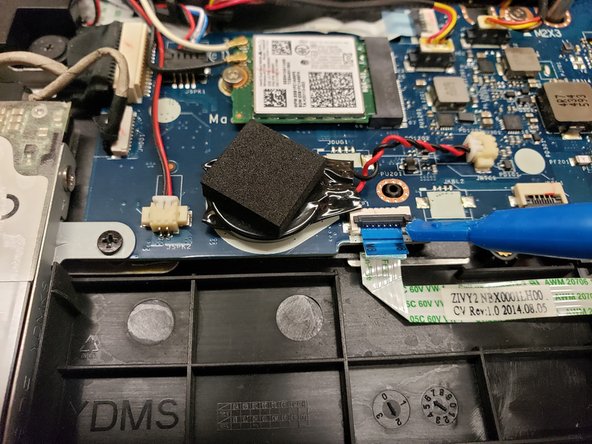
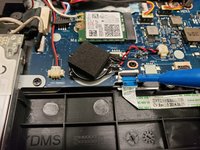
      • Lift the black tab on top of the marked cable.

      • Grab the colored tab on the cable and pull to remove the cable.

      Ask FixBot

      Add Comment

    10. Lenovo Y50-70 Touch Trackpad Replacement: step 10, image 1 of 3 Lenovo Y50-70 Touch Trackpad Replacement: step 10, image 2 of 3 Lenovo Y50-70 Touch Trackpad Replacement: step 10, image 3 of 3
      • Lift the black tab on top of the marked cable.

      • Grab the colored tab on the cable and pull to remove the cable.

      Ask FixBot

      Add Comment

    11. Lenovo Y50-70 Touch Trackpad Replacement: step 11, image 1 of 3 Lenovo Y50-70 Touch Trackpad Replacement: step 11, image 2 of 3 Lenovo Y50-70 Touch Trackpad Replacement: step 11, image 3 of 3
      • Lift the black tab on top of the marked cable.

      • Grab the colored tab on the cable and pull to remove the cable.

      Ask FixBot

      Add Comment

    12. Lenovo Y50-70 Touch Trackpad Replacement: step 12, image 1 of 3 Lenovo Y50-70 Touch Trackpad Replacement: step 12, image 2 of 3 Lenovo Y50-70 Touch Trackpad Replacement: step 12, image 3 of 3
      • Lift the black tab on top of the marked cables.

      • Grab the colored tab on the cables and pull to remove the cables.

      Ask FixBot

      Add Comment

    13. Lenovo Y50-70 Touch Trackpad Replacement: step 13, image 1 of 3 Lenovo Y50-70 Touch Trackpad Replacement: step 13, image 2 of 3 Lenovo Y50-70 Touch Trackpad Replacement: step 13, image 3 of 3
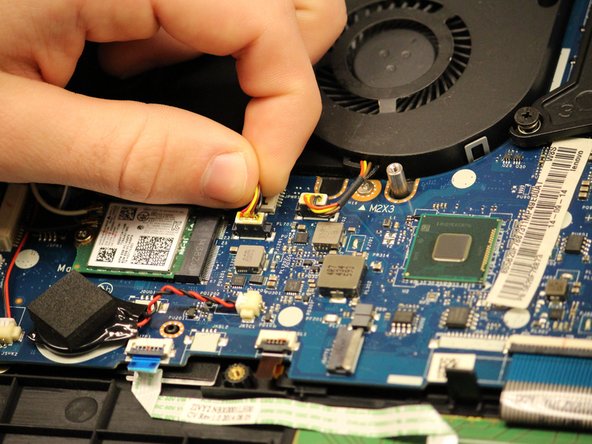
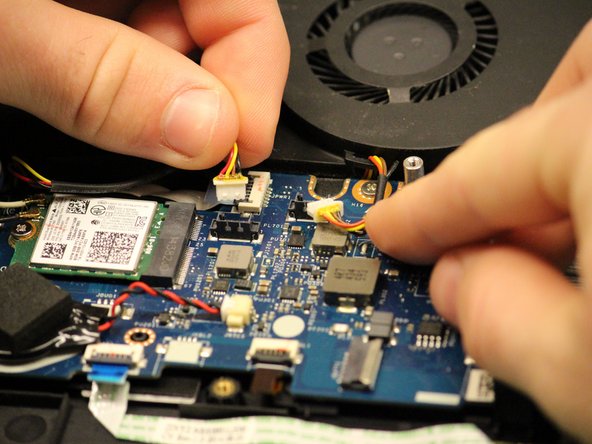
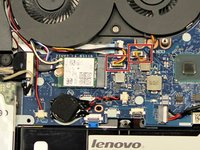
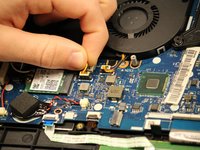
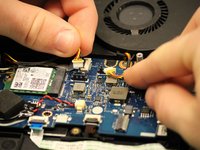
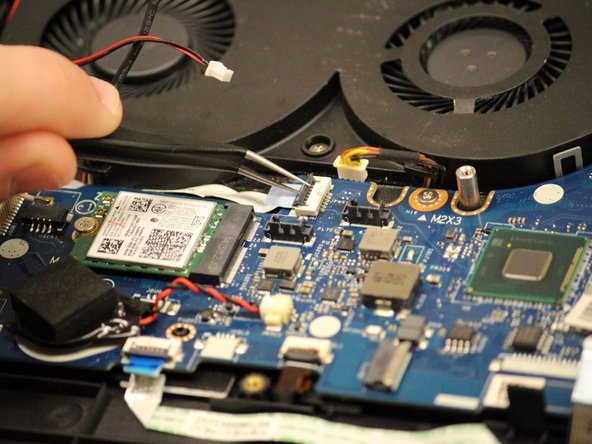
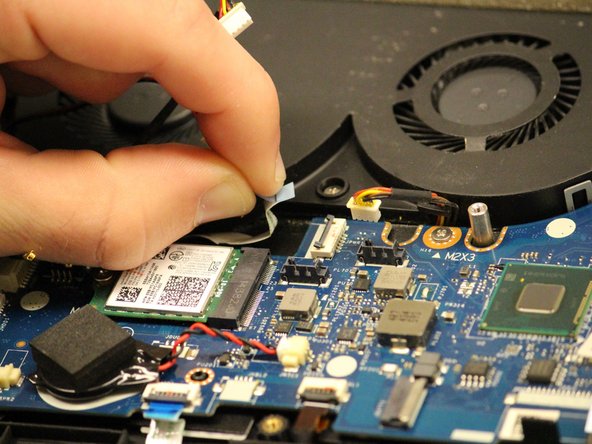
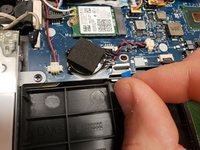
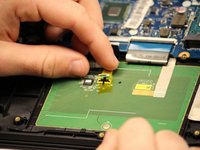
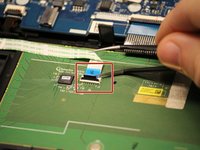
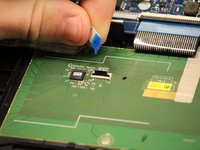
      • Carefully remove the yellow tape on top of the cable.

      • Lift the black tab on top of the marked cable.

      • Grab the colored tab on the cable and pull to remove the cable.

      Ask FixBot

      Add Comment

    14. Lenovo Y50-70 Touch Trackpad Replacement: step 14, image 1 of 2 Lenovo Y50-70 Touch Trackpad Replacement: step 14, image 2 of 2
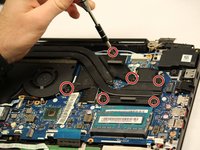
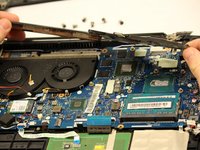
      • Use a Phillips #1 screwdriver to unscrew and remove the six 7 mm screws from the heat sink.

      • Grab and lift the heatsink off the motherboard.

      Ask FixBot

      Add Comment

    15. Lenovo Y50-70 Touch Trackpad Replacement: step 15, image 1 of 2 Lenovo Y50-70 Touch Trackpad Replacement: step 15, image 2 of 2
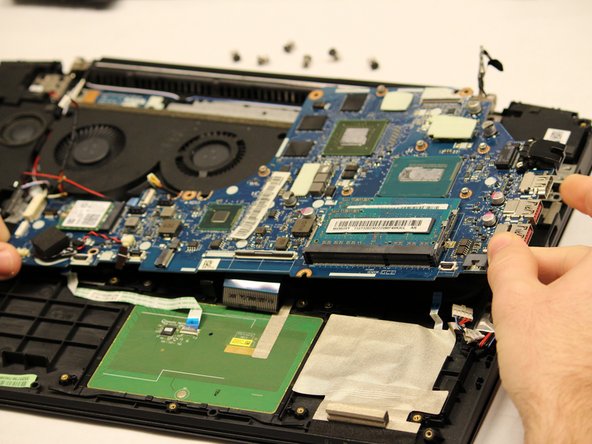
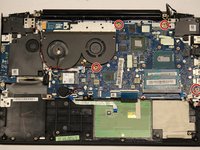
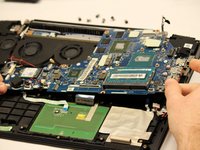
      • Use a Phillips #1 screwdriver to unscrew and remove the four 6 mm screws marked with red circles on the motherboard.

      • Grab and lift the motherboard up and out from the laptop.

      Ask FixBot

      Add Comment

    16. Lenovo Y50-70 Touch Trackpad Replacement: step 16, image 1 of 3 Lenovo Y50-70 Touch Trackpad Replacement: step 16, image 2 of 3 Lenovo Y50-70 Touch Trackpad Replacement: step 16, image 3 of 3
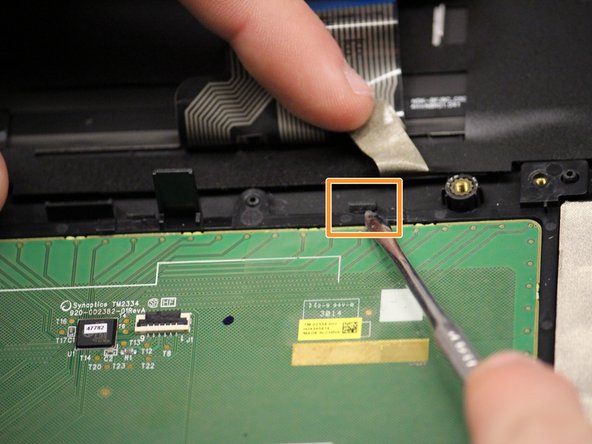
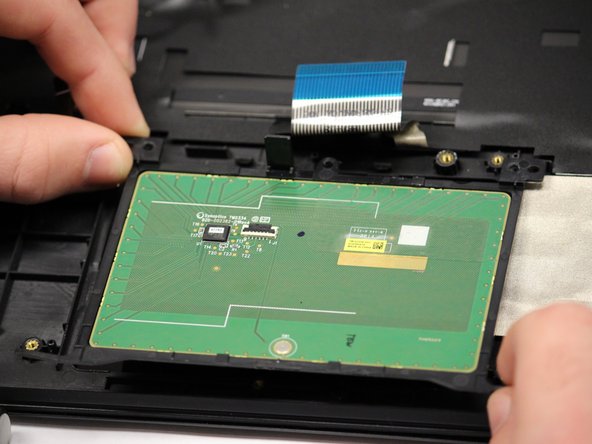
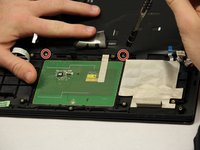
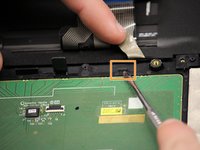
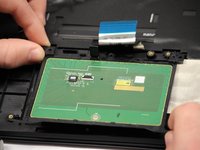
      • Use a Phillips #1 screwdriver to unscrew and remove the two 6 mm screws at the top of the trackpad.

      • Push on the marked clips at the top of the trackpad.

      • Then, when undone from clips, lift the trackpad out from the laptop.

      Ask FixBot

      Add Comment

Conclusion

To reassemble your device, follow these instructions in reverse order.

Cancel: I did not complete this guide.

Ryan McCann

Member since: 04/12/22

305 Reputation

1 Guide authored

Team

IUPUI, Team 6-6, Beck Spring 2022 Member of IUPUI, Team 6-6, Beck Spring 2022

IUPUI-BECK-S22S6G6

4 Members

29 Guides authored

0 Guide Comments

Add Comment

View Statistics:

Past 24 Hours: 2

Past 7 Days: 5

Past 30 Days: 40

All Time: 1,126