
Lenovo V14-ADA Fan Replacement

Ryder White and 4 other contributors
Last updated on May 30, 2025
Views: 474
View statistics:
- Past 24 Hours:
- 1
- Past 7 Days:
- 13
- Past 30 Days:
- 75
- All Time:
- 474
Comments: 0
No one has left comments on this guide. Will you be first?
Go to guide commentsCompleted: 1 2
1 person has marked this guide "completed." Will you be next?
2 people have marked this guide "completed." Including you — great job!
Favorites: 0 1
No one has favorited (and subscribed to) this guide. Will you be the first?
1 person has favorited (and subscribed to) this guide — and that's you!
Introduction
Go to step 1 ↓This guide will teach you how to replace the fan in the Lenovo V14-ADA.
Failure of the fan in the system will cause the CPU to overheat quickly. This will cause the computer to shut down or display a blue screen.
STOP CODE: CRITICAL_PROCESS_DED
This a good indicator that your CPU has overheated, which is often due to the fan failing. A failing fan could be due to a faulty part or to a fan that needs cleaning.
What you need


-
-
-
Turn off the laptop.
-
Disconnect the charging cable from the laptop.
-
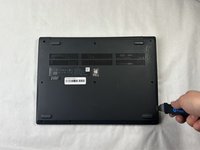
Flip the laptop upside down.
 Ask FixBot
-
-
-
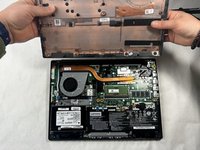
Place the Jimmy in the small crack between the back panel and the keyboard and push down.
-
Repeat this until the panel pops off.
-
-
-
-
-
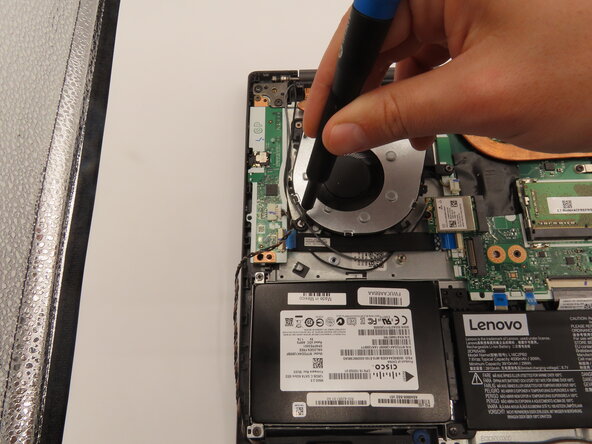
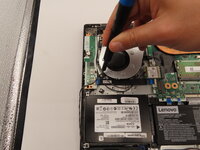
Use a JIS #0 screwdriver to remove the three 6 mm screws holding the fan in place.
-
-
-
-
Disconnect the white plug by pulling outwards.
-
Remove the fan from the laptop.
-
-



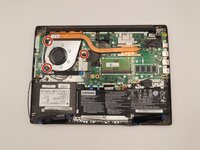

To reassemble your device, follow these instructions in reverse order.
Cancel: I did not complete this guide.
One other person completed this guide.

Team

University of Kentucky, Team 1-1, Frey Spring 2025 Member of University of Kentucky, Team 1-1, Frey Spring 2025
UKY-FREY-S25S1G1
4 Members
48 Guides authored
