
Lenovo Thinkpad X220 Keyboard Replacement

alphaLONE and 4 other contributors
Last updated on Feb 7, 2023
Views: 7.9K
View statistics:
- Past 24 Hours:
- 4
- Past 7 Days:
- 38
- Past 30 Days:
- 156
- All Time:
- 7,921
Comments: 2
2 comments on steps.
Completed: 11 12
11 people have marked this guide "completed." Will you be next?
12 people have marked this guide "completed." Including you — great job!
Favorites: 0 1
No one has favorited (and subscribed to) this guide. Will you be the first?
1 person has favorited (and subscribed to) this guide — and that's you!
Community-Contributed Guide
An awesome member of our community made this guide. It was not created by iFixit staff.
Introduction
Go to step 1 ↓I will replace the keyboard on this Thinkpad X220 in a few steps.
What you need


-
-
-
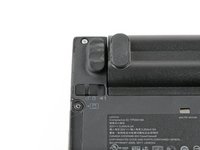
Locate the two switches that lock the battery.
-
Then push the left switch outward into the "unlocked" position.
 Ask FixBot
-
-
-
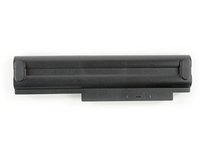
Now push and hold the right switch to the right while using the other hand to gently slide the battery upwards out of the laptop.
-
-
-
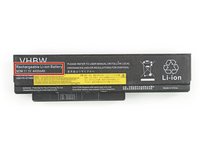
This is a rechargeable Li-Ion battery that has a capacity of 4400 mAh, if you have the 6 cell model.
-
-
-
-
-
-
Put the laptop upside down.
-
Unscrew the two keyboard retention screws.
-
-
-
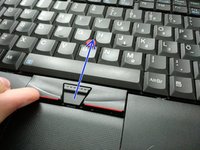
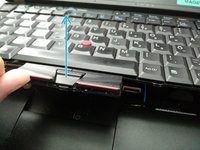
Put the laptop back on its feet, open the lid and push the keyboard from the TrackPoint click buttons.
-
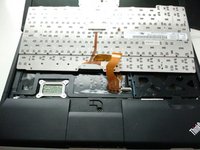
After that, pull it from the laptop assembly.
-
-
-
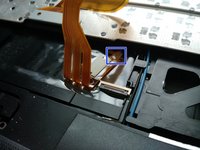
You should now have access to the keyboard's connector.
-
Pull it gently from the grabbing tip.
-
-
-
The keyboard is now totally unplugged from the laptop.
-
Here you go! Plug a new keyboard on the connector and follow the steps in the reverse order to finish your repair.
-
-









Cancel: I did not complete this guide.
11 other people completed this guide.

