
Lenovo Thinkpad X201 Trackpad Replacement

Peter Gachuki and 7 other contributors
Last updated on Jun 14, 2023
Views: 1.9K
View statistics:
- Past 24 Hours:
- 4
- Past 7 Days:
- 20
- Past 30 Days:
- 87
- All Time:
- 1,897
Comments: 1
1 guide comment.
Go to guide commentsCompleted: 0 1
No one has marked this guide "completed." Will you be the first?
1 person has marked this guide "completed." It's you — great job!
Favorites: 0 1
No one has favorited (and subscribed to) this guide. Will you be the first?
1 person has favorited (and subscribed to) this guide — and that's you!
Needs Better Images
Better photos will improve this guide. Help out by taking, editing, or uploading new ones!
Introduction
Go to step 1 ↓If the Trackpad on your Lenovo Thinkpad X201 laptop is unresponsive, broken, or faulty, follow this guide to replace it.
A trackpad, or touchpad, is a pointing device similar to a computer mouse, featuring a tactile sensor. A tactile sensor is a specialized surface that can translate the motion and position of a user's fingers to a relative position on the operating system that is then displayed on the screen.
Happy Fixing!
Warning:
Before beginning the trackpad repair, make sure to power off your laptop and disconnect it from outside power sources, such as a wall socket.
What you need
Tools
-
Spudger4.9


-
-
-
Flip the laptop so that the rear side is visible.
-
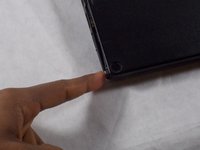
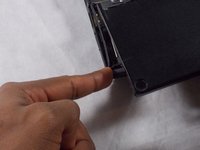
Slide the switch located near the top of the laptop.
 Ask FixBot
-
-
-
-
Remove all screws found on the rear side of the laptop using a Phillips #00 screwdriver.
-
-
-
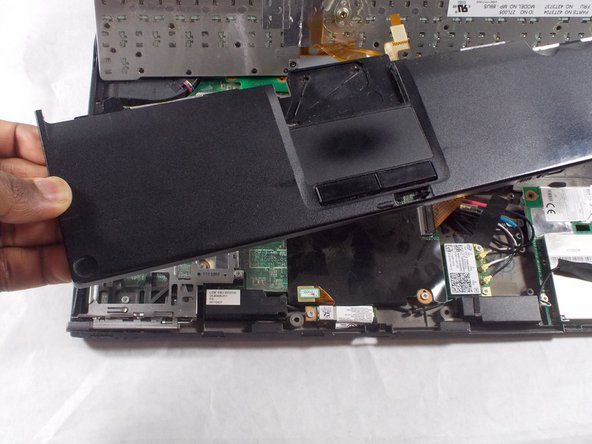
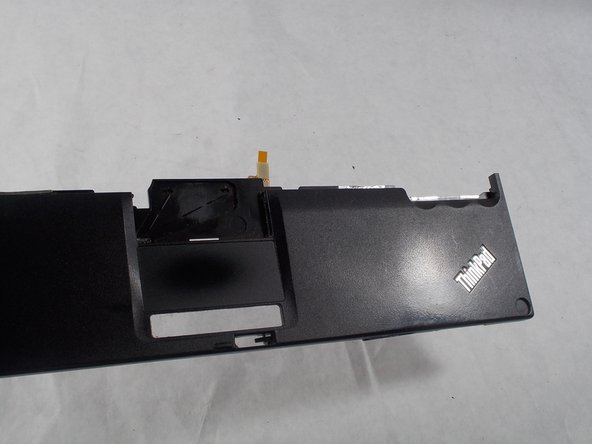
If step 4 does not work, gently push the bar down while using your other hand to pull the trackpad up.
-
-




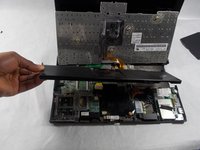
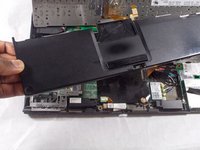
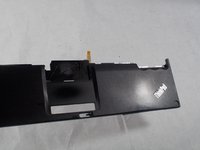
To reassemble your device, follow these instructions in reverse order.

Team

UMass Dartmouth, Team S5-G7, Peak Spring 2018 Member of UMass Dartmouth, Team S5-G7, Peak Spring 2018
UMASSD-PEAK-S18S5G7
3 Members
72 Guides authored
