Introduction
If you are having issues with the hard drive, RAM, etc, you will need to remove the bottom in order to replace these. Follow this guide for step by step instructions on how to do so.
What you need
-
-
-
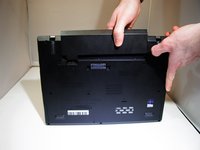
Slide lock button 1 to the unlock position and gently slide away from your body.
-
-
-
-
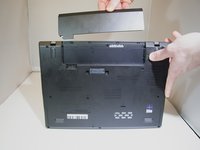
Slide lock button 2 to the unlock position and continue gently sliding until the battery is removed.
-
-
-
-
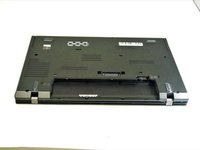
Flip the device over and lay it down with the underside facing upwards.
-
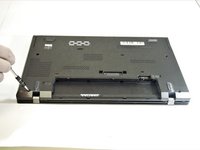
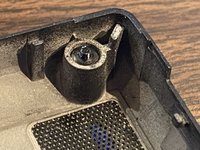
Unscrew all 8 screws. While they should not come out completely, in some cases, the plastic retaining washers may come off of one or more of the screws, allowing them to come out completely. - should this happen, look for a loose, tiny black plastic washer once the case is open. It's possible, in some cases, to reattach the retaining washer.
-
-
-
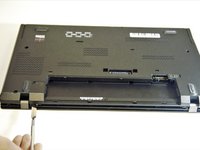
Pry the bottom from the computer until it pops out.
-
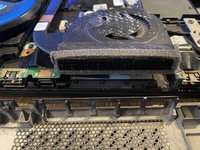
In some cases, the vented side of the case may cling to the heat sink; appears to be adhesive. Take care when separating.
-
-


 Ask FixBot






To reassemble your device, follow these instructions in reverse order.
Cancel: I did not complete this guide.
2 other people completed this guide.

Team

Eastern Washington University, Team S2-G3, Munoz Winter 2019 Member of Eastern Washington University, Team S2-G3, Munoz Winter 2019
EWU-MUNOZ-W19S2G3
5 Members
72 Guides authored
