
Lenovo Thinkpad T450 SSD Replacement

Justin Ogihara and one other contributor
Last updated on Nov 15, 2022
Views: 9K
View statistics:
- Past 24 Hours:
- 4
- Past 7 Days:
- 46
- Past 30 Days:
- 169
- All Time:
- 8,959
Comments: 0
No one has left comments on this guide. Will you be first?
Go to guide commentsCompleted: 2 3
2 people have marked this guide "completed." Will you be next?
3 people have marked this guide "completed." Including you — great job!
Favorites: 0 1
No one has favorited (and subscribed to) this guide. Will you be the first?
1 person has favorited (and subscribed to) this guide — and that's you!
Introduction
Go to step 1 ↓The solid-state drive (or SSD) is a storage device used to store data. SSDs are much faster than the traditional hard-disc drives (HDD) due to their physical nature. Unlike the standard HDD, an SSD does not have a physical spinning disc in the component. Current estimates show that SSDs may reach a lifespan of 10 years, but the average lifespan of a SSD is shorter.
If your Lenovo ThinkPad T450 laptop is not properly loading files or is slow to load, it may be time to replace the SSD. Follow these instructions to replace the SSD in your device.
What you need
Fix Kit
This kit contains all the parts and tools needed to complete this guide.

Parts


Tools


-
-
-
Using your hands, slide the two locking tabs away from each other to release the battery.
-
Slide the battery up and out of the device.
 Ask FixBot
-
-
-
-
-
Using the JIS #00 screwdriver, unscrew seven screws from the back cover.
-
Use the JIS #00 screwdriver to remove the single 2.8 mm screw from the back cover.
-
-
-
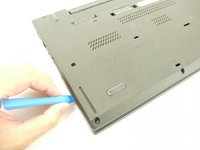
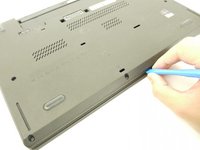
Insert a plastic opening tool into the edges of the laptop and work your way around the edges to pry off the back cover from the device.
-
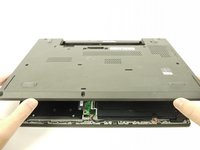
Remove the back cover from the device.
-
-
-
-
-
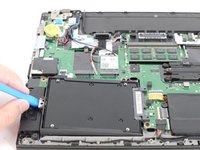
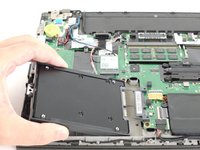
Using the JIS #00 screwdriver, remove the single 2.8 mm screw securing the SSD to the device.
-
-
-




To reassemble your device, follow these instructions in reverse order.
Take your e-waste to an R2 or e-Stewards certified recycler.
Cancel: I did not complete this guide.
2 other people completed this guide.

