Introduction
The CMOS (Complementary Metal Oxide Semiconductor) battery powers the BIOS firmware in a computer. The CMOS battery is a chip that is typically found in laptops rather than desktops. When you unplug your laptop from its power source, the BIOS relies on the CMOS battery for power. Most CMOS batteries in laptops will last 2 to 10 years from the date they were manufactured.
Common CMOS battery failure symptoms include the following:
- Constant beeping noise coming from the motherboard
- Date and time of the computer have been reset
- Hardware drivers are missing or have disappeared
- Can’t connect to the Internet
- Laptop won’t boot up
If your device is experiencing any of the above symptoms, it may be time to replace the CMOS battery. Follow the instructions below to remove and replace the CMOS battery in the Lenovo ThinkPad T450 laptop.
What you need
-
-
-
Using your hands, slide the two locking tabs away from each other to release the battery.
-
Slide the battery up and out of the device.
 Ask FixBot
-
-
-
-
-
Using the JIS #00 screwdriver, unscrew seven screws from the back cover.
-
Use the JIS #00 screwdriver to remove the single 2.8 mm screw from the back cover.
-
-
-
-
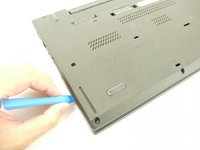
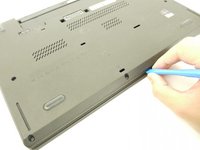
Insert a plastic opening tool into the edges of the laptop and work your way around the edges to pry off the back cover from the device.
-
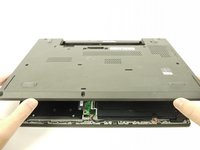
Remove the back cover from the device.
-
-
-
-
-
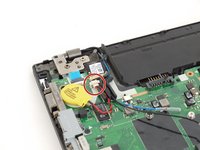
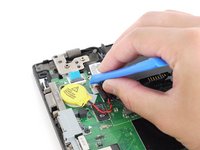
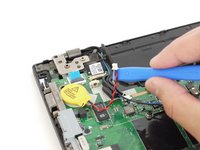
Using the plastic opening tool, disconnect the CMOS battery from the motherboard.
-
-
-
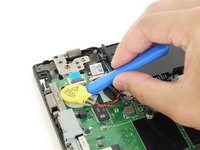
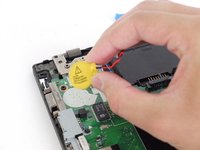
Insert the plastic opening tool underneath the CMOS battery and pry it up and away from the motherboard.
-
-






To reassemble your device, follow these instructions in reverse order.
Take your e-waste to an R2 or e-Stewards certified recycler.
Cancel: I did not complete this guide.
3 other people completed this guide.

