Introduction
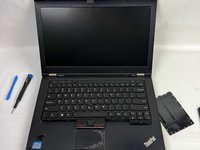
The keyboard is a key component to any computer. It is the place where you mix the electronics and the inputs from typing. It is the place where you tell the computer what to do. This guide will show you how to remove the Lenovo Thinkpad T430 keyboard to be able to replace it.
What you need
-
-
Place the laptop so that the bottom is facing up.
-
Slide the battery unlock lever to the right.
-
Gently pull the battery outwards from the body of the device.
 Ask FixBot
-
-
-
Remove the two screws that hold the RAM door in place using a Phillips #000 screwdriver.
-
Remove the back panel.
-
-
-
-
Flip the laptop over and open the lid.
-
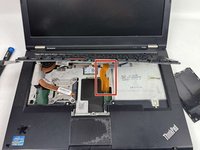
Push the keyboard forward from the space bar while applying pressure to lift up the keyboard.
-
Carefully unplug and disconnect the ribbon cable.
-


To reassemble your device, follow these instructions in reverse order.
Cancel: I did not complete this guide.
One other person completed this guide.

Team

UMass Dartmouth, Team 1-5, Konn Fall 2024 Member of UMass Dartmouth, Team 1-5, Konn Fall 2024
UMASSD-KONN-F24S1G5
4 Members
4 Guides authored
