
Lenovo Thinkpad T410i Keyboard Replacement

Gabriel Cordova and 4 other contributors
Last updated on Jan 4, 2018
Views: 1.6K
View statistics:
- Past 24 Hours:
- 3
- Past 7 Days:
- 19
- Past 30 Days:
- 100
- All Time:
- 1,569
Comments: 1
1 comment on steps.
Completed: 6 7
6 people have marked this guide "completed." Will you be next?
7 people have marked this guide "completed." Including you — great job!
Favorites: 0 1
No one has favorited (and subscribed to) this guide. Will you be the first?
1 person has favorited (and subscribed to) this guide — and that's you!
Introduction
Go to step 1 ↓In this guide we show you how to successfully remove the old keyboard assembly for the Lenovo Thinkpad T410i when keys have become sticky, unresponsive, or have gone missing.
Guide Notes
- This is a hardware installation only, no firmware is required.
- The Lenovo Thinkpad T410i keyboard is flexible yet fragile, when uninstalling be sure to remove all restraints before detaching the keyboard as it may snap.
What you need


-
-
-
Loosen (do not remove) the 14.0mm screw in the DIMM slot cover with a Phillips #2 screwdriver.
-
-
-
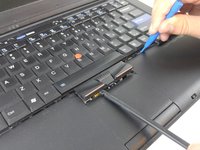
Nudge the plastic tabs around the keyboard using the plastic opening tool while lifting it with a spudger.
-
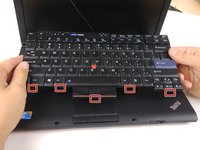
Ensure all 5 clips are loosened from the front of the keyboard before removing.
-
-
-
-
Slowly raise keyboard away from the laptop. A short ribbon must be removed before keyboard is free.
-
Remove the keyboard from the device.
-

 Ask FixBot



To reassemble your device, follow these instructions in reverse order.
Cancel: I did not complete this guide.
6 other people completed this guide.

Team

USF Tampa, Team S1-G2, Thompson Fall 2017 Member of USF Tampa, Team S1-G2, Thompson Fall 2017
USFT-THOMPSON-F17S1G2
4 Members
72 Guides authored
