Introduction
If your Lenovo ThinkPad Edge E545 Laptop screen is not producing the correct visual display - cracks, discoloration, or a black screen - use this guide to replace the screen.
A working screen is very important to the function of a computer, it will allow the user to be able to see what they are doing and present necessary information. Without a working screen, the Lenovo ThinkPad Edge E545 will not be usable and will affect visual capabilities.
Before using this guide, inspect the perimeter of the screen for debris or cracks that may interfere with the removal of the screen. Additionally, inspect the battery on the bottom of the laptop for any debris that may interfere with its removal. Typically, a small buildup of dust can be removed with a small dust blower.
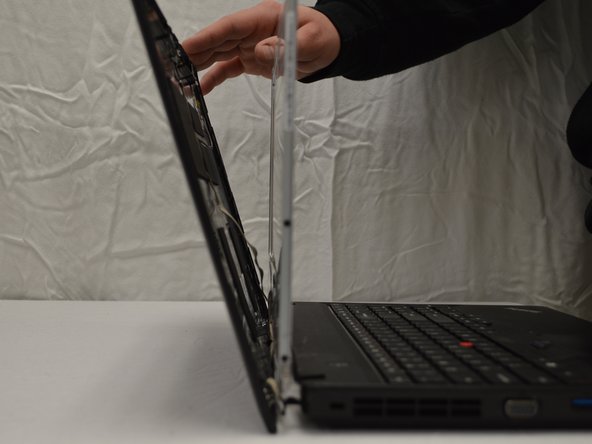
Step #5 asks you to use your finger to pry the display bezel to release the clips. Be careful in doing so that you do not hurt your fingers on the screen’s edges and do so gently to avoid any further damage to the screen.
Before beginning, make sure to power off your laptop completely and disconnect from any external power source.
What you need
-
-
-
Below the battery are two small tabs. These function as a lock for the battery.
-
Push the tabs towards each other to release the battery.
-
-
-
-
-
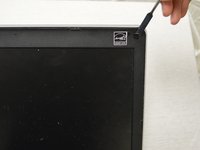
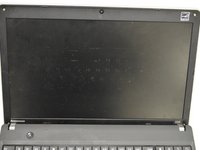
Then, use the end of a spudger to remove the two screw covers from the top and bottom corners of the display.
-
-
-
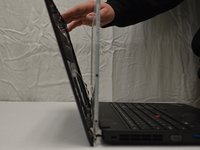
Slide your finger underneath the plastic and pry gently to release the clips around the display bezel.
-
-
-
Lastly, peel up the adhesive tape to unbind the metal retaining bracket on the display cable.
-
-

 Ask FixBot





To reassemble your device, follow these instructions in reverse order.

Team

Purdue University Northwest, Team S1-G1, Hingst Fall 2018 Member of Purdue University Northwest, Team S1-G1, Hingst Fall 2018
PNW-HINGST-F18S1G1
5 Members
72 Guides authored
