
Lenovo Thinkpad E540 Keyboard Replacement

Timothy Sumner and 4 other contributors
Last updated on Jun 21, 2018
Views: 12K
View statistics:
- Past 24 Hours:
- 1
- Past 7 Days:
- 31
- Past 30 Days:
- 142
- All Time:
- 12,267
Comments: 4
4 guide comments.
Go to guide commentsCompleted: 2 3
2 people have marked this guide "completed." Will you be next?
3 people have marked this guide "completed." Including you — great job!
Favorites: 0 1
No one has favorited (and subscribed to) this guide. Will you be the first?
1 person has favorited (and subscribed to) this guide — and that's you!
Introduction
Go to step 1 ↓A guide on how to replace the individual keys on a Lenovo ThinkPad E540 laptop.
What you need
Tools
-
Spudger4.9


-
-
-
-
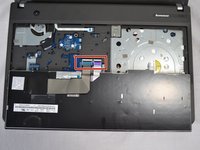
Push the keyboard forward towards the display to create a gap above the trackpad.
-
-
-
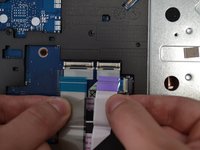
Use a spudger to lift the black latch on the ZIF connectors.
-
Remove the blue and purple ribbon cables from the ZIF connectors.
-
-


 Ask FixBot


To reassemble your device, follow these instructions in reverse order.
Cancel: I did not complete this guide.
2 other people completed this guide.

Team

USF Tampa, Team S2-G5, Nance Spring 2018 Member of USF Tampa, Team S2-G5, Nance Spring 2018
USFT-NANCE-S18S2G5
4 Members
96 Guides authored
4 Guide Comments
Thank you for posting this guide. I was able to comfortably replace my keyboard on a Lenovo E540 Thinkpad after I spilled a full glass of water on it. I was able to get a replacement keyboard via AliExpress for $25.84USD -- I initially considered buying a replacement from eBay but the keyboard prices were half of the laptop's current value, which is a bit silly.
Thank you Timothy Sumner, you’re a legend! :)
These instructions are miserably wrong for the model E540 20C6-008SUS. The keyboard is completely covered by a plastic grid that fills the large gaps between the keys. The keyboard hold-down screws are hidden by this grid. YOUR OWN PHOTO CLEARLY SHOWS THIS ! Furthermore, the keyboard can not be pushed “forward towards the display to create a gap above the trackpad “ simply because the 4 screws are holding it solidly in place. This plastic grid must be carefully pried up and out to expose the keyboard screws enough to be able to get a screwdriver in position over the screw heads.
With my edge 540 (submodel unknown) I was able to reach the screws by pushing the screw driver under the plastic grid. It did however slightly scuff up my F key
You forgot the latch underneath the main battery.
