Free Shipping on Domestic Orders $75+

Lenovo ThinkPad Yoga 370 Fingerprint Reader Replacement

What you need

    1. Lenovo ThinkPad Yoga 370 Fingerprint Reader Replacement, Battery: step 1, image 1 of 1
      • Device needs to be powered off and unplugged.

      • Remove the stylus from the device and set it aside.

      Ask FixBot

      Add Comment

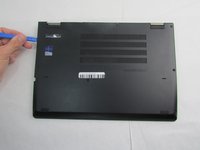
    2. Lenovo ThinkPad Yoga 370 Fingerprint Reader Replacement: step 2, image 1 of 2 Lenovo ThinkPad Yoga 370 Fingerprint Reader Replacement: step 2, image 2 of 2
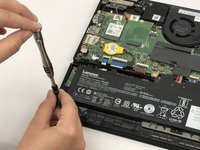
      • Using the Phillips #00 screwdriver unscrew the eight circled 4mm screws until you hear a click.

      • The screws will remain attached to the back cover.

      Ask FixBot
      Add Comment

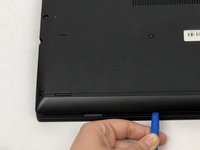
    3. Lenovo ThinkPad Yoga 370 Fingerprint Reader Replacement: step 3, image 1 of 2 Lenovo ThinkPad Yoga 370 Fingerprint Reader Replacement: step 3, image 2 of 2
      • Note that while the screws are undone, the bottom cover is still attached by several plastic clips around the edges.

      • Using the plastic opening tool, work around the edges of the bottom cover to undo the plastic clips.

      Ask FixBot
      Add Comment

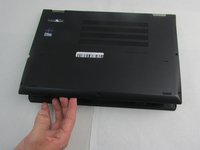
    4. Lenovo ThinkPad Yoga 370 Fingerprint Reader Replacement: step 4, image 1 of 2 Lenovo ThinkPad Yoga 370 Fingerprint Reader Replacement: step 4, image 2 of 2
      • Gently remove the cover by placing your fingers around the edges.

      Ask FixBot

      Add Comment

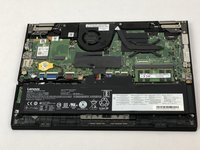
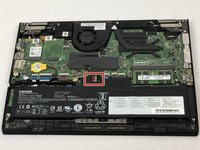
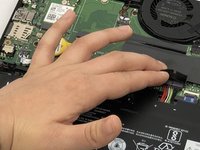
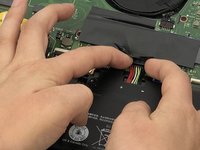
    5. Lenovo ThinkPad Yoga 370 Fingerprint Reader Replacement: step 5, image 1 of 3 Lenovo ThinkPad Yoga 370 Fingerprint Reader Replacement: step 5, image 2 of 3 Lenovo ThinkPad Yoga 370 Fingerprint Reader Replacement: step 5, image 3 of 3
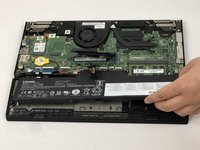
      • With your fingers, fold back the plastic cover highlighted.

      • Using two fingers, gently remove the battery connectors.

      Ask FixBot

      Add Comment

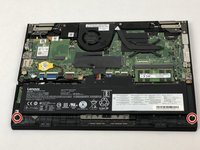
    6. Lenovo ThinkPad Yoga 370 Fingerprint Reader Replacement: step 6, image 1 of 3 Lenovo ThinkPad Yoga 370 Fingerprint Reader Replacement: step 6, image 2 of 3 Lenovo ThinkPad Yoga 370 Fingerprint Reader Replacement: step 6, image 3 of 3
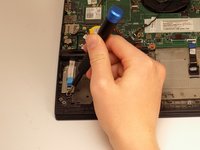
      • Using the Phillips #00 screwdriver, remove the two 4mm screws.

      • Remove the battery.

      • Make sure to only replace with a battery that matches your computer, any other battery could ignite or explode.

      Ask FixBot

      Add Comment

    1. Lenovo ThinkPad Yoga 370 Fingerprint Reader Replacement, Fingerprint Reader: step 7, image 1 of 1
      • Identify the fingerprint reader on the left side of the laptop.

      Ask FixBot

      Add Comment

    2. Lenovo ThinkPad Yoga 370 Fingerprint Reader Replacement: step 8, image 1 of 1
      Tool used on this step:
      Tweezers
      $4.99
      Buy
      • To disconnect the fingerprint reader from the motherboard, unlock the ZIF connector and pull it out using tweezers.

      Ask FixBot

      Add Comment

    3. Lenovo ThinkPad Yoga 370 Fingerprint Reader Replacement: step 9, image 1 of 2 Lenovo ThinkPad Yoga 370 Fingerprint Reader Replacement: step 9, image 2 of 2
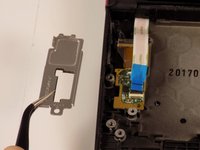
      • Remove the one 4 mm screw from the metal covering with the Phillips #00 screwdriver.

      • Remove the metal cover.

      Ask FixBot

      Add Comment

    4. Lenovo ThinkPad Yoga 370 Fingerprint Reader Replacement: step 10, image 1 of 1
      • Using tweezers, remove the fingerprint reader from the inset.

      Ask FixBot

      Add Comment

Conclusion

To reassemble your device, follow these instructions in reverse order.

Cancel: I did not complete this guide.

0 Guide Comments

Add Comment

View Statistics:

Past 24 Hours: 1

Past 7 Days: 6

Past 30 Days: 30

All Time: 877