Free Shipping on Domestic Orders $75+

Lenovo ThinkPad X395 Back Cover Replacement

What you need

  1. Lenovo ThinkPad X395 Back Cover Replacement, Loosen the back screws: step 1, image 1 of 2 Lenovo ThinkPad X395 Back Cover Replacement, Loosen the back screws: step 1, image 2 of 2
    • For your safety, discharge the battery below 25% and power down your device before disassembly.

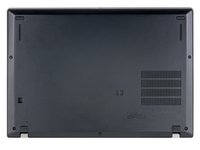
    • Use a Phillips #1 screwdriver to fully loosen the five screws on the back cover.

    • These are captive screws—they won't come out after being loosened.

    Ask FixBot

    Add Comment

  2. Lenovo ThinkPad X395 Back Cover Replacement, Release the clips: step 2, image 1 of 2 Lenovo ThinkPad X395 Back Cover Replacement, Release the clips: step 2, image 2 of 2
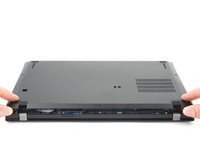
    • Orient your laptop so that the screen's silver hinges are closest to you.

    • Insert an opening pick between the back cover and the device body near a hinge corner.

    • Pry upward to release the retaining clips. Listen for a loud click when each clip releases.

    Ask FixBot

    Add Comment

  3. Lenovo ThinkPad X395 Back Cover Replacement: step 3, image 1 of 2 Lenovo ThinkPad X395 Back Cover Replacement: step 3, image 2 of 2
    • Insert the opening pick between the back cover and the device body at the other hinge corner.

    • Pry upward on the cover to release additional clips.

    Ask FixBot

    Add Comment

  4. Lenovo ThinkPad X395 Back Cover Replacement, Remove the back cover: step 4, image 1 of 3 Lenovo ThinkPad X395 Back Cover Replacement, Remove the back cover: step 4, image 2 of 3 Lenovo ThinkPad X395 Back Cover Replacement, Remove the back cover: step 4, image 3 of 3
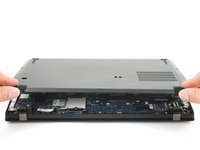
    • Lift and remove the cover up from the laptop, starting with the edge nearest to you.

    • Shift the cover side to side if the center clip feels stuck.

    • The cover will hinge open before completely separating from the rest of the laptop.

    Ask FixBot

    Add Comment

Conclusion

To reassemble your device, follow these instructions in reverse order.

Take your e-waste to an R2 or e-Stewards certified recycler.

Repair didn’t go as planned? Try some basic troubleshooting, or ask our Lenovo ThinkPad answers community for help.

Cancel: I did not complete this guide.

Clay Eickemeyer

Member since: 09/19/22

104,810 Reputation

472 Guides authored

0 Guide Comments

Add Comment

View Statistics:

Past 24 Hours: 3

Past 7 Days: 26

Past 30 Days: 127

All Time: 4,886