
Lenovo ThinkPad X390 Touchpad Replacement

Curtis Kubacka and 2 other contributors
Last updated on Dec 20, 2021
Views: 2.5K
View statistics:
- Past 24 Hours:
- 3
- Past 7 Days:
- 24
- Past 30 Days:
- 114
- All Time:
- 2,486
Comments: 0
No one has left comments on this guide. Will you be first?
Go to guide commentsCompleted: 1 2
1 person has marked this guide "completed." Will you be next?
2 people have marked this guide "completed." Including you — great job!
Favorites: 0 1
No one has favorited (and subscribed to) this guide. Will you be the first?
1 person has favorited (and subscribed to) this guide — and that's you!
Needs Better Images
Better photos will improve this guide. Help out by taking, editing, or uploading new ones!
Better Introduction
Improve this guide by completing or revising its introduction.
Introduction
Go to step 1 ↓If you need to access your laptops touchpad please refer to this guide. This guide does not require any difficult or complicated steps. Do exercise caution before beginning this guide by ensuring that the laptop is unplugged and turned off. To complete the replacement of your touchpad, you will need a plastic opening tool, a Phillips #0 screwdriver, a pair of tweezers, and a plastic scalpel.
What you need
Tools
-
-
Spudger4.9


-
-
-
Flip your laptop over and place on a flat surface so you can access the screws on the base cover.
-
Using a Phillips #0 screwdriver, unscrew the five screws on the base cover.
 Ask FixBot
-
-
-
Remove the base cover by inserting a plastic opening tool in between the cover and the rest of the laptop.
-
Once the tool is inserted, slide the tool along the edges of the case and push down on the opening tool to detach the case.
-
-
-
-
Tool used on this step:Tweezers$4.99
-
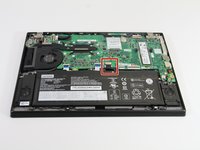
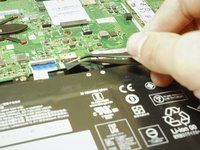
Using tweezers, unplug the battery from the laptops motherboard by pulling on the cable that attaches it.
-
-
-
-
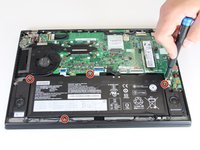
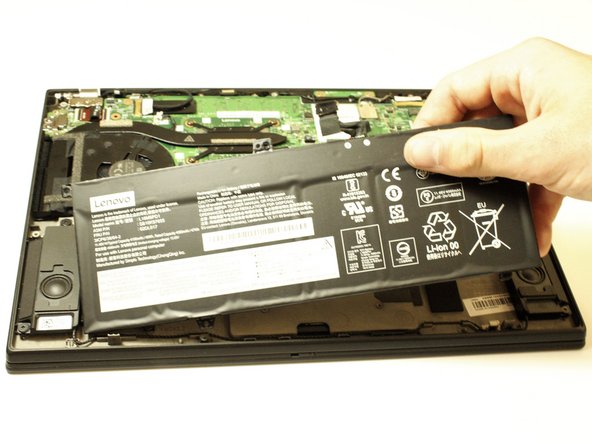
Using a Phillips #0 screwdriver, remove the four 5.2 mm screws holding the battery in place.
-
-
-
-
-
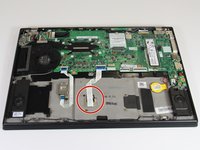
After removing the battery, disconnect the trackpad from the laptop's motherboard
-
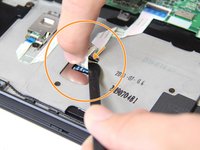
Using a plastic spudger, flip up the black plastic cover to release the cable.
-
-
-
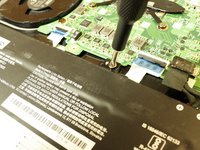
Using a Phillips #0 screwdriver, unscrew the four 2.0 mm screws securing the touchpad to the device.
-
-









To reassemble your device, follow these instructions in reverse order.
Cancel: I did not complete this guide.
One other person completed this guide.

Team

Clemson, Team 5-1, Hunter Fall 2021 Member of Clemson, Team 5-1, Hunter Fall 2021
CLEM-HUNTER-F21S5G1
5 Members
48 Guides authored
