Introduction
This will take approximately 45 minutes to complete from beginning to end.
What you need
-
-
-
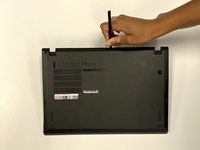
Use a Phillips #1 screwdriver to unscrew the five captive screws on the back panel until a small pop is heard.
-
-
-
-
Gently wedge an opening tool or spudger under the back panel, and loosen the clips around the perimeter until the back panel comes off.
-
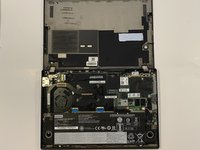
Remove the back cover.
-
-
-
Tool used on this step:Tweezers$4.99
-
Use tweezers to gently disconnect the two wires that are connected to the Wi-Fi card.
-
-
-
Use a Phillips #1 screwdriver to remove the single screw that secures the Wi-Fi card.
-
-
-
Use tweezers or your fingers to gently pull the Wi-Fi card from its port.
-
Pull directly away from the port, parallel with the card. Do not pull up towards yourself.
-
-

 Ask FixBot




To reassemble your device, follow these instructions in reverse order.
Cancel: I did not complete this guide.
2 other people completed this guide.

Team

The Citadel Military College of South Carolina, Team 5-1, Eggleston Fall 2022 Member of The Citadel Military College of South Carolina, Team 5-1, Eggleston Fall 2022
CMCSC-EGGLESTON-F22S5G1
3 Members
36 Guides authored
