Introduction
This replacement guide will inform users about how to properly remove the keyboard from the Lenovo ThinkPad X280.
The keyboard allows the user to type one or multiple keys and interact with the screen functions of the computer.
If the device is missing a keyboard letter, demonstrating an inability to type, or failing to press down, there may be an external issue with your device’s keyboard.
It is important to note that a keyboard key can vary in size and function according to the device. Therefore, using shortcuts or inadequate keys can result in poor results.
To view an additional guide to replace your keyboard, you can use this resource.
What you need
-
-
-
Open the device to where you are directly viewing the screen with the keyboard laying flat.
 Ask FixBot
-
-
-
Using the flat end of the spudger, insert it at the top of the right click button.
-
Pry it up to remove the button.
-
-
-
-
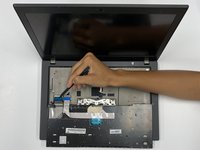
Using the black spudger tool, gently lift under the plastic where the screws were located.
-
Slide the keyboard towards the screen of the LenovoThinkPad X280 and lift the front edge by hand.
-
-
-
Disconnect the keyboard and trackpad cables locks with the pointed end of the black spudger.
-
-
-
Gently pull the cables from the rectangular connection site to detach the keyboard.
-
Remove the keyboard.
-
-


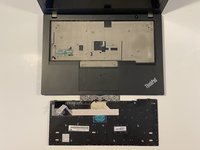
To reassemble your device, follow these instructions in reverse order.
Cancel: I did not complete this guide.
6 other people completed this guide.

Team

University of Alabama, Team 1-3, Bedsole Fall 2021 Member of University of Alabama, Team 1-3, Bedsole Fall 2021
UA-BEDSOLE-F21S1G3
4 Members
72 Guides authored
