
Lenovo ThinkPad X140e Battery Replacement

Dylan Halland and 5 other contributors
Last updated on Jul 6, 2021
Views: 1.6K
View statistics:
- Past 24 Hours:
- 1
- Past 7 Days:
- 15
- Past 30 Days:
- 90
- All Time:
- 1,572
Comments: 1
1 guide comment.
Go to guide commentsCompleted: 0 1
No one has marked this guide "completed." Will you be the first?
1 person has marked this guide "completed." It's you — great job!
Favorites: 0 1
No one has favorited (and subscribed to) this guide. Will you be the first?
1 person has favorited (and subscribed to) this guide — and that's you!
Introduction
Go to step 1 ↓Removing the battery is a relatively simple task but is very important to remove power from the laptop in case power shorts any vital components. The x140e battery is a lithium-ion battery, so caution is advised when removing the battery.
What you need
Fix Kit
This kit contains all the parts and tools needed to complete this guide.
-
Lenovo 42T4950 Battery$51.99

Parts
-
Lenovo 42T4950 Battery$41.99

-
-
-
Turn off your laptop and unplug the charging cable.
-
Flip the laptop upside down.
-
Rotate the laptop so that the battery is facing away from you.
 Ask FixBot
-
-
-
Push the first switch on the left to the right until you hear a click. This means the battery is unlocked and can be removed.
-
-
-
-
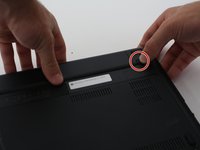
Push the second switch on the right to the right, hold it there with your right hand and continue to the next step.
-
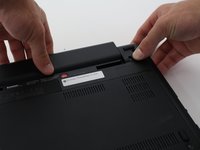
While holding the right switch open, take your free hand and pull the battery out.
-
-


To reassemble your device, follow these instructions in reverse order.

Team

Cal Poly, Team 20-5, Livingston Fall 2016 Member of Cal Poly, Team 20-5, Livingston Fall 2016
CPSU-LIVINGSTON-F16S20G5
4 Members
60 Guides authored
1 Guide Comment
I did this, but the computer says that the battery is not genuine, and then refuses to charge the battery. What do I do?
