Introduction
This guide will lead you through the steps to replace the display on the Lenovo ThinkPad X1 Extreme Generation 1. The display allows the user to see how they interact with the computer and may get damaged or worn down.
The removal of the display requires you to first remove the battery, then proceed to remove the hinge covering, take off the display cover, and detach it from the motherboard. Make sure the device is turned off before you begin these steps.
What you need
-
-
-
Orient the laptop so that it is bottom up, and the trackpad is closest to you.
-
Unscrew the seven captive screws with a Phillips #00 screwdriver.
-
Slide a blue opening pick in the gap between the bottom panel and chassis, and pry off the one clip on each side.
-
Remove the back cover from the device.
 Ask FixBot
-
-
-
-
-
Use a Phillips #00 head screwdriver to remove the four 4 mm screws above the battery.
-
-
-
Lift the speaker modules on either side of the battery out of its pegs, and unwind the cable from the front of the battery.
-
Set the speaker modules out of the way.
-
-
-
-
-
Tool used on this step:Tweezers$4.99
-
Use tweezers to peel the plastic cover off the connector.
-
Use a plastic spudger or your fingernail to pry up the battery connector straight up from the motherboard.
-
-
-
-
-
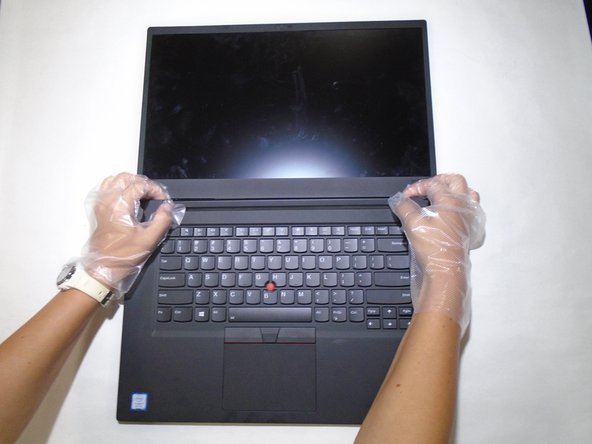
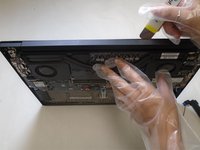
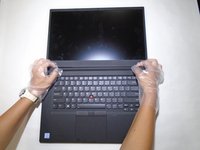
Gently take off the cover of the hinge of the computer with a combination of the opening tool and your hands.
-
-
-
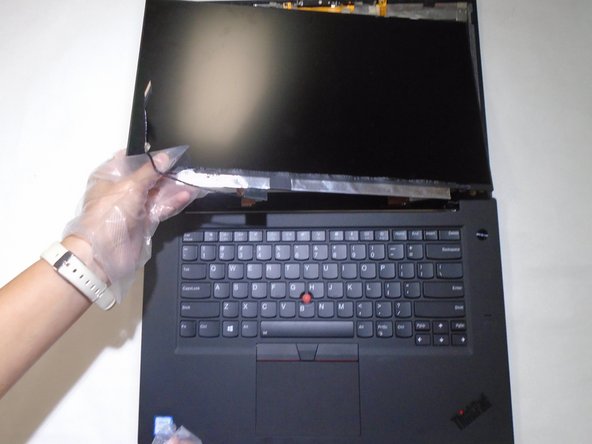
Pull the wire that was connected to the retaining flap through the hinge.
-
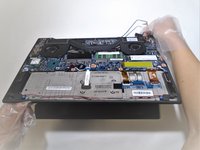
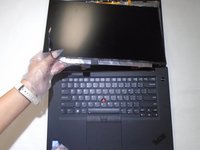
Remove the display from the laptop.
-
-




To reassemble your device, follow these instructions in reverse order.
Cancel: I did not complete this guide.
One other person completed this guide.

Team

The Citadel Military College of South Carolina, Team 3-18, Eggleston Fall 2021 Member of The Citadel Military College of South Carolina, Team 3-18, Eggleston Fall 2021
CMCSC-EGGLESTON-F21S3G18
3 Members
24 Guides authored
