Free Shipping on Domestic Orders $75+

Lenovo ThinkPad T580 Cooling Fan Replacement

What you need

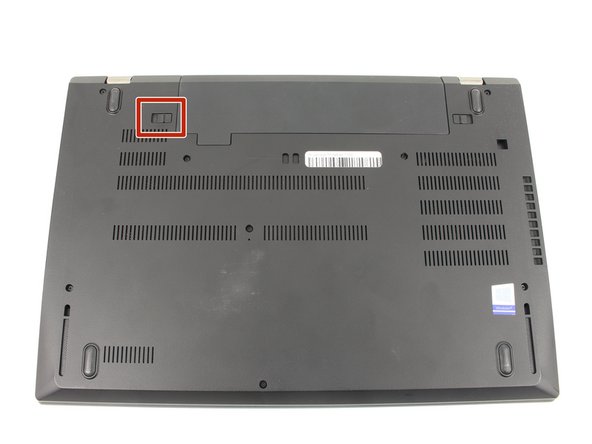
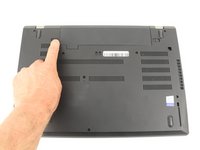
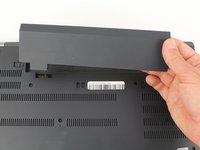
    1. Lenovo ThinkPad T580 Cooling Fan Replacement, External Battery: step 1, image 1 of 3 Lenovo ThinkPad T580 Cooling Fan Replacement, External Battery: step 1, image 2 of 3 Lenovo ThinkPad T580 Cooling Fan Replacement, External Battery: step 1, image 3 of 3
      • Slide the switch on the left side of the battery to the left.

      Ask FixBot

      Add Comment

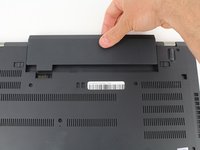
    2. Lenovo ThinkPad T580 Cooling Fan Replacement: step 2, image 1 of 3 Lenovo ThinkPad T580 Cooling Fan Replacement: step 2, image 2 of 3 Lenovo ThinkPad T580 Cooling Fan Replacement: step 2, image 3 of 3
      • Slide the switch on the right side of the battery to the right while applying upward pressure on the battery.

      Ask FixBot

      Add Comment

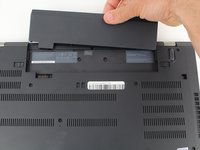
    3. Lenovo ThinkPad T580 Cooling Fan Replacement: step 3, image 1 of 3 Lenovo ThinkPad T580 Cooling Fan Replacement: step 3, image 2 of 3 Lenovo ThinkPad T580 Cooling Fan Replacement: step 3, image 3 of 3
      • Pull the battery directly out of the socket

      Ask FixBot

      Add Comment

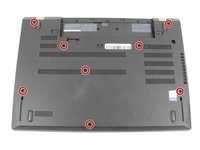
    1. Lenovo ThinkPad T580 Cooling Fan Replacement, Bottom Case: step 4, image 1 of 2 Lenovo ThinkPad T580 Cooling Fan Replacement, Bottom Case: step 4, image 2 of 2
      • Using a Phillips #00 screwdriver, unscrew the eight 3.3 mm captive screws on the bottom of the laptop.

      • The "captive" screws will not come out of the case.

      Ask FixBot

      Add Comment

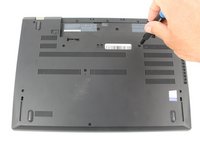
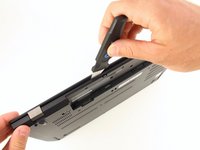
    2. Lenovo ThinkPad T580 Cooling Fan Replacement: step 5, image 1 of 3 Lenovo ThinkPad T580 Cooling Fan Replacement: step 5, image 2 of 3 Lenovo ThinkPad T580 Cooling Fan Replacement: step 5, image 3 of 3
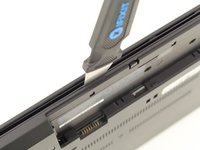
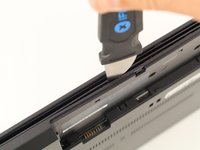
      • Run a Jimmy along the crease of the computer all the way around, twisting it periodically to disengage the clips.

      Ask FixBot

      Add Comment

    3. Lenovo ThinkPad T580 Cooling Fan Replacement: step 6, image 1 of 3 Lenovo ThinkPad T580 Cooling Fan Replacement: step 6, image 2 of 3 Lenovo ThinkPad T580 Cooling Fan Replacement: step 6, image 3 of 3
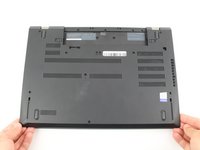
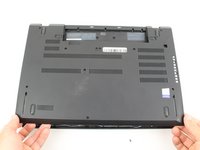
      • Once all the clips are released, remove the bottom cover.

      • You may need to jiggle the case slightly to release the clips around the external battery bay.

      Ask FixBot

      Add Comment

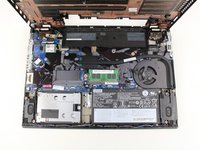
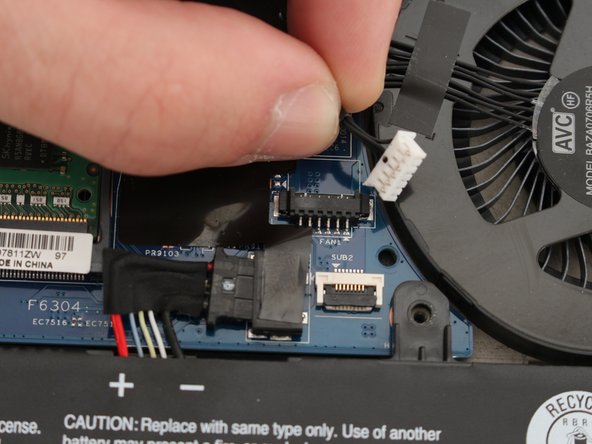
    1. Lenovo ThinkPad T580 Cooling Fan Replacement, Cooling Fan: step 7, image 1 of 2 Lenovo ThinkPad T580 Cooling Fan Replacement, Cooling Fan: step 7, image 2 of 2
      • Unplug the cooling fan's cable from the the motherboard.

      Ask FixBot

      Add Comment

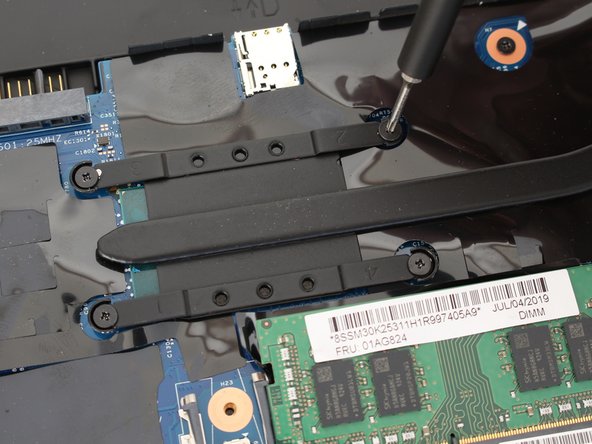
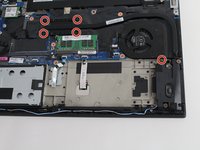
    2. Lenovo ThinkPad T580 Cooling Fan Replacement: step 8, image 1 of 3 Lenovo ThinkPad T580 Cooling Fan Replacement: step 8, image 2 of 3 Lenovo ThinkPad T580 Cooling Fan Replacement: step 8, image 3 of 3
      • Using a Phillips #00 screwdriver, unscrew five 4.6 mm screws fastening the fan and cooling pipe.

      • The screws are set in the plastic and are not able to be removed from the fan parts.

      Ask FixBot

      Add Comment

    3. Lenovo ThinkPad T580 Cooling Fan Replacement: step 9, image 1 of 1
      • Remove the cooling fan directly upwards from the core.

      • Be sure to clean and replace any thermal paste on the heatsink and CPU before reassembling. You can use our How to Apply Thermal Paste guide if you need any help!

      Ask FixBot

      Add Comment

Conclusion

To reassemble your device, follow these instructions in reverse order.

Cancel: I did not complete this guide.

One other person completed this guide.

Ben Elkayam

Member since: 01/23/20

1,105 Reputation

8 Guides authored

Team

Cal Poly, Team S18-G6, White Winter 2020 Member of Cal Poly, Team S18-G6, White Winter 2020

CPSU-WHITE-W20S18G6

4 Members

96 Guides authored

0 Guide Comments

Add Comment

View Statistics:

Past 24 Hours: 3

Past 7 Days: 20

Past 30 Days: 89

All Time: 4,171