Free Shipping on Domestic Orders $75+

Lenovo ThinkPad T540P HDD Replacement

What you need

    1. Lenovo ThinkPad T540P HDD Replacement, Battery: step 1, image 1 of 2 Lenovo ThinkPad T540P HDD Replacement, Battery: step 1, image 2 of 2
      • Before proceeding, power down the laptop and unplug the device from the power supply / charger.

      • Flip the laptop over so the bottom is showing.

      • Orient the laptop so that the the battery bump is facing away from you.

      Ask FixBot

      Add Comment

    2. Lenovo ThinkPad T540P HDD Replacement: step 2, image 1 of 1
      • On the back of the laptop are two sliding locks for the battery. These are located just beneath the battery and are marked with a little lock icon on either end.

      • Using both hands, pull these sliding locks away from each other.

      • They will stay in place once they have been fully engaged.

      Ask FixBot

      Add Comment

    3. Lenovo ThinkPad T540P HDD Replacement: step 3, image 1 of 2 Lenovo ThinkPad T540P HDD Replacement: step 3, image 2 of 2
      • Push the battery in the direction away from where the sliding tabs are.

      • If the battery does not slide out, make sure the sliding locks are fully engaged.

      • To install a new battery, slide the battery back in with the sticker side of the battery facing down, and in the same orientation that it came out in.

      Ask FixBot

      Add Comment

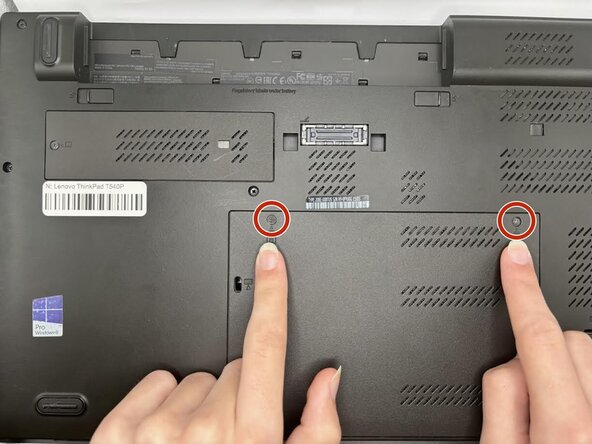
    1. Lenovo ThinkPad T540P HDD Replacement, HDD: step 4, image 1 of 3 Lenovo ThinkPad T540P HDD Replacement, HDD: step 4, image 2 of 3 Lenovo ThinkPad T540P HDD Replacement, HDD: step 4, image 3 of 3
      • Loosen the two M2 x 5mm captive screws on the large back panel with a Phillips #1 screwdriver.

      Ask FixBot

      Add Comment

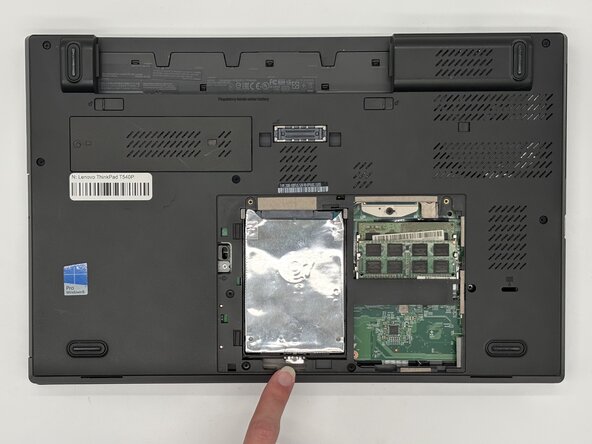
    2. Lenovo ThinkPad T540P HDD Replacement: step 5, image 1 of 1
      • Locate the hard drive and the single Phillips screw holding it in place.

      Ask FixBot

      Add Comment

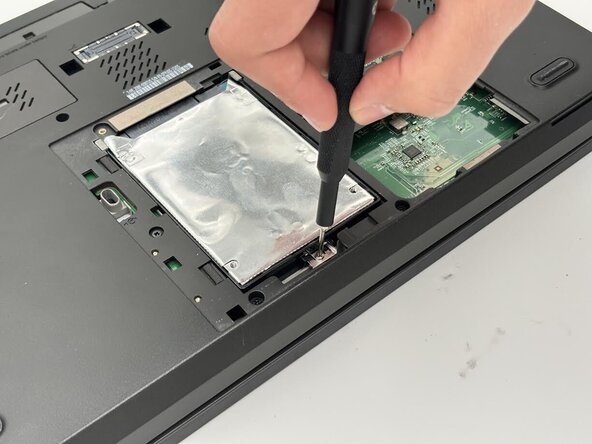
    3. Lenovo ThinkPad T540P HDD Replacement: step 6, image 1 of 2 Lenovo ThinkPad T540P HDD Replacement: step 6, image 2 of 2
      • This screw is not captive, so keep track of where you place it.

      • Remove the single M2 x 3 mm screw that is holding the hard drive in place with a #1 Phillips screwdriver.

      Ask FixBot

      Add Comment

    4. Lenovo ThinkPad T540P HDD Replacement: step 7, image 1 of 2 Lenovo ThinkPad T540P HDD Replacement: step 7, image 2 of 2
      • Pull back the hard drive and lift it up and out of the laptop.

      Ask FixBot

      Add Comment

Conclusion

To reassemble your device, follow the above steps in reverse order.
Take your e-waste to an R2 or e-Stewards certified recycler.
Repair didn’t go as planned? Try some basic troubleshooting or ask our Answers community for help.

Cancel: I did not complete this guide.

0 Guide Comments

Add Comment

View Statistics:

Past 24 Hours: 0

Past 7 Days: 6

Past 30 Days: 47

All Time: 375