Free Shipping on Domestic Orders $75+

Lenovo ThinkPad T530 Memory Module: Upper Slot Replacement

What you need

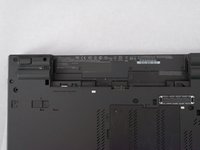
  1. Lenovo ThinkPad T530 Memory Module: Upper Slot Replacement, Place your laptop upside down: step 1, image 1 of 2 Lenovo ThinkPad T530 Memory Module: Upper Slot Replacement, Place your laptop upside down: step 1, image 2 of 2
    • Ensure that the laptop is disconnected from the wall charger, and that the laptop is entirely powered off before following any of the steps below.

    • Flip your laptop upside down, so that the keyboard is facing down.

    Ask FixBot

    Add Comment

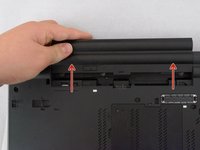
  2. Lenovo ThinkPad T530 Memory Module: Upper Slot Replacement, Unlock Battery: step 2, image 1 of 2 Lenovo ThinkPad T530 Memory Module: Upper Slot Replacement, Unlock Battery: step 2, image 2 of 2
    • Locate the latch located on the battery near the top of the laptop.

    • Using your finger, slide the latch to the right-most (Unlocked) position.

    • None of this should require an exhuberant amount of force.

    Ask FixBot

    Add Comment

  3. Lenovo ThinkPad T530 Memory Module: Upper Slot Replacement, Remove the Battery: step 3, image 1 of 2 Lenovo ThinkPad T530 Memory Module: Upper Slot Replacement, Remove the Battery: step 3, image 2 of 2
    • You can now pull the battery away from the laptop. When pulling the battery out, ensure to pull it out straight.

    Ask FixBot

    Add Comment

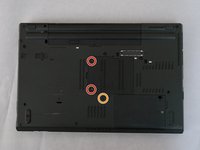
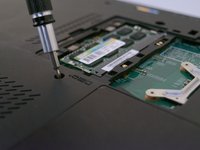
  4. Lenovo ThinkPad T530 Memory Module: Upper Slot Replacement, Removing bottom screws: step 4, image 1 of 2 Lenovo ThinkPad T530 Memory Module: Upper Slot Replacement, Removing bottom screws: step 4, image 2 of 2
    • Using a Phillips #00 screwdriver, unscrew the following screws, and then remove the cover.

    • Using a Phillips #00 screwdriver, remove the screw. This is one of the two screws that are holding in the keyboard.

    Ask FixBot

    Add Comment

  5. Lenovo ThinkPad T530 Memory Module: Upper Slot Replacement, Removing bottom screws (Continued): step 5, image 1 of 1
    • Using a Phillips #00 screwdriver, unscrew the highlighted screw. This is the last screw securing the keyboard to the laptop.

    Ask FixBot

    Add Comment

  6. Lenovo ThinkPad T530 Memory Module: Upper Slot Replacement, Revealing the Keyboard: step 6, image 1 of 2 Lenovo ThinkPad T530 Memory Module: Upper Slot Replacement, Revealing the Keyboard: step 6, image 2 of 2
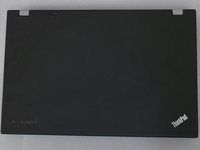
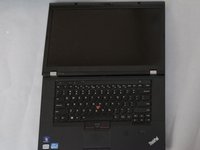
    • Flip the laptop right-side up, with the keyboard facing towards you.

    • Open the laptop.

    Ask FixBot

    Add Comment

  7. Lenovo ThinkPad T530 Memory Module: Upper Slot Replacement, Removing the Keyboard: step 7, image 1 of 3 Lenovo ThinkPad T530 Memory Module: Upper Slot Replacement, Removing the Keyboard: step 7, image 2 of 3 Lenovo ThinkPad T530 Memory Module: Upper Slot Replacement, Removing the Keyboard: step 7, image 3 of 3
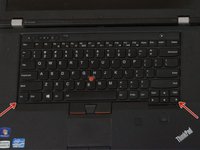
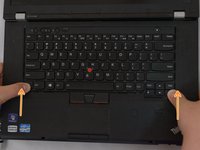
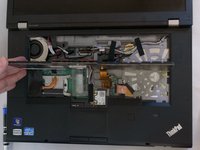
    • Place each of your two thumbs on the bottom-left and right most corners of the keyboard (towards the arrow keys, and the Fn (Function) key).

    • Gentilly and slowly push the keyboard up (towards the display)

    • Lift the two corners of the keyboard up enough to see the ribbon cable below.

    • Applying excessive force to the keyboard ribbon connector may result in damage to the system.

    Ask FixBot

    Add Comment

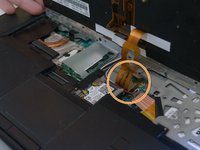
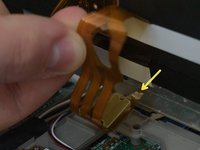
  8. Lenovo ThinkPad T530 Memory Module: Upper Slot Replacement, Disconnecting the Ribon Cable: step 8, image 1 of 3 Lenovo ThinkPad T530 Memory Module: Upper Slot Replacement, Disconnecting the Ribon Cable: step 8, image 2 of 3 Lenovo ThinkPad T530 Memory Module: Upper Slot Replacement, Disconnecting the Ribon Cable: step 8, image 3 of 3
    • Angle the keyboard upwards, at a 90° angle.

    • Keep one finger holding the keyboard up, while using the other to disconnect the ribbon cable. To disconnect the ribbon cable, lift it up by the highlighted yellow end.

    Ask FixBot

    Add Comment

  9. Lenovo ThinkPad T530 Memory Module: Upper Slot Replacement, Taking out the Keyboard: step 9, image 1 of 1
    • The keyboard is now disconnected from the laptop, and you can remove it and place it aside.

    Ask FixBot

    Add Comment

  10. Lenovo ThinkPad T530 Memory Module: Upper Slot Replacement, Reconnecting the Ribbon Cable: step 10, image 1 of 1
    • Reconnect the keyboard ribbon cable by pushing it down onto the slot.

    Ask FixBot

    Add Comment

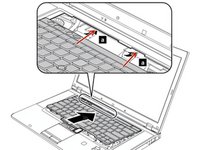
  11. Lenovo ThinkPad T530 Memory Module: Upper Slot Replacement, Reinstalling the Keyboard: step 11, image 1 of 3 Lenovo ThinkPad T530 Memory Module: Upper Slot Replacement, Reinstalling the Keyboard: step 11, image 2 of 3 Lenovo ThinkPad T530 Memory Module: Upper Slot Replacement, Reinstalling the Keyboard: step 11, image 3 of 3
    • Guide the keyboards top edge underneath the frame.

    • 2nd Image was copied from the Lenovo T530/T530i/W530 Service Manual.

    Ask FixBot

    Add Comment

  12. Lenovo ThinkPad T530 Memory Module: Upper Slot Replacement, Reseating the Keyboard: step 12, image 1 of 2 Lenovo ThinkPad T530 Memory Module: Upper Slot Replacement, Reseating the Keyboard: step 12, image 2 of 2
    • Push the keyboard down, then pull it back towards your trackpad.

    Ask FixBot

    Add Comment

  13. Lenovo ThinkPad T530 Memory Module: Upper Slot Replacement, Reinstalling Screws: step 13, image 1 of 1
    • Using a Phillips #00 screwdriver, re-screw the highlighted screws.

    Ask FixBot

    Add Comment

  14. Lenovo ThinkPad T530 Memory Module: Upper Slot Replacement, Reinstalling Bottom Cover: step 14, image 1 of 3 Lenovo ThinkPad T530 Memory Module: Upper Slot Replacement, Reinstalling Bottom Cover: step 14, image 2 of 3 Lenovo ThinkPad T530 Memory Module: Upper Slot Replacement, Reinstalling Bottom Cover: step 14, image 3 of 3
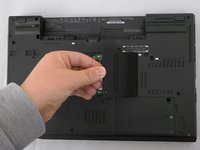
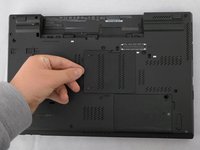
    • Reinsert the bottom memory cover, ensuring all clips are in place.

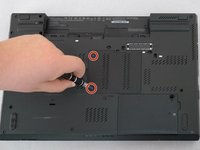
    • Using a Phillips #00 tighten the two highlighted screws.

    Ask FixBot

    Add Comment

  15. Lenovo ThinkPad T530 Memory Module: Upper Slot Replacement, Removing the Memory Module: step 15, image 1 of 2 Lenovo ThinkPad T530 Memory Module: Upper Slot Replacement, Removing the Memory Module: step 15, image 2 of 2
    • Some models of the Lenovo T530 may not have a top memory module included out of the box, but this guide will help you either install- or replace it .
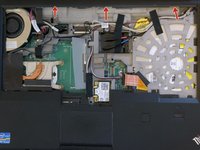
    • While a Memory Module is visible in the second image, there does not need to be one in the slot inorder to do this step.

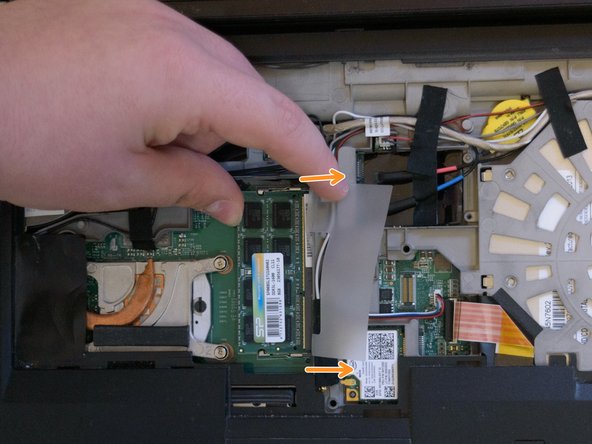
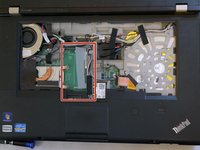
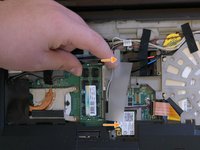
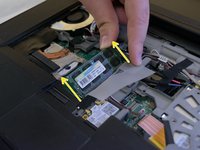
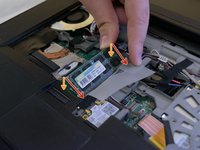
    • Locate the SODIMM slot in the middle of the motherboard, there should be a tab of translucent paper near the middle of the keyboard, highlighted in red.

    • Using your finger, move the translucent paper tab away from the memory module, be careful and do not pull it off.

    Ask FixBot

    Add Comment

  16. Lenovo ThinkPad T530 Memory Module: Upper Slot Replacement, Removing the Memory Module (Cont.): step 16, image 1 of 2 Lenovo ThinkPad T530 Memory Module: Upper Slot Replacement, Removing the Memory Module (Cont.): step 16, image 2 of 2
    • None of the following instructions should require an exuberant amount of force, using an excessive amount of force may result in damaging your device.

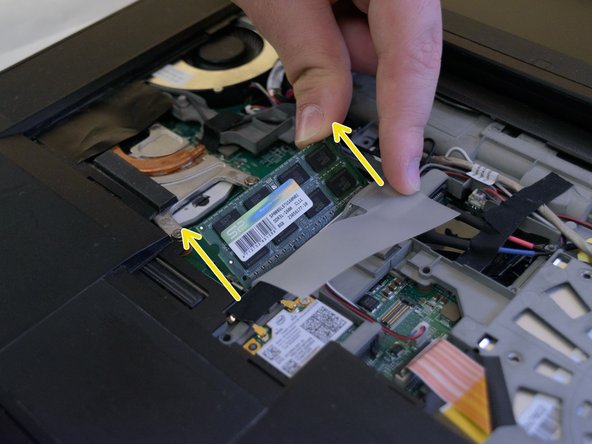
    • The memory module is visible, but we first need to unlock the module from it's clips.

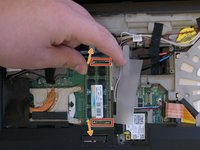
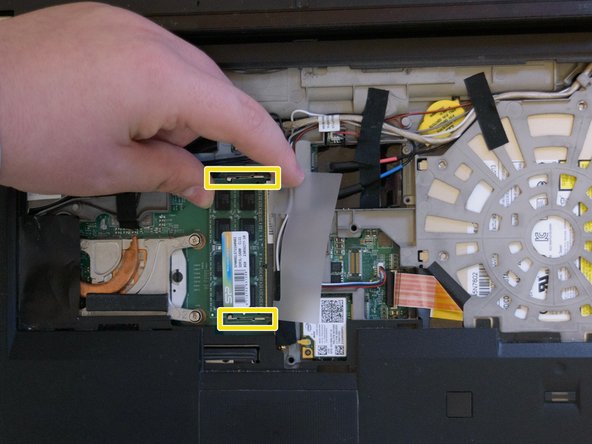
    • On the top and bottom end of the memory module, there are two latches. Put your fingers on the inside of the two latches, then push the latches away (towards the battery, and the trackpad, respectively).

    • Lift the module to a 45° angle, and then pull it out of the slot.

    • Be cautious, the memory module may eject from the slot.

    Ask FixBot

    Add Comment

  17. Lenovo ThinkPad T530 Memory Module: Upper Slot Replacement, Installing the Memory Module: step 17, image 1 of 2 Lenovo ThinkPad T530 Memory Module: Upper Slot Replacement, Installing the Memory Module: step 17, image 2 of 2
    • Insert the memory module at a 45° angle with the shorter notched end into the shorter connector.

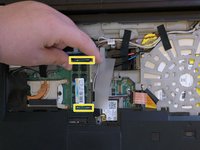
    • Push the back of the memory module down until the two metal retention arms (highlighted in yellow) lock into place.

    Ask FixBot

    Add Comment

Conclusion

To reassemble your device, follow these instructions in reverse order.

Cancel: I did not complete this guide.

Attached Documents

Albert Stoynov

Member since: 09/11/23

1,400 Reputation

10 Guides authored

0 Guide Comments

Add Comment

View Statistics:

Past 24 Hours: 2

Past 7 Days: 13

Past 30 Days: 57

All Time: 1,041