Free Shipping on Domestic Orders $75+

Lenovo ThinkPad T530 Display Replacement

Views: 1.3K

View statistics:

Past 24 Hours:
2
Past 7 Days:
32
Past 30 Days:
116
All Time:
1,255
Comments: 0

No one has left comments on this guide. Will you be first?

Go to guide comments
Completed: 1

1 person has marked this guide "completed." Will you be next?

Favorites: 0

No one has favorited (and subscribed to) this guide. Will you be the first?

Time Required: 10 - 20 minutes
Difficulty: Moderate
Community-Contributed Guide

An awesome member of our community made this guide. It was not created by iFixit staff.

Lenovo ThinkPad T530 Display Replacement

Introduction

Go to step 1 ↓

This simple guide will help you replace the display from your Lenovo T530.

What you need

Tools

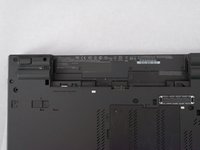
    1. Lenovo ThinkPad T530 Display Replacement, Place your laptop upside down: step 1, image 1 of 2 Lenovo ThinkPad T530 Display Replacement, Place your laptop upside down: step 1, image 2 of 2
      • Ensure that the laptop is disconnected from the wall charger, and that the laptop is entirely powered off before following any of the steps below.

      • Flip your laptop upside down, so that the keyboard is facing down.

      Ask FixBot

      Add Comment

    2. Lenovo ThinkPad T530 Display Replacement, Unlock Battery: step 2, image 1 of 2 Lenovo ThinkPad T530 Display Replacement, Unlock Battery: step 2, image 2 of 2
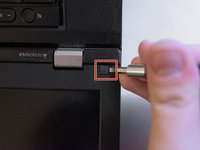
      • Locate the latch located on the battery near the top of the laptop.

      • Using your finger, slide the latch to the right-most (Unlocked) position.

      • None of this should require an exhuberant amount of force.

      Ask FixBot

      Add Comment

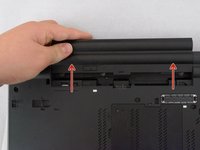
    3. Lenovo ThinkPad T530 Display Replacement, Remove the Battery: step 3, image 1 of 2 Lenovo ThinkPad T530 Display Replacement, Remove the Battery: step 3, image 2 of 2
      • You can now pull the battery away from the laptop. When pulling the battery out, ensure to pull it out straight.

      Ask FixBot

      Add Comment

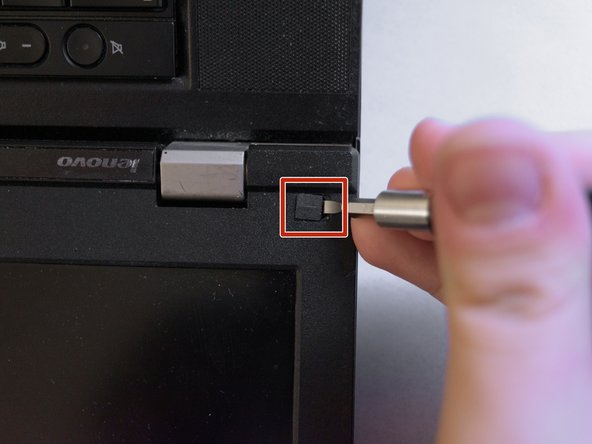
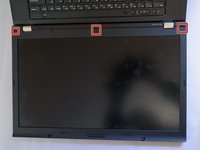
    1. Lenovo ThinkPad T530 Display Replacement, Removing Screw Covers: step 4, image 1 of 2 Lenovo ThinkPad T530 Display Replacement, Removing Screw Covers: step 4, image 2 of 2
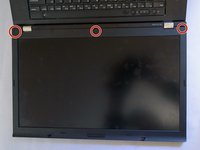
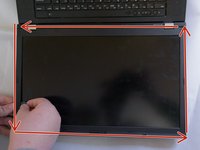
      • Using a prying tool, such as a guitar pick, flathead screwdriver or your fingernail, peel the three covers highligted in red off.

      Ask FixBot

      Add Comment

      • Failure to both disconnect the laptop from any power sources and removing the external battery will result in the backlight fuse burning, which is difficult to remove.

      Ask FixBot

      Add Comment

    2. Lenovo ThinkPad T530 Display Replacement, Removing Screws: step 6, image 1 of 2 Lenovo ThinkPad T530 Display Replacement, Removing Screws: step 6, image 2 of 2
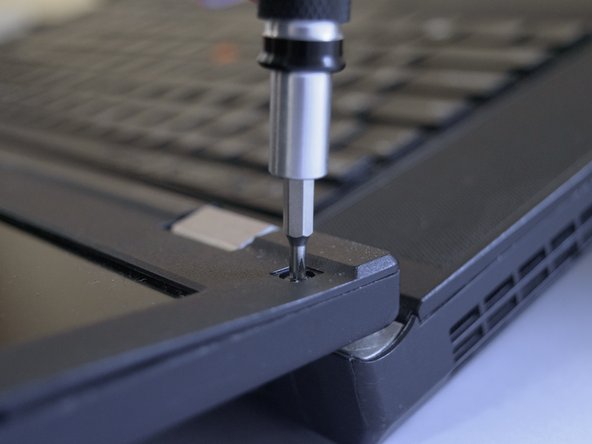
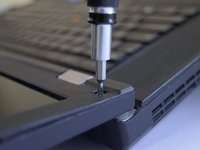
      • Using a Phillips #00, take out the three screws highligted in red that were under the screw covers.

      Ask FixBot

      Add Comment

    3. Lenovo ThinkPad T530 Display Replacement, Prying off the Bezel: step 7, image 1 of 3 Lenovo ThinkPad T530 Display Replacement, Prying off the Bezel: step 7, image 2 of 3 Lenovo ThinkPad T530 Display Replacement, Prying off the Bezel: step 7, image 3 of 3
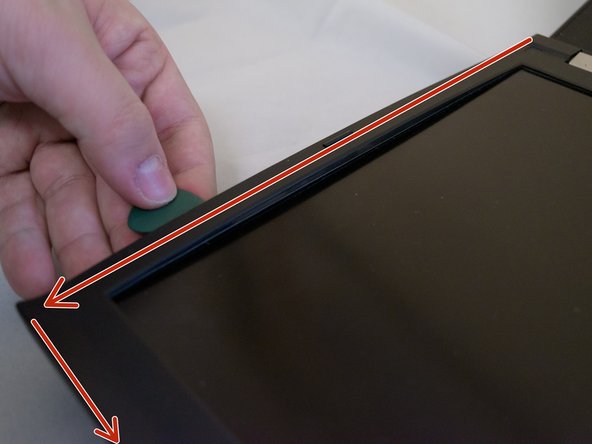
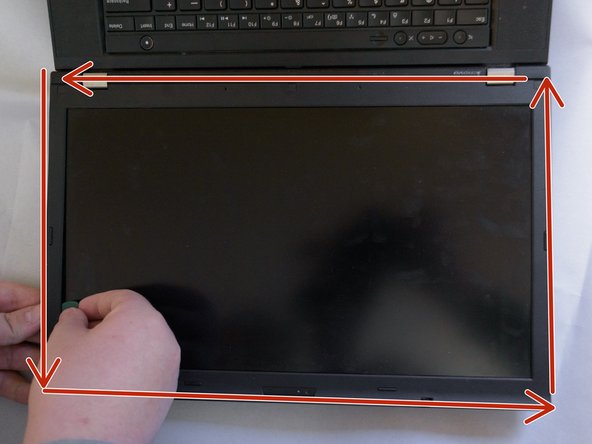
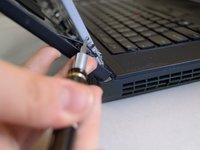
      • Using a guitar pick, flathead screwdriver, or your fingernail, stick your tool of choice in the gap between the bezel and the housing of the display.

      • Pry the gap open all around the bezel.

      Ask FixBot

      Add Comment

    4. Lenovo ThinkPad T530 Display Replacement, Taking off the Bezel: step 8, image 1 of 2 Lenovo ThinkPad T530 Display Replacement, Taking off the Bezel: step 8, image 2 of 2
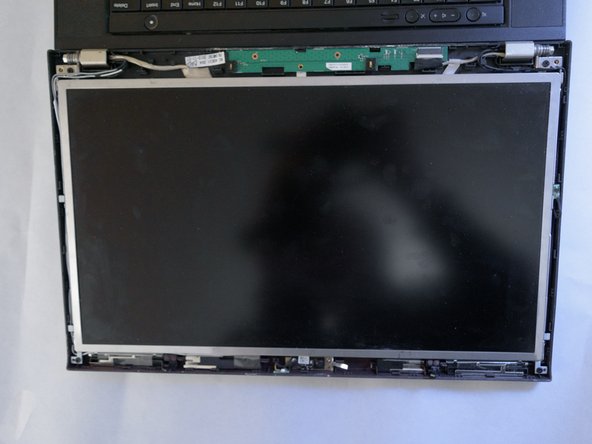
      • Using your tool of choice, pry the bezel up and away from the display.

      • Be careful as you do not want to damage the clips.

      Ask FixBot

      Add Comment

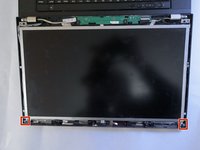
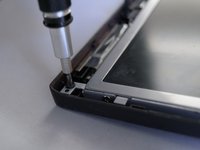
    5. Lenovo ThinkPad T530 Display Replacement, Unscrewing Display Frame: step 9, image 1 of 2 Lenovo ThinkPad T530 Display Replacement, Unscrewing Display Frame: step 9, image 2 of 2
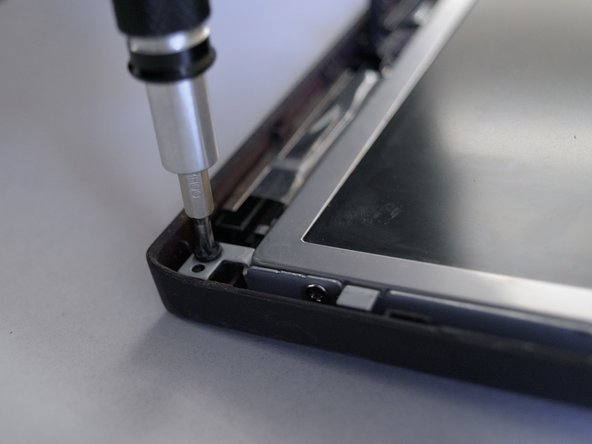
      • Using a Phillips #00, remove the two screws highlighted in red.

      • Pay extreme attention to not puncture, cut or disconnect any of the cables.

      Ask FixBot

      Add Comment

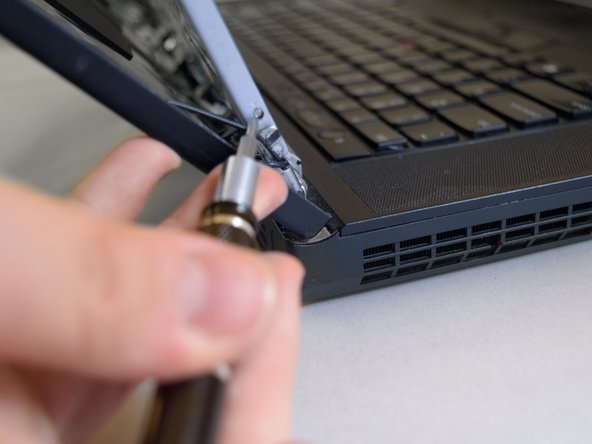
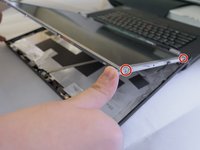
    6. Lenovo ThinkPad T530 Display Replacement, Unscrewing Display Frame (Cont.): step 10, image 1 of 2 Lenovo ThinkPad T530 Display Replacement, Unscrewing Display Frame (Cont.): step 10, image 2 of 2
      • Remove the four screws using a Phillips #00, there are two pairs of the two highlighted screws.

      • Once two of the four screws are removed, hold the bottom side of the screen with your hand, as the screen could fall down due to it being unsecured.

      Ask FixBot

      Add Comment

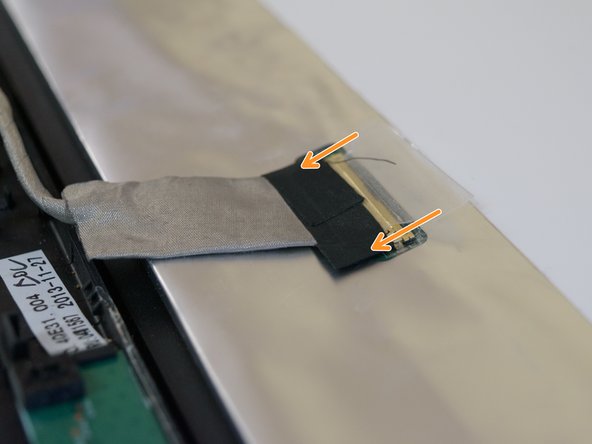
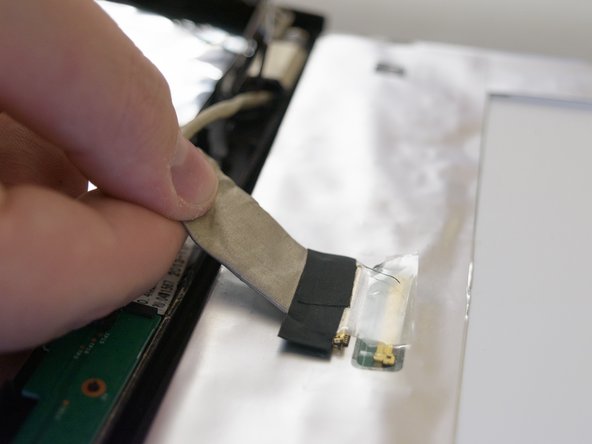
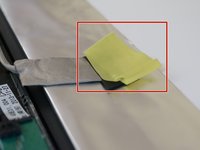
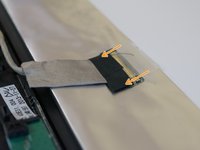
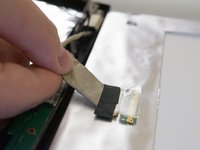
    7. Lenovo ThinkPad T530 Display Replacement, Disconecting the Ribbon Connector: step 11, image 1 of 3 Lenovo ThinkPad T530 Display Replacement, Disconecting the Ribbon Connector: step 11, image 2 of 3 Lenovo ThinkPad T530 Display Replacement, Disconecting the Ribbon Connector: step 11, image 3 of 3
      • Remove any tape that is covering the ribbon connector, which is located at the bottom of the panel.

      • Using your finger, gentlly disconnect the ribon cable.

      • You should not need to apply very much force to disconnect the ribbon cable.

      Ask FixBot

      Add Comment

Conclusion

To reassemble your device, follow these instructions in reverse order.

Cancel: I did not complete this guide.

One other person completed this guide.

Attached Documents

Albert Stoynov

Member since: 09/11/23

1,430 Reputation

10 Guides authored

0 Guide Comments

Add Comment

View Statistics:

Past 24 Hours: 2

Past 7 Days: 32

Past 30 Days: 116

All Time: 1,255