
Lenovo ThinkPad T495s Fan Replacement

Connor Bassolino and 2 other contributors
Last updated on May 7, 2024
Views: 1.7K
View statistics:
- Past 24 Hours:
- 2
- Past 7 Days:
- 19
- Past 30 Days:
- 93
- All Time:
- 1,704
Comments: 0
No one has left comments on this guide. Will you be first?
Go to guide commentsCompleted: 0 1
No one has marked this guide "completed." Will you be the first?
1 person has marked this guide "completed." It's you — great job!
Favorites: 0 1
No one has favorited (and subscribed to) this guide. Will you be the first?
1 person has favorited (and subscribed to) this guide — and that's you!
Introduction
Go to step 1 ↓If you're noticing that your Lenovo ThinkPad T495s is running noticeably hotter than it used to, or you're experiencing seemingly random shutdowns while running hardware-intensive applications, there's a good chance that your fan is either too dirty to disperse heat efficiently, or has died altogether.
Before replacing your fan, take a look at the blades. If you can see a noticeable build-up of gunk, try thoroughly cleaning the blades with a combination of an ESD-safe brush and compressed air. If cleaning the blades doesn't help your fan's performance, or if the blades aren't spinning whatsoever while the computer is on, it's probably time to replace the fan.
What you need
Parts

Tools


-
-
-
Tool used on this step:Tweezers$4.99
-
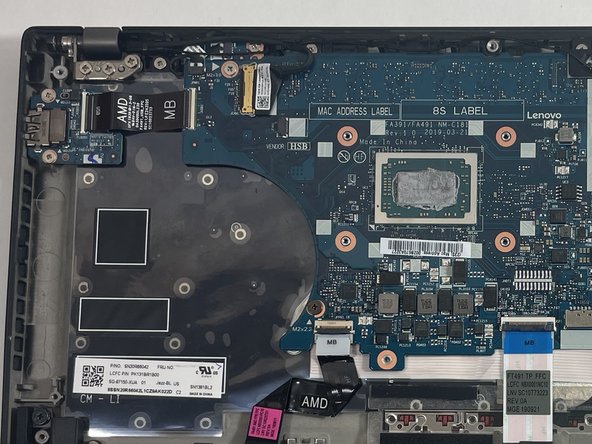
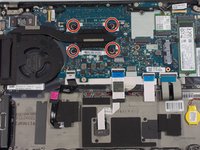
Use a Phillips #1 screwdriver to loosen the four 2.2 mm captive screws from the fan assembly.
-
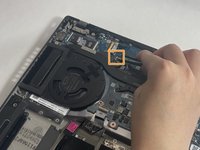
Use tweezers to unplug the fan assembly from the motherboard.
-
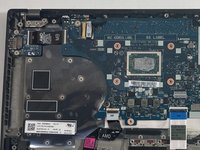
Lift the fan from the laptop using your hands.
-
-

 Ask FixBot


To reassemble your device, follow these instructions in reverse order.


