Introduction
If you need to replace the battery of your Lenovo ThinkPad T495s, follow the steps described below. The battery is one of the most crucial parts of any laptop, and it is one of the most replaced parts as well. A faulty battery might result in your laptop not charging, or not holding a charge. With this guide, you will be able to successfully replace your Lenovo’s internal battery.
Before beginning the repair, be sure to power off your laptop and unplug it from the charger.
What you need
-
-
-
Tool used on this step:Tweezers$4.99
-
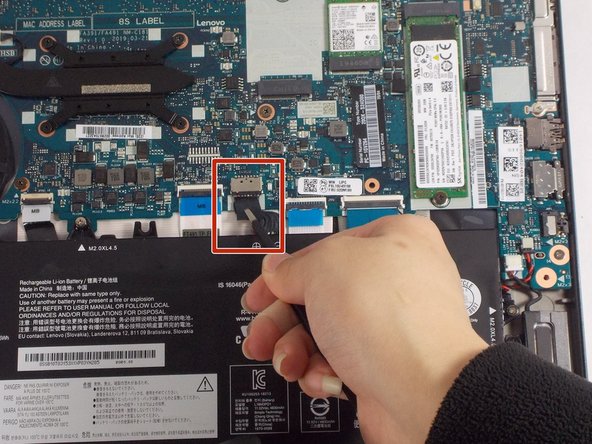
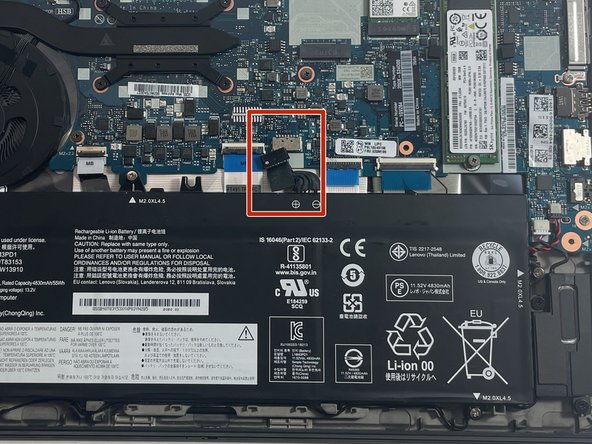
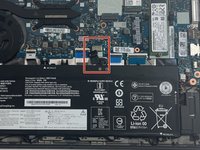
Use tweezers to unplug the battery connection from the motherboard.
-
-
-
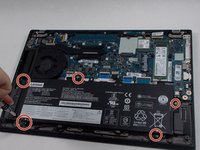
Remove the five 4.5 mm screws with a Phillips #1 screwdriver.
-
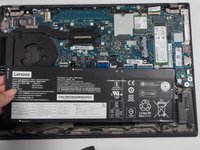
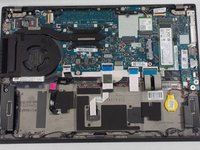
There are plastic tabs at the bottom of the battery, so pull it slightly forward with your hands, toward the motherboard, before lifting straight up.
-
-

 Ask FixBot





To reassemble your device, follow these instructions in reverse order.
Cancel: I did not complete this guide.
2 other people completed this guide.

Team

UMass Dartmouth, Team 1-7, Petersen Spring 2022 Member of UMass Dartmouth, Team 1-7, Petersen Spring 2022
UMASSD-PETERSEN-S22S1G7
3 Members
58 Guides authored
