Introduction
If your laptop won't connect to Wi-Fi, the issue could be because of a damaged or broken Wi-Fi card. This guide will cover the replacement of the Wi-Fi card in the Lenovo Thinkpad T495.
What you need
-
-
-
Use an iFixit opening tool to start prying under one of the hinges, between the baseplate and chassis, and work your way around the perimeter until the baseplate releases.
-
Lift off the baseplate.
-
-
-
-
Tool used on this step:Tweezers$4.99
-
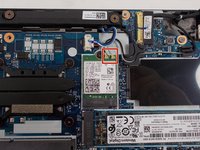
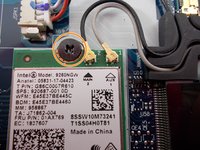
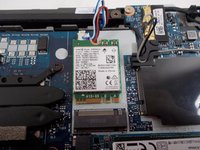
Use tweezers to lift the two coaxial cable connectors vertically, disconnecting them from the Wi-Fi card.
-
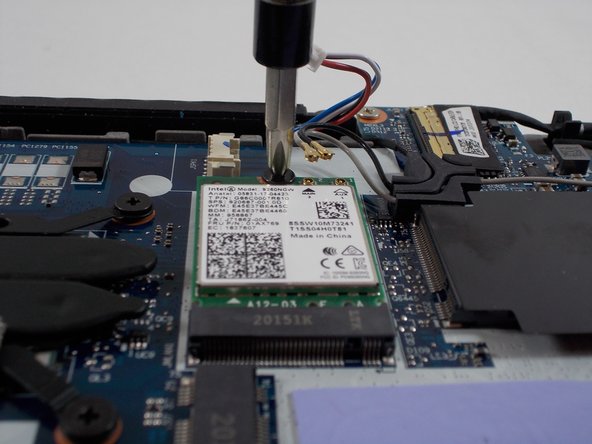
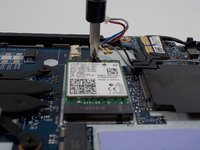
Use a Phillips #00 screwdriver to remove the 6 mm screw, causing the Wi-Fi card to pop up.
-
-
-
Grip the Wi-Fi card between your fingers and pull it in the direction of the card, at a slight angle, until it releases from its port.
-
-

 Ask FixBot





To reassemble your device, follow these instructions in reverse order.
Cancel: I did not complete this guide.
One other person completed this guide.

Team

UMass Dartmouth, Team 1-6, Petersen Spring 2022 Member of UMass Dartmouth, Team 1-6, Petersen Spring 2022
UMASSD-PETERSEN-S22S1G6
3 Members
70 Guides authored
