
Lenovo ThinkPad T495 Solid State Drive (SSD) Replacement

Christian Taylor and 5 other contributors
Last updated on May 7, 2024
Views: 7K
View statistics:
- Past 24 Hours:
- 4
- Past 7 Days:
- 35
- Past 30 Days:
- 159
- All Time:
- 6,983
Comments: 2
2 comments on steps.
Completed: 3 4
3 people have marked this guide "completed." Will you be next?
4 people have marked this guide "completed." Including you — great job!
Favorites: 0 1
No one has favorited (and subscribed to) this guide. Will you be the first?
1 person has favorited (and subscribed to) this guide — and that's you!
Introduction
Go to step 1 ↓If your Lenovo ThinkPad T495 is experiencing slow computer speeds, then your solid state drive may be the issue. This step-by-step guide will show you how to replace the solid state drive in your laptop. Before using this guide, first try clearing as much space in your laptop as possible. This can be done by uninstalling apps. First click on the "Start," click on "Settings," and then click on "Apps." Wait 5 seconds. This will display the complete list of apps that are downloaded and installed on your computer. Use the search-bar at the top of the page to search for apps, or scroll down to find the app/apps you want to uninstall. Left click on the application you don't want on your laptop and click on "Uninstall." Follow the prompts to uninstall the app/apps you no longer want on your laptop.
What you need
Parts

Tools


-
-
-
Use an iFixit opening tool to start prying under one of the hinges, between the baseplate and chassis, and work your way around the perimeter until the baseplate releases.
-
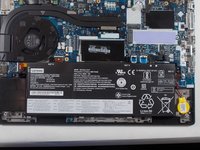
Lift off the baseplate.
-
-
-
-
Tool used on this step:Tweezers$4.99
-
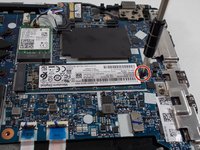
Use a Phillips #00 screwdriver to remove the 6 mm screw.
-
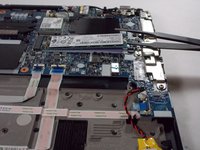
Use tweezers or an iFixit opening tool to lift the SSD up and away from the thermal pad it rests on.
-
Grip the SSD between your fingers and pull it horizontally to the right at a slight angle until it releases from the port.
-
-

 Ask FixBot


To reassemble your device, follow these instructions in reverse order.
Cancel: I did not complete this guide.
3 other people completed this guide.

Team

UMass Dartmouth, Team 1-6, Petersen Spring 2022 Member of UMass Dartmouth, Team 1-6, Petersen Spring 2022
UMASSD-PETERSEN-S22S1G6
3 Members
72 Guides authored
