Introduction
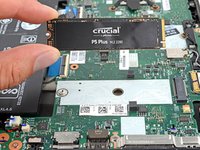
Follow this guide through the process of removing and replacing the Solid State Drive (SSD) in your Thinkpad T490s. A common use of this process is to upgrade the SSD. Note that a thermal pad helps the SSD dissipate heat more effectively. Remember to keep the original thermal pad, or have a replacement ready.
Before you perform this repair, back up your existing SSD if possible. If you’re replacing the SSD where your operating system is installed, familiarize yourself with a disk cloning utility so you’ll be ready to migrate your data to the new SSD.
What you need
-
-
Use your Phillips #1 screwdriver to fully loosen the five screws on the back cover.
 Ask FixBot
-
-
-
Orient your laptop so that the screen's silver hinges are closest to you.
-
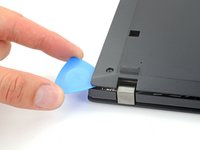
Insert an opening pick between the back cover and the device body near a hinge corner.
-
Pry upward to release the clips holding the cover. Listen for a loud click when each clip releases.
-
-
-
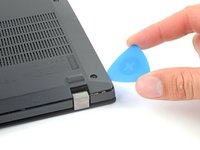
Insert your opening pick between the cover and the device body at the other hinge corner.
-
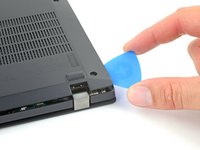
Pry upward to release additional retaining clips.
-
-
-
-
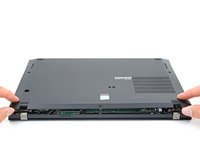
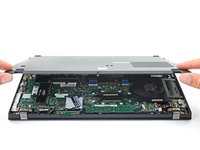
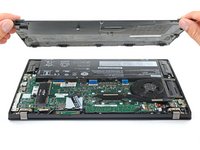
Grab the front edge of the cover and lift it away from you.
-
-
-
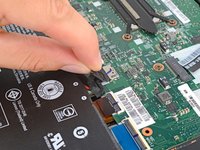
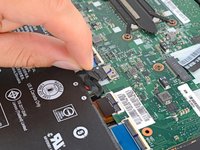
Grab the battery pull-tab at the head of the connector.
-
Pull the connector out of its socket in the direction of the cable.
-
-
-
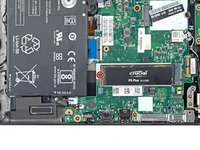
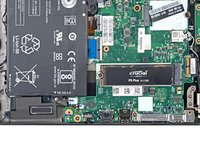
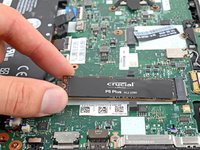
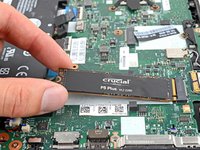
Use a Phillips #1 screwdriver to remove the 3.7 mm-long screw holding down the SSD.
-












To reassemble your device, follow these instructions in reverse order.
Take your e-waste to an R2 or e-Stewards certified recycler.
Repair didn’t go as planned? Try some basic troubleshooting, or ask our Lenovo ThinkPad answers community for help.
Cancel: I did not complete this guide.
3 other people completed this guide.

