
Lenovo ThinkPad T490 Battery Replacement

Joshua and 4 other contributors
Last updated on Sep 8, 2026
Views: 5.1K
View statistics:
- Past 24 Hours:
- 9
- Past 7 Days:
- 103
- Past 30 Days:
- 380
- All Time:
- 5,078
Comments: 1
1 guide comment.
Go to guide commentsCompleted: 5 6
5 people have marked this guide "completed." Will you be next?
6 people have marked this guide "completed." Including you — great job!
Favorites: 0 1
No one has favorited (and subscribed to) this guide. Will you be the first?
1 person has favorited (and subscribed to) this guide — and that's you!
Featured Student Guide
This guide has been the hard work of our awesome students and is found to be exceptionally cool by the iFixit staff.
Introduction
Go to step 1 ↓This guide provides essential steps for troubleshooting and replacing your laptop battery. If you’re encountering power issues or reduced battery life, you’ll find practical solutions to help you identify and resolve these problems.
Laptop batteries are crucial for providing portable power, but they can degrade over time due to charging cycles, heat, and age. To maintain battery health, regularly calibrate, avoid extreme temperatures, and manage charging habits. Proper care can extend your battery's lifespan and ensure reliable performance on the go.
Before beginning, boot into BIOS and disable the built-in battery.
What you need
Parts

Tools


-
-
-
Loosen the screws from the base plate.
-
Using a Philips #1 screwdriver fully loosen the six screws on the back cover.
 Ask FixBot
-
-
-
Insert the iFixit opening tool into the space between the base plate and the chassis.
-
Glide the tool along the perimeter of the case in order to release the clips holding the case and chassis together.
-
-
-
-
-
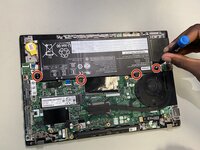
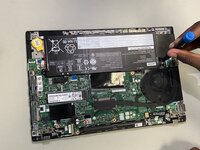
Remove the four 3 mm screws securing the battery with a Phillips #00 screwdriver.
-
-
-
-
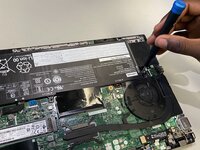
Use tweezers or your fingernails to disconnect the battery from its motherboard socket.
-
-




To reassemble your device, follow the above steps in reverse order.
For optimal performance, after completing this guide, calibrate your newly installed battery.
Take your e-waste to an R2 or e-Stewards certified recycler.
Repair didn’t go as planned? Try some basic troubleshooting or ask our Answers community for help.
Cancel: I did not complete this guide.
5 other people completed this guide.

Team

University of North Texas, Team 3-4, Coppersmith Fall 2024 Member of University of North Texas, Team 3-4, Coppersmith Fall 2024
UNT-COPPERSMITH-F24S3G4
4 Members
36 Guides authored
