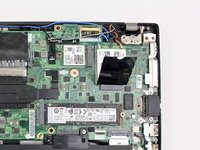
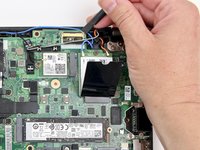
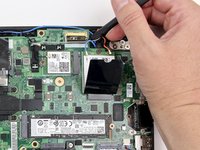
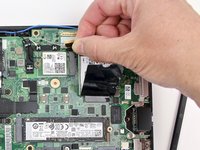
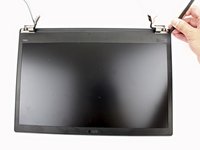
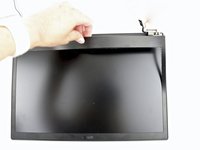
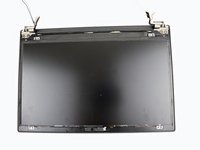
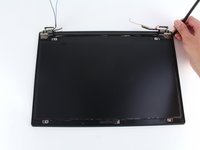
Free Shipping on Domestic Orders $75+

Lenovo ThinkPad T480s Camera/LED Cable Replacement

What you need

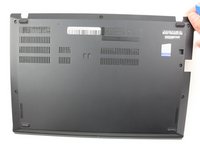
  1. Lenovo ThinkPad T480s Camera/LED Cable Replacement, Bottom Cover: step 1, image 1 of 2 Lenovo ThinkPad T480s Camera/LED Cable Replacement, Bottom Cover: step 1, image 2 of 2
    • Disable the battery, power down the device, and unplug the power adapter from your device before proceeding/beginning the guide.

    • Loosen the six captive screws with a Phillips #1 screwdriver.

    Ask FixBot

    Add Comment

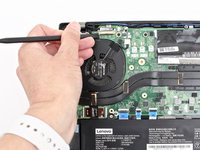
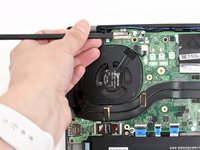
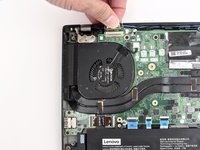
  2. Lenovo ThinkPad T480s Camera/LED Cable Replacement: step 2, image 1 of 3 Lenovo ThinkPad T480s Camera/LED Cable Replacement: step 2, image 2 of 3 Lenovo ThinkPad T480s Camera/LED Cable Replacement: step 2, image 3 of 3
    • Remove the bottom cover with an opening tool.

    • Start from the top edge near the hinge and work your way along the edge until all of the clips are unsnapped.

    Ask FixBot

    Add Comment

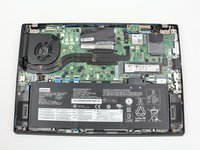
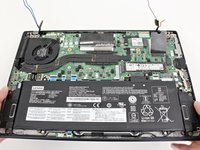
  3. Lenovo ThinkPad T480s Camera/LED Cable Replacement: step 3, image 1 of 2 Lenovo ThinkPad T480s Camera/LED Cable Replacement: step 3, image 2 of 2
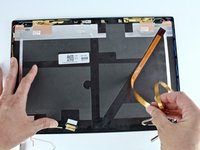
    • Lift the bottom cover off.

    Ask FixBot
    Add Comment

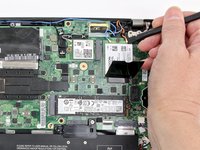
  4. Lenovo ThinkPad T480s Camera/LED Cable Replacement, LCD Assembly: step 4, image 1 of 3 Lenovo ThinkPad T480s Camera/LED Cable Replacement, LCD Assembly: step 4, image 2 of 3 Lenovo ThinkPad T480s Camera/LED Cable Replacement, LCD Assembly: step 4, image 3 of 3
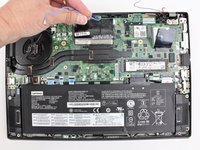
    • Use the spudger to disconnect the coaxial cables from the Wi-Fi card and WWAN card.

    • When reassembling the Wi-Fi card, reattach the black wire closest to the screw and the gray wire on the other side of the black wire. With the WWAN card, reattach the blue wire on the left and the orange wire on the right.

    • There are also small color coded arrows on each card that match the corresponding wires, to make sure you connect to the correct spot.

    Ask FixBot
    Add Comment

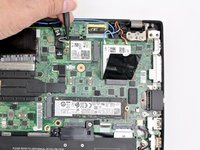
  5. Lenovo ThinkPad T480s Camera/LED Cable Replacement: step 5, image 1 of 3 Lenovo ThinkPad T480s Camera/LED Cable Replacement: step 5, image 2 of 3 Lenovo ThinkPad T480s Camera/LED Cable Replacement: step 5, image 3 of 3
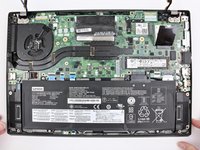
    • Use the spudger to disconnect the LCD cable from the motherboard.

    Ask FixBot

    Add Comment

  6. Lenovo ThinkPad T480s Camera/LED Cable Replacement: step 6, image 1 of 3 Lenovo ThinkPad T480s Camera/LED Cable Replacement: step 6, image 2 of 3 Lenovo ThinkPad T480s Camera/LED Cable Replacement: step 6, image 3 of 3
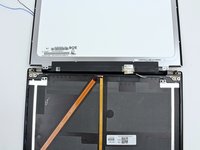
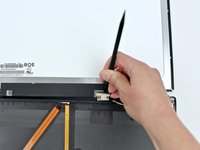
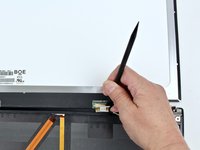
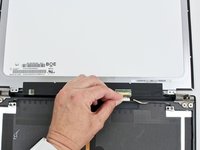
    • Disconnect the camera cable from the motherboard using a spudger.

    Ask FixBot

    Add Comment

  7. Lenovo ThinkPad T480s Camera/LED Cable Replacement: step 7, image 1 of 2 Lenovo ThinkPad T480s Camera/LED Cable Replacement: step 7, image 2 of 2
    • Remove all antenna cables from their routing.

    Ask FixBot

    Add Comment

  8. Lenovo ThinkPad T480s Camera/LED Cable Replacement: step 8, image 1 of 3 Lenovo ThinkPad T480s Camera/LED Cable Replacement: step 8, image 2 of 3 Lenovo ThinkPad T480s Camera/LED Cable Replacement: step 8, image 3 of 3
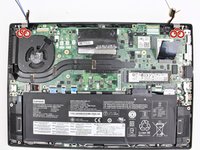
    • Using the Phillips #1 screwdriver, remove three 5 mm screws from the left hinge and three 5 mm screws from the right hinge.

    Ask FixBot
    Add Comment

  9. Lenovo ThinkPad T480s Camera/LED Cable Replacement: step 9, image 1 of 3 Lenovo ThinkPad T480s Camera/LED Cable Replacement: step 9, image 2 of 3 Lenovo ThinkPad T480s Camera/LED Cable Replacement: step 9, image 3 of 3
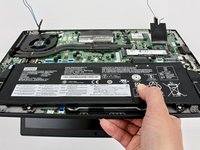
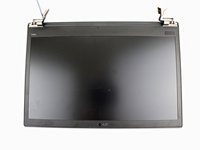
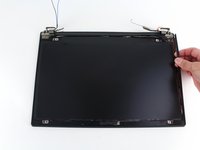
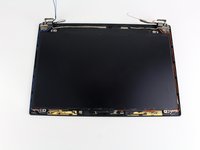
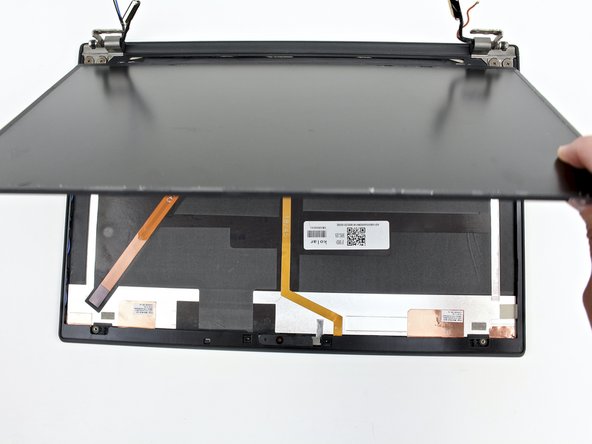
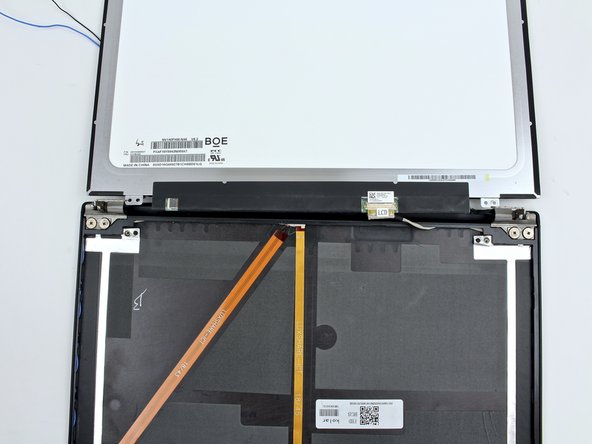
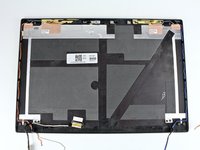
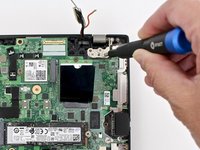
    • Carefully rotate the hinges upward and remove the bottom of the machine from the LCD unit.

    Ask FixBot
    Add Comment

  10. Lenovo ThinkPad T480s Camera/LED Cable Replacement, LCD Bezel: step 10, image 1 of 3 Lenovo ThinkPad T480s Camera/LED Cable Replacement, LCD Bezel: step 10, image 2 of 3 Lenovo ThinkPad T480s Camera/LED Cable Replacement, LCD Bezel: step 10, image 3 of 3
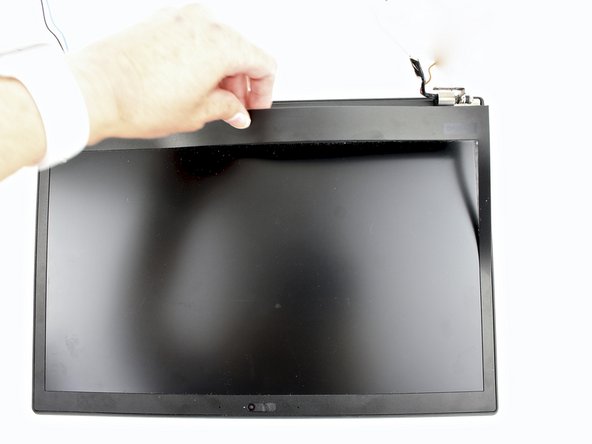
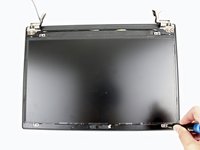
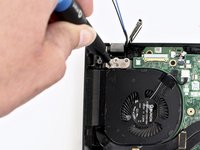
    • Using the spudger, pry the LCD bezel up from the edges starting near the hinges.

    • It is attached by adhesive so be careful not to break it. You may hear loud snaps when detaching the clips; this is normal.
    Ask FixBot

    Add Comment

  11. Lenovo ThinkPad T480s Camera/LED Cable Replacement: step 11, image 1 of 3 Lenovo ThinkPad T480s Camera/LED Cable Replacement: step 11, image 2 of 3 Lenovo ThinkPad T480s Camera/LED Cable Replacement: step 11, image 3 of 3
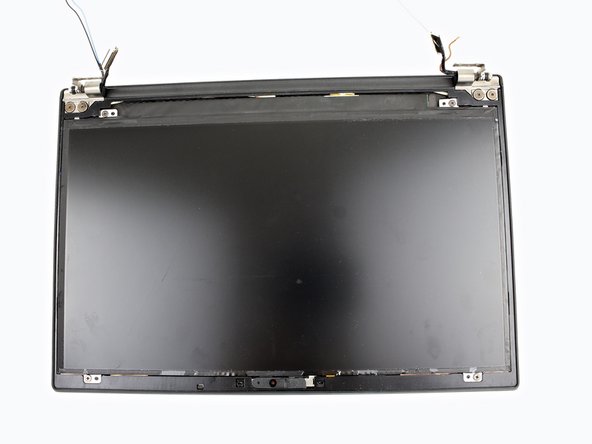
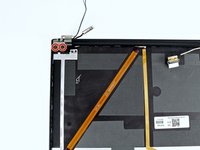
    • Use the spudger to remove the internal bezel.

    • Start at the corner by the hinge and lift the edge of the internal bezel up with the pointed end of the spudger.

    • Hold the internal bezel with your fingers and work your way around the perimeter of the screen carefully pulling the bezel up.

    • You will feel resistance and hear snapping as you remove the bezel because it is connected with clips. Be careful that you don't crack the bezel. The plastic is delicate in places.

    Ask FixBot
    Add Comment

  12. Lenovo ThinkPad T480s Camera/LED Cable Replacement, LCD Panel: step 12, image 1 of 2 Lenovo ThinkPad T480s Camera/LED Cable Replacement, LCD Panel: step 12, image 2 of 2
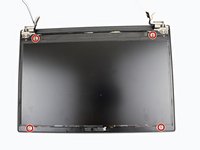
    • Remove four 2.9 mm screws from the LCD panel using the Phillips #1 screwdriver.

    Ask FixBot
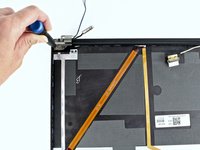
    Add Comment

  13. Lenovo ThinkPad T480s Camera/LED Cable Replacement: step 13, image 1 of 3 Lenovo ThinkPad T480s Camera/LED Cable Replacement: step 13, image 2 of 3 Lenovo ThinkPad T480s Camera/LED Cable Replacement: step 13, image 3 of 3
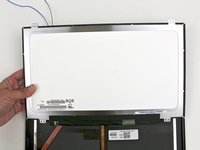
    • Gently lift the panel and flip it over.

    • The panel is still connected to the unit by the LCD cable, so be careful not to rip the connector when flipping it over.

    Ask FixBot

    Add Comment

  14. Lenovo ThinkPad T480s Camera/LED Cable Replacement: step 14, image 1 of 2 Lenovo ThinkPad T480s Camera/LED Cable Replacement: step 14, image 2 of 2
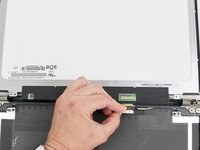
    • Peel back the tape covering the LCD cable connector.

    • Use the spudger to unlock the LCD cable.

    Ask FixBot
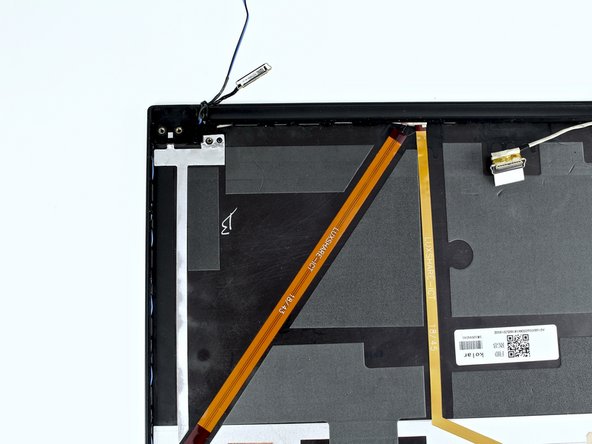
    Add Comment

  15. Lenovo ThinkPad T480s Camera/LED Cable Replacement: step 15, image 1 of 2 Lenovo ThinkPad T480s Camera/LED Cable Replacement: step 15, image 2 of 2
    • Remove the LCD cable from the socket.

    Ask FixBot
    Add Comment

  16. Lenovo ThinkPad T480s Camera/LED Cable Replacement: step 16, image 1 of 2 Lenovo ThinkPad T480s Camera/LED Cable Replacement: step 16, image 2 of 2
    • Remove the LCD panel from the system.

    Ask FixBot
    Add Comment

  17. Lenovo ThinkPad T480s Camera/LED Cable Replacement, Hinges: step 17, image 1 of 2 Lenovo ThinkPad T480s Camera/LED Cable Replacement, Hinges: step 17, image 2 of 2
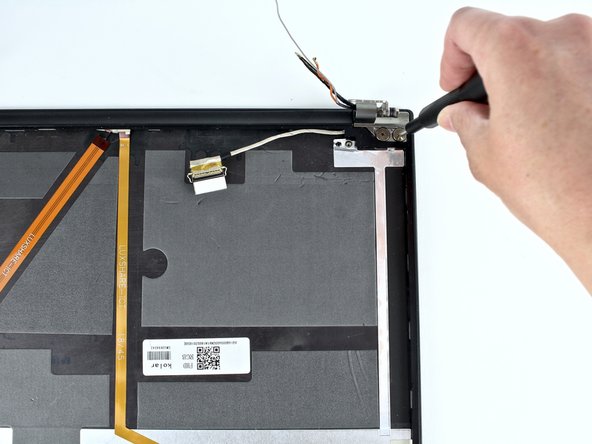
    • Use the Phillips #1 screwdriver to remove two 2.8 mm screws from the hinge in the upper right corner.

    Ask FixBot

    Add Comment

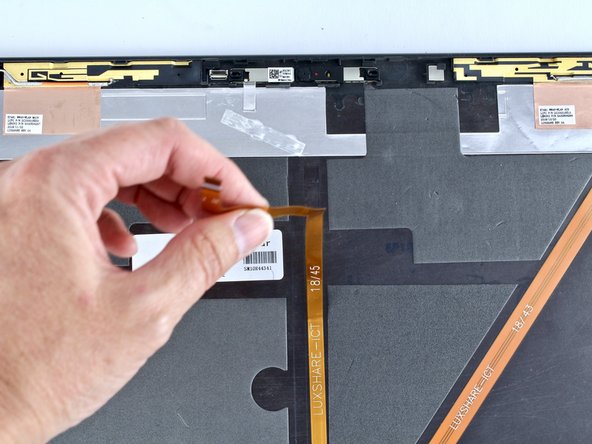
  18. Lenovo ThinkPad T480s Camera/LED Cable Replacement: step 18, image 1 of 2 Lenovo ThinkPad T480s Camera/LED Cable Replacement: step 18, image 2 of 2
    • Remove the hinge in the upper right corner.

    Ask FixBot
    Add Comment

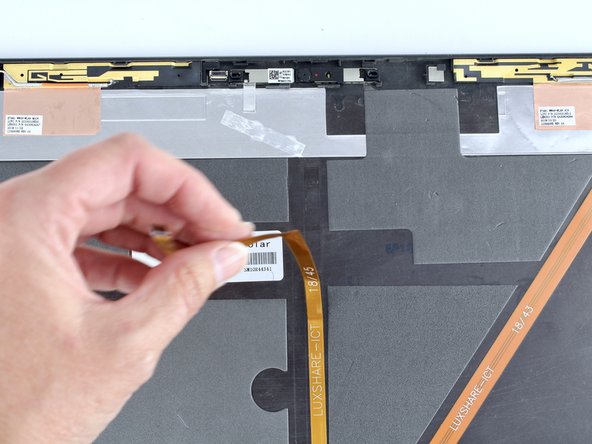
  19. Lenovo ThinkPad T480s Camera/LED Cable Replacement: step 19, image 1 of 2 Lenovo ThinkPad T480s Camera/LED Cable Replacement: step 19, image 2 of 2
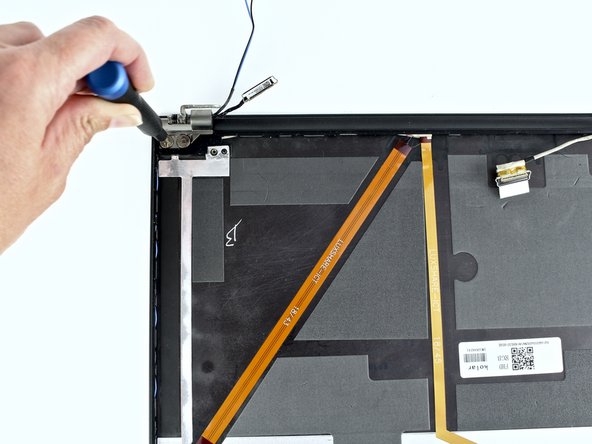
    • Use a Phillips #1 screwdriver to remove two 2.8 mm screws from the hinge in the upper left corner.

    Ask FixBot
    Add Comment

  20. Lenovo ThinkPad T480s Camera/LED Cable Replacement: step 20, image 1 of 2 Lenovo ThinkPad T480s Camera/LED Cable Replacement: step 20, image 2 of 2
    • Remove the hinge in the upper left corner.

    Ask FixBot
    Add Comment
  21. Lenovo ThinkPad T480s Camera/LED Cable Replacement, Camera/LED Cable: step 21, image 1 of 3 Lenovo ThinkPad T480s Camera/LED Cable Replacement, Camera/LED Cable: step 21, image 2 of 3 Lenovo ThinkPad T480s Camera/LED Cable Replacement, Camera/LED Cable: step 21, image 3 of 3
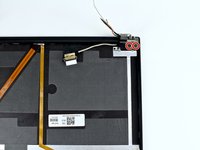
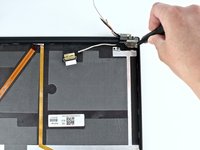
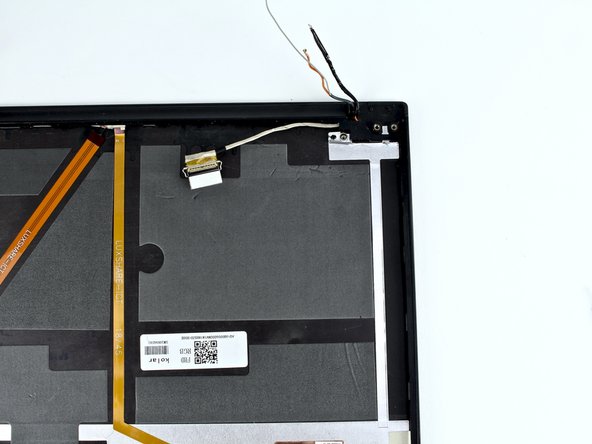
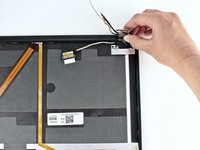
    • Use the spudger to disconnect the cable from the camera card, then peel the cable up from the LCD unit.

    Ask FixBot

    Add Comment

  22. Lenovo ThinkPad T480s Camera/LED Cable Replacement: step 22, image 1 of 2 Lenovo ThinkPad T480s Camera/LED Cable Replacement: step 22, image 2 of 2
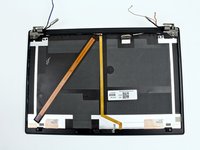
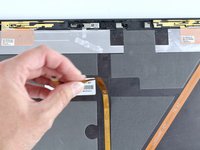
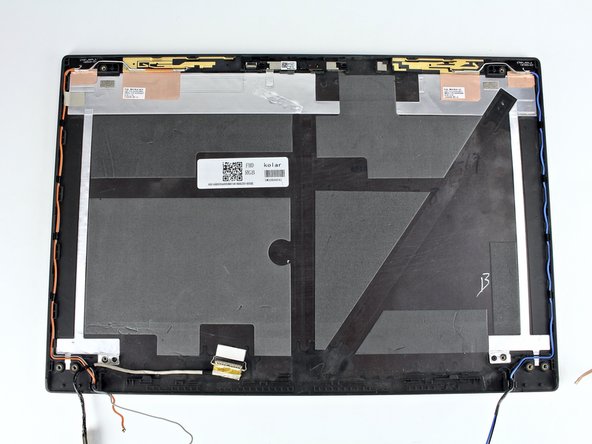
    • Peel the ThinkPad logo LED cable from the LCD unit and remove the cables from the system.

    Ask FixBot

    Add Comment

Conclusion

To reassemble your device, follow these instructions in reverse order.

Take your e-waste to an R2 or e-Stewards certified recycler.

Repair didn’t go as planned? Try some basic troubleshooting, or ask our Answers community for help.

Cancel: I did not complete this guide.

Sarah Westberg

Member since: 03/11/19

40,485 Reputation

72 Guides authored

Team

iFixit Member of iFixit

Staff

122 Members

26,591 Guides authored

0 Guide Comments

Add Comment

View Statistics:

Past 24 Hours: 2

Past 7 Days: 19

Past 30 Days: 45

All Time: 1,534