Free Shipping on Domestic Orders $75+

Lenovo ThinkPad T480 Wi-Fi Card Replacement

What you need

    1. Lenovo ThinkPad T480 Wi-Fi Card Replacement, External Battery: step 1, image 1 of 2 Lenovo ThinkPad T480 Wi-Fi Card Replacement, External Battery: step 1, image 2 of 2
      • Disable the battery, power down, and unplug your device before you begin.

      • Flip the laptop over so the bottom of the device is showing.

      Ask FixBot

      Add Comment

    2. Lenovo ThinkPad T480 Wi-Fi Card Replacement: step 2, image 1 of 3 Lenovo ThinkPad T480 Wi-Fi Card Replacement: step 2, image 2 of 3 Lenovo ThinkPad T480 Wi-Fi Card Replacement: step 2, image 3 of 3
      • Using your fingers, slide the lock on each side of the battery to the unlocked position.

      • Remove the battery from the slot.

      Ask FixBot

      Add Comment

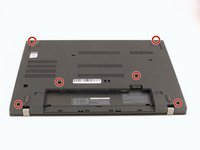
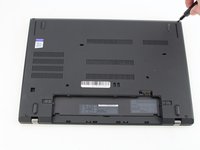
    1. Lenovo ThinkPad T480 Wi-Fi Card Replacement, Back Cover: step 3, image 1 of 2 Lenovo ThinkPad T480 Wi-Fi Card Replacement, Back Cover: step 3, image 2 of 2
      • Using the Phillips #1 screwdriver, loosen the six captive screws.

      Ask FixBot

      Add Comment

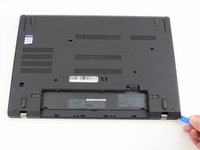
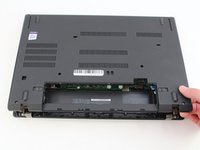
    2. Lenovo ThinkPad T480 Wi-Fi Card Replacement: step 4, image 1 of 3 Lenovo ThinkPad T480 Wi-Fi Card Replacement: step 4, image 2 of 3 Lenovo ThinkPad T480 Wi-Fi Card Replacement: step 4, image 3 of 3
      • Insert the blue plastic opening tool into the space between the lower case and the chassis.

      • Slide the opening tool around the perimeter of the case to release the clips holding the case and the chassis together.

      • If it feels like the battery well portion of the back cover isn't loose, these clips may be holding the cover to the laptop. Use your opening tool to pry the clips loose and try removing the cover again.

      • Remove the back case.

      Ask FixBot

      Add Comment

    1. Lenovo ThinkPad T480 Wi-Fi Card Replacement, Remove the battery: step 5, image 1 of 2 Lenovo ThinkPad T480 Wi-Fi Card Replacement, Remove the battery: step 5, image 2 of 2
      • Use a Phillips #1 screwdriver to remove the two 4.6 mm screws that secure the internal battery to the frame.

      • Not All T480 laptops come with an internal battery. If there is a spacer or nothing here, skip the next two steps.

      Ask FixBot

      Add Comment

    2. Lenovo ThinkPad T480 Wi-Fi Card Replacement: step 6, image 1 of 3 Lenovo ThinkPad T480 Wi-Fi Card Replacement: step 6, image 2 of 3 Lenovo ThinkPad T480 Wi-Fi Card Replacement: step 6, image 3 of 3
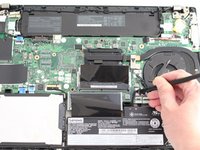
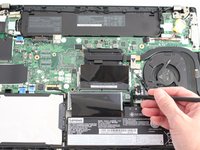
      • Use the spudger to slide the battery socket connector parallel to the motherboard and out of its socket on the motherboard.

      Ask FixBot

      Add Comment

    3. Lenovo ThinkPad T480 Wi-Fi Card Replacement: step 7, image 1 of 2 Lenovo ThinkPad T480 Wi-Fi Card Replacement: step 7, image 2 of 2
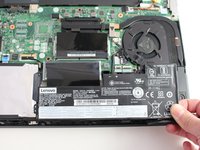
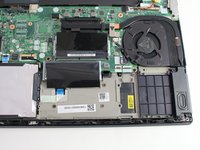
      • Lift the battery straight out of its recess and remove it.

      • If the battery is difficult to remove from the recess, use a nylon spudger to gently lift it on one edge, making it easier to grasp and remove by hand.

      • To prevent damage or potential fire, do not bend or flex the battery. Only use a plastic spudger and avoid any sharp tools that could puncture the battery.

      Ask FixBot

      Add Comment

    1. Lenovo ThinkPad T480 Wi-Fi Card Replacement, Wi-Fi Card: step 8, image 1 of 1
      • Using the Phillips #1 screwdriver, remove the single 3.6 mm screw at the top of the Wi-Fi card attaching it to the motherboard.

      Ask FixBot

      Add Comment

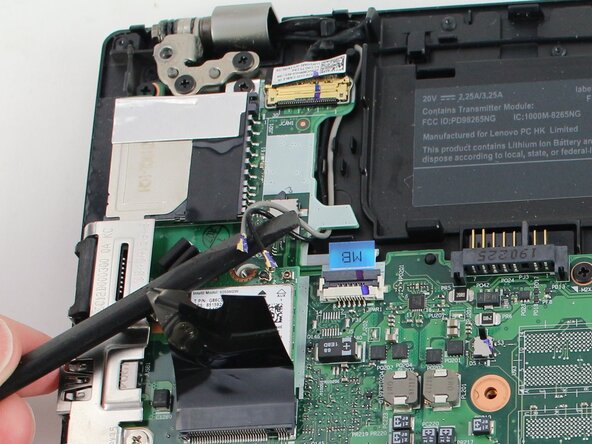
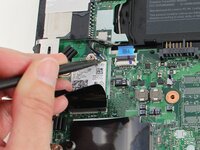
    2. Lenovo ThinkPad T480 Wi-Fi Card Replacement: step 9, image 1 of 2 Lenovo ThinkPad T480 Wi-Fi Card Replacement: step 9, image 2 of 2
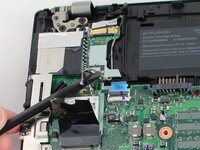
      • Slide a thin, ESD-safe pry tool or angled tweezers under the metal neck of the connector (as close to the head as possible) and lift straight up from the board.

      • For additional tips on disconnecting coaxial cables, check out the Recognizing and Disconnecting Cable Connectors guide.

      • When working with these connectors, always lift the head straight up. If pried on at an odd angle, you risk breaking the socket off of the board underneath.

      • Use tweezers to hold the connector in place over its socket and gently press down with your finger or a spudger—the connector should "snap" into place. If you're having trouble, reposition the head and try again.

      • Don't try to force the connector into place or you may permanently damage it.

      Ask FixBot

      Add Comment

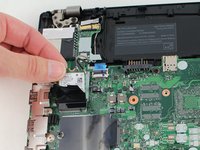
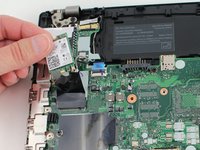
    3. Lenovo ThinkPad T480 Wi-Fi Card Replacement: step 10, image 1 of 2 Lenovo ThinkPad T480 Wi-Fi Card Replacement: step 10, image 2 of 2
      • Slide the Wi-Fi card out from the slot to remove it from the board.

      Ask FixBot

      Add Comment

Conclusion

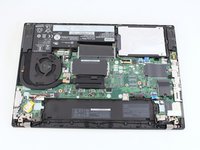
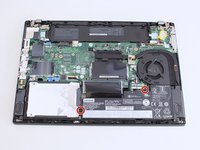
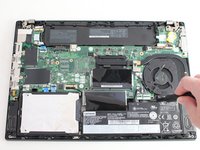
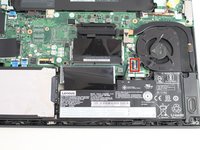
To reassemble your device, follow the above steps in reverse order.

Take your e-waste to an R2 or e-Stewards certified recycler.

Repair didn’t go as planned? Try some basic troubleshooting, or ask our Answers community for help.

Cancel: I did not complete this guide.

4 other people completed this guide.

Sarah Westberg

Member since: 03/11/19

41,851 Reputation

72 Guides authored

Team

iFixit Member of iFixit

Staff

123 Members

80,890 Guides authored

4 Guide Comments

Great guide! Everyone make sure to reconnect the black cable to terminal 2 (on the left) and white to t1 (to the right).

Lorenzo Serrano - Reply Share
Step 9 only worked for one of the antennaes so had to abort as they fragile, please provide an alternative method if the connector wont pop out with this method. Also a reassembly guide should be part of this, especially on how to reattach the connectors?

Chris Bloggs - Reply Share
Hi @chrisbloggs, Thanks for your comment! ******I updated Step 9 to include a bit more detail. If you’re unable to disconnect the other cable, you might consider using an antenna disconnect tool—it's designed specifically for that task. In most cases, a spudger or tweezers will work, but the tool can be a useful alternative. Good luck with your repair!

Sarah Westberg - Reply Share

computer parts needed don't apply. wwan card is not wifi card and there is no reason to replace back case when replacing wifi card. you take it off, not break it off. It is already part of the laptop

Slash - Reply Share

Add Comment

View Statistics:

Past 24 Hours: 10

Past 7 Days: 66

Past 30 Days: 216

All Time: 11,827