Free Shipping on Domestic Orders $75+

Lenovo ThinkPad T480 Camera Replacement

What you need

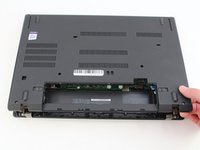
  1. Lenovo ThinkPad T480 Camera Replacement, External Battery: step 1, image 1 of 2 Lenovo ThinkPad T480 Camera Replacement, External Battery: step 1, image 2 of 2
    • Disable the battery, power down, and unplug your device before you begin.

    • Flip the laptop over so the bottom of the device is showing.

    Ask FixBot

    Add Comment

  2. Lenovo ThinkPad T480 Camera Replacement: step 2, image 1 of 3 Lenovo ThinkPad T480 Camera Replacement: step 2, image 2 of 3 Lenovo ThinkPad T480 Camera Replacement: step 2, image 3 of 3
    • Using your fingers, slide the lock on each side of the battery to the unlocked position.

    • Remove the battery from the slot.

    Ask FixBot

    Add Comment

  3. Lenovo ThinkPad T480 Camera Replacement, Keyboard: step 3, image 1 of 1
    • Use the Phillips #1 screwdriver to loosen the two screws parallel to the battery compartment.

    Ask FixBot

    Add Comment

  4. Lenovo ThinkPad T480 Camera Replacement: step 4, image 1 of 1
    • Open the laptop so the keyboard is facing you.

    Ask FixBot

    Add Comment

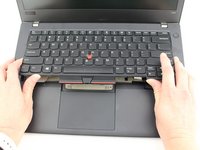
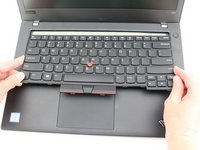
  5. Lenovo ThinkPad T480 Camera Replacement: step 5, image 1 of 3 Lenovo ThinkPad T480 Camera Replacement: step 5, image 2 of 3 Lenovo ThinkPad T480 Camera Replacement: step 5, image 3 of 3
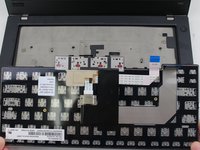
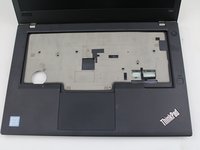
    • Push the keyboard towards the screen and away from the trackpad and then slide it out towards you gently.

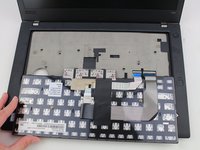
    • The keyboard is connected to the board by two ribbon connectors.

    • Be careful not to rip the connectors when you flip the keyboard over.

    Ask FixBot

    Add Comment

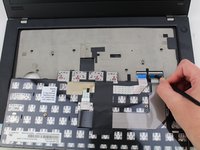
  6. Lenovo ThinkPad T480 Camera Replacement: step 6, image 1 of 3 Lenovo ThinkPad T480 Camera Replacement: step 6, image 2 of 3 Lenovo ThinkPad T480 Camera Replacement: step 6, image 3 of 3
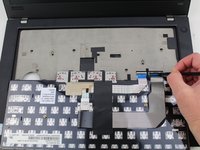
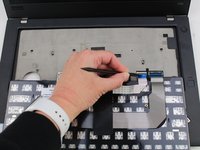
    • Flip the keyboard over towards you to expose the backside of the keyboard and the two ribbon connectors.

    • Using the black nylon spudger, flip the first ribbon connector lock open. Slide the first connector out.

    Ask FixBot

    Add Comment

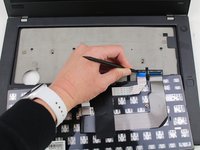
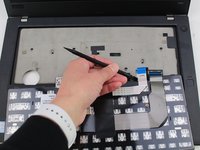
  7. Lenovo ThinkPad T480 Camera Replacement: step 7, image 1 of 3 Lenovo ThinkPad T480 Camera Replacement: step 7, image 2 of 3 Lenovo ThinkPad T480 Camera Replacement: step 7, image 3 of 3
    • Using the black nylon spudger, unlock the second ribbon connector and slide it out from the port.

    Ask FixBot

    Add Comment

  8. Lenovo ThinkPad T480 Camera Replacement: step 8, image 1 of 2 Lenovo ThinkPad T480 Camera Replacement: step 8, image 2 of 2
    • Remove the keyboard from the laptop.

    Ask FixBot

    Add Comment

  9. Lenovo ThinkPad T480 Camera Replacement, Back Cover: step 9, image 1 of 2 Lenovo ThinkPad T480 Camera Replacement, Back Cover: step 9, image 2 of 2
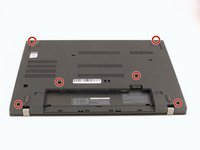
    • Using the Phillips #1 screwdriver, loosen the six captive screws.

    Ask FixBot

    Add Comment

  10. Lenovo ThinkPad T480 Camera Replacement: step 10, image 1 of 3 Lenovo ThinkPad T480 Camera Replacement: step 10, image 2 of 3 Lenovo ThinkPad T480 Camera Replacement: step 10, image 3 of 3
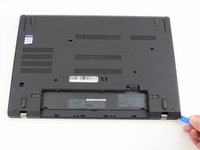
    • Insert the blue plastic opening tool into the space between the lower case and the chassis.

    • Slide the opening tool around the perimeter of the case to release the clips holding the case and the chassis together.

    • If it feels like the battery well portion of the back cover isn't loose, these clips may be holding the cover to the laptop. Use your opening tool to pry the clips loose and try removing the cover again.

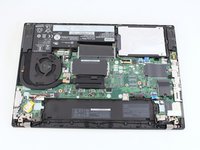
    • Remove the back case.

    Ask FixBot

    Add Comment

  11. Lenovo ThinkPad T480 Camera Replacement, Remove the battery: step 11, image 1 of 2 Lenovo ThinkPad T480 Camera Replacement, Remove the battery: step 11, image 2 of 2
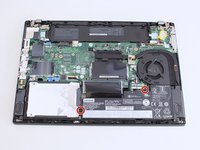
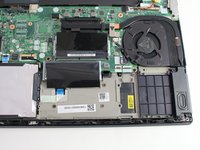
    • Use a Phillips #1 screwdriver to remove the two 4.6 mm screws that secure the internal battery to the frame.

    • Not All T480 laptops come with an internal battery. If there is a spacer or nothing here, skip the next two steps.

    Ask FixBot

    Add Comment

  12. Lenovo ThinkPad T480 Camera Replacement: step 12, image 1 of 3 Lenovo ThinkPad T480 Camera Replacement: step 12, image 2 of 3 Lenovo ThinkPad T480 Camera Replacement: step 12, image 3 of 3
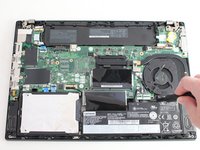
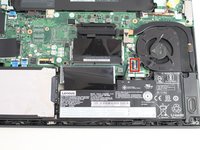
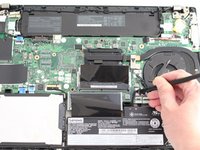
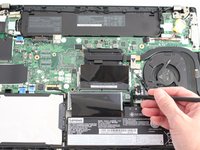
    • Use the spudger to slide the battery socket connector parallel to the motherboard and out of its socket on the motherboard.

    Ask FixBot

    Add Comment

  13. Lenovo ThinkPad T480 Camera Replacement: step 13, image 1 of 2 Lenovo ThinkPad T480 Camera Replacement: step 13, image 2 of 2
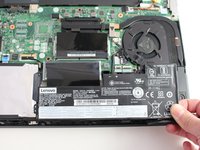
    • Lift the battery straight out of its recess and remove it.

    • If the battery is difficult to remove from the recess, use a nylon spudger to gently lift it on one edge, making it easier to grasp and remove by hand.

    • To prevent damage or potential fire, do not bend or flex the battery. Only use a plastic spudger and avoid any sharp tools that could puncture the battery.

    Ask FixBot

    Add Comment

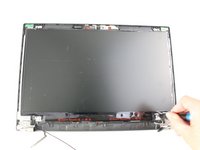
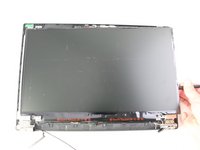
  14. Lenovo ThinkPad T480 Camera Replacement, LCD Bezel: step 14, image 1 of 2 Lenovo ThinkPad T480 Camera Replacement, LCD Bezel: step 14, image 2 of 2
    • Flip the laptop over

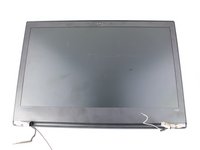
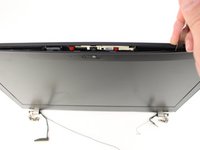
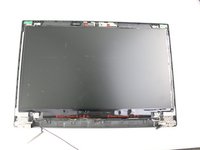
    • Use the metal spudger to create a space between the bezel and lid and carefully undo the clips around the perimeter of the bezel.

    • In this image, the assembly is seperated from the bottom case for clarity.

    Ask FixBot

    Add Comment

  15. Lenovo ThinkPad T480 Camera Replacement: step 15, image 1 of 2 Lenovo ThinkPad T480 Camera Replacement: step 15, image 2 of 2
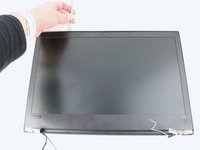
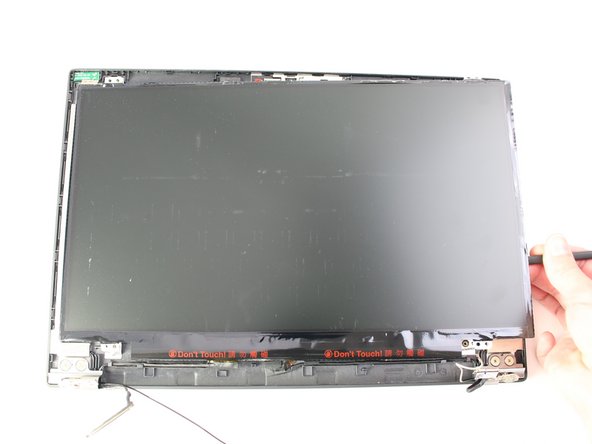
    • Finish removing the bezel from the screen using the metal spudger and your hands.

    • The bottom edge of the bezel is not connected with clips but with adhesive. Take care as you remove it so you don't bend or break the bezel.

    Ask FixBot

    Add Comment

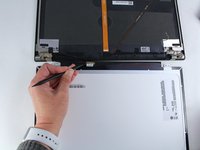
  16. Lenovo ThinkPad T480 Camera Replacement, LCD Screen: step 16, image 1 of 3 Lenovo ThinkPad T480 Camera Replacement, LCD Screen: step 16, image 2 of 3 Lenovo ThinkPad T480 Camera Replacement, LCD Screen: step 16, image 3 of 3
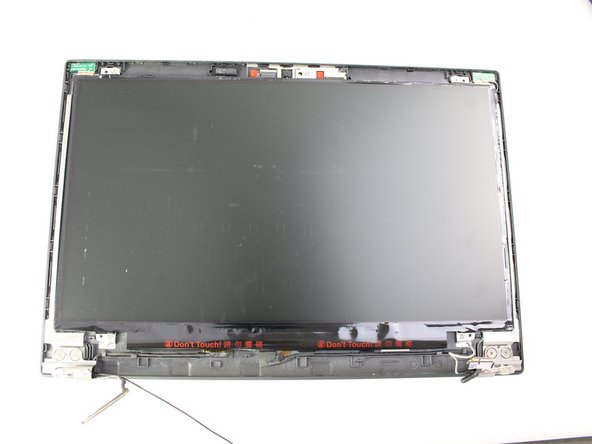
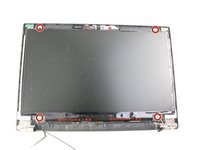
    • Remove the four 3.0 mm Phillips #1 screws from the four corners of the LCD screen.

    • Lift it up using the spudger and flip it over gently towards you.

    • The LCD screen is still connected by a connector cable so be sure not to yank or pull on the screen.

    Ask FixBot

    Add Comment

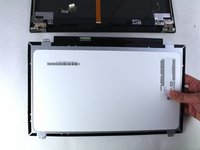
  17. Lenovo ThinkPad T480 Camera Replacement: step 17, image 1 of 2 Lenovo ThinkPad T480 Camera Replacement: step 17, image 2 of 2
    • Using the black nylon spudger, disconnect the display connector cable and remove the LCD screen.

    Ask FixBot

    Add Comment

  18. Lenovo ThinkPad T480 Camera Replacement, Camera: step 18, image 1 of 3 Lenovo ThinkPad T480 Camera Replacement, Camera: step 18, image 2 of 3 Lenovo ThinkPad T480 Camera Replacement, Camera: step 18, image 3 of 3
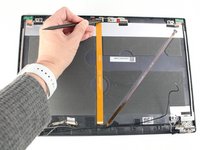
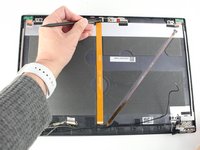
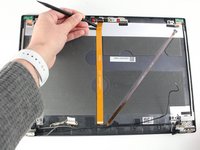
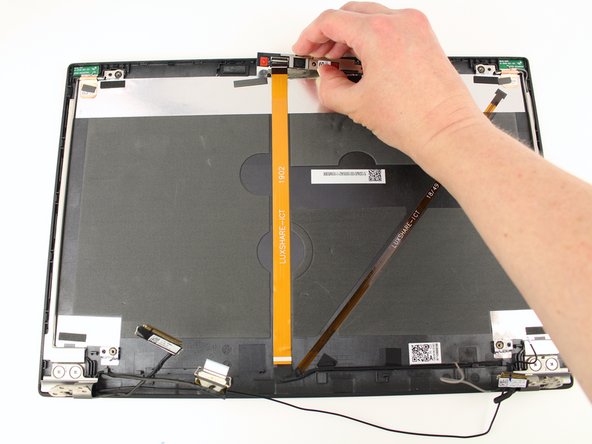
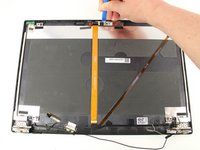
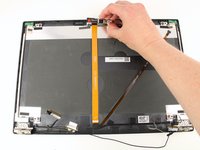
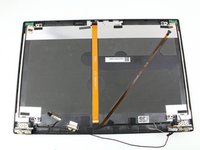
    • Disconnect the camera cable from the top cover using the black nylon spudger.

    Ask FixBot

    Add Comment

  19. Lenovo ThinkPad T480 Camera Replacement: step 19, image 1 of 3 Lenovo ThinkPad T480 Camera Replacement: step 19, image 2 of 3 Lenovo ThinkPad T480 Camera Replacement: step 19, image 3 of 3
    • Use the opening tool to pry the camera up and lift it out.

    • The camera assembly is attached to the case very securely with adhesive. It will take some leverage with the opening tool to wedge it out.

    Ask FixBot

    Add Comment

Conclusion

To reassemble your device, follow the above steps in reverse order.

Take your e-waste to an R2 or e-Stewards certified recycler.

Repair didn’t go as planned? Try some basic troubleshooting, or ask our Answers community for help.

Cancel: I did not complete this guide.

2 other people completed this guide.

Sarah Westberg

Member since: 03/11/19

40,488 Reputation

72 Guides authored

Team

iFixit Member of iFixit

Staff

122 Members

26,591 Guides authored

1 Guide Comment

There is no need to remove the entire motherboard to remove the LCD assembly

Slash - Reply Share
Add Comment

View Statistics:

Past 24 Hours: 1

Past 7 Days: 37

Past 30 Days: 134

All Time: 4,473