
Lenovo ThinkPad T470S Keyboard Replacement

Noah Stuart and 2 other contributors
Last updated on Nov 29, 2023
Views: 12K
View statistics:
- Past 24 Hours:
- 10
- Past 7 Days:
- 48
- Past 30 Days:
- 224
- All Time:
- 11,686
Comments: 3
3 comments on steps.
Completed: 9 10
9 people have marked this guide "completed." Will you be next?
10 people have marked this guide "completed." Including you — great job!
Favorites: 0 1
No one has favorited (and subscribed to) this guide. Will you be the first?
1 person has favorited (and subscribed to) this guide — and that's you!
Introduction
Go to step 1 ↓The keyboard in the Lenovo ThinkPad T470S may need to be replaced if the keys are sticking or not responding. The removal of the keyboard from the device is necessary for replacing the keyboard as well as individual keys. Once the keyboard is removed, popping out individual keys can be accomplished using a spudger. Cleaning the keyboard may also be easier if you remove it from your laptop. This will allow you to ensure a more thorough cleaning of your device.
What you need


-
-
-
Loosen the screw on the backside of the laptop that holds the keyboard in using a Phillips #000 screwdriver.
 Ask FixBot
-
-
-
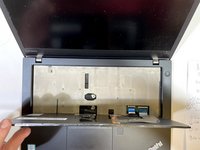
Open the laptop.
-
Use a spudger to slide the keyboard cover towards the screen.
-
-
-
Unscrew the six exposed screws with the Phillips #000 screwdriver.
-
Use the spudger to pop the keyboard out.
-
-
-
-
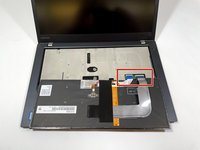
Flip over the top of the keyboard by the display.
-
Open the retaining flaps on the ribbon cable connectors.
-
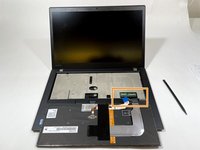
Slide the ribbon cables out of their connectors.
-
Remove the keyboard from the device.
-
-


To reassemble your device, follow these instructions in reverse order.
Cancel: I did not complete this guide.
9 other people completed this guide.

Team

Illinois Wesleyan University, Team S1-G3, Bullock Spring 2021 Member of Illinois Wesleyan University, Team S1-G3, Bullock Spring 2021
IWU-BULLOCK-S21S1G3
4 Members
72 Guides authored
