Free Shipping on Domestic Orders $75+

Lenovo ThinkPad T470 SSD Replacement

What you need

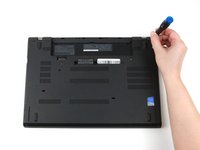
  1. Lenovo ThinkPad T470 SSD Replacement, External Battery: step 1, image 1 of 3 Lenovo ThinkPad T470 SSD Replacement, External Battery: step 1, image 2 of 3 Lenovo ThinkPad T470 SSD Replacement, External Battery: step 1, image 3 of 3
    • Before you begin this guide, make sure to disable the internal battery, power down your device, and disconnect from any external power sources.

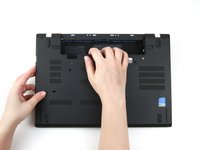
    • Place the laptop so that the bottom is facing upwards.

    • Slide the latch on the left side of the battery to the left until it clicks in place.

    Ask FixBot

    Add Comment

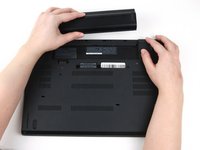
  2. Lenovo ThinkPad T470 SSD Replacement: step 2, image 1 of 3 Lenovo ThinkPad T470 SSD Replacement: step 2, image 2 of 3 Lenovo ThinkPad T470 SSD Replacement: step 2, image 3 of 3
    • Slide the latch on the right side of the battery to the right and hold it in place with your thumb.

    • Use your other hand to slide the battery towards the back of the laptop.

    • Lift the battery up and away from the laptop.

    Ask FixBot

    Add Comment

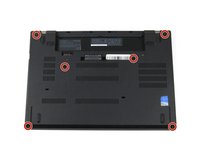
  3. Lenovo ThinkPad T470 SSD Replacement, Bottom Cover: step 3, image 1 of 2 Lenovo ThinkPad T470 SSD Replacement, Bottom Cover: step 3, image 2 of 2
    • Use a Phillips #1 screwdriver to loosen the six captive screws on the bottom cover of the laptop.

    Ask FixBot

    Add Comment

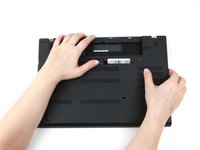
  4. Lenovo ThinkPad T470 SSD Replacement: step 4, image 1 of 3 Lenovo ThinkPad T470 SSD Replacement: step 4, image 2 of 3 Lenovo ThinkPad T470 SSD Replacement: step 4, image 3 of 3
    • Use your hands to pull up on the back cover and release the plastic clips starting on the bottom side of the battery compartment.

    • Potential for device damage: Be sure to detach the plastic clips in this area first. You risk cracking the bottom cover if you attempt to detach it from around the edges of the laptop first.

    • Use your hands to pull up on the right side of the bottom cover to release the plastic clips.

    • Use your hands to pull up on the left side of the bottom cover to release the plastic clips.

    Ask FixBot

    Add Comment

  5. Lenovo ThinkPad T470 SSD Replacement: step 5, image 1 of 1
    • Remove the bottom cover from the laptop.

    • Disconnect the battery from the board before continuing.

    Ask FixBot

    Add Comment

  6. Lenovo ThinkPad T470 SSD Replacement, SSD Assembly: step 6, image 1 of 2 Lenovo ThinkPad T470 SSD Replacement, SSD Assembly: step 6, image 2 of 2
    • Use the flat end of a spudger to flip up the metal clip securing the SSD connector to the motherboard.

    Ask FixBot

    Add Comment

  7. Lenovo ThinkPad T470 SSD Replacement: step 7, image 1 of 2 Lenovo ThinkPad T470 SSD Replacement: step 7, image 2 of 2
    • Use the flat end of a spudger to separate the connector from its socket.

    Ask FixBot

    Add Comment

  8. Lenovo ThinkPad T470 SSD Replacement: step 8, image 1 of 3 Lenovo ThinkPad T470 SSD Replacement: step 8, image 2 of 3 Lenovo ThinkPad T470 SSD Replacement: step 8, image 3 of 3
    • Grab the tab on the left side of the SSD assembly, and pull up to remove it from the laptop.

    Ask FixBot

    Add Comment

  9. Lenovo ThinkPad T470 SSD Replacement, SSD: step 9, image 1 of 3 Lenovo ThinkPad T470 SSD Replacement, SSD: step 9, image 2 of 3 Lenovo ThinkPad T470 SSD Replacement, SSD: step 9, image 3 of 3
    • Use your fingers to detach the plastic bracket from the SSD assembly.

    Ask FixBot

    Add Comment

  10. Lenovo ThinkPad T470 SSD Replacement: step 10, image 1 of 2 Lenovo ThinkPad T470 SSD Replacement: step 10, image 2 of 2
    • Flip the SSD assembly over so that the green connector board is visible.

    Ask FixBot

    Add Comment

  11. Lenovo ThinkPad T470 SSD Replacement: step 11, image 1 of 2 Lenovo ThinkPad T470 SSD Replacement: step 11, image 2 of 2
    • Use a Phillips #1 screwdriver to remove the two 4 mm screws from the metal bracket.

    Ask FixBot

    Add Comment

  12. Lenovo ThinkPad T470 SSD Replacement: step 12, image 1 of 3 Lenovo ThinkPad T470 SSD Replacement: step 12, image 2 of 3 Lenovo ThinkPad T470 SSD Replacement: step 12, image 3 of 3
    • Use your hands to lift the metal bracket up and away from the SSD assembly.

    • There may be some adhesive attaching the metal bracket to the SSD.

    Ask FixBot

    Add Comment

  13. Lenovo ThinkPad T470 SSD Replacement: step 13, image 1 of 1
    • Remove the single 4 mm screw using a Phillips #1 screwdriver.

    Ask FixBot

    Add Comment

  14. Lenovo ThinkPad T470 SSD Replacement: step 14, image 1 of 2 Lenovo ThinkPad T470 SSD Replacement: step 14, image 2 of 2
    • Use the flat end of a spudger to pry the SSD up slightly and pull it out of the slot with your other hand.

    Ask FixBot

    Add Comment

  15. Lenovo ThinkPad T470 SSD Replacement: step 15, image 1 of 2 Lenovo ThinkPad T470 SSD Replacement: step 15, image 2 of 2
    • Remove the two 4 mm screws from the SSD connector board using a Phillips #1 screwdriver.

    Ask FixBot

    Add Comment

  16. Lenovo ThinkPad T470 SSD Replacement: step 16, image 1 of 2 Lenovo ThinkPad T470 SSD Replacement: step 16, image 2 of 2
    • Use your hand to remove the SSD connector board from the metal enclosure.

    Ask FixBot

    Add Comment

Conclusion

To reassemble your device, follow these instructions in reverse order.

Take your e-waste to an R2 or e-Stewards certified recycler.

Repair didn’t go as planned? Try some basic troubleshooting, or ask our Answers community for help.

Cancel: I did not complete this guide.

7 other people completed this guide.

Kristen Gismondi

Member since: 11/12/14

107,490 Reputation

270 Guides authored

Team

iFixit Member of iFixit

Staff

122 Members

26,591 Guides authored

0 Guide Comments

Add Comment

View Statistics:

Past 24 Hours: 9

Past 7 Days: 103

Past 30 Days: 377

All Time: 27,978