
Lenovo ThinkPad T470 Coin Cell Battery Replacement

Kristen Gismondi and 2 other contributors
Last updated on May 7, 2024
Views: 6.7K
View statistics:
- Past 24 Hours:
- 5
- Past 7 Days:
- 46
- Past 30 Days:
- 189
- All Time:
- 6,657
Comments: 6
6 comments on steps.
Completed: 1 2
1 person has marked this guide "completed." Will you be next?
2 people have marked this guide "completed." Including you — great job!
Favorites: 0 1
No one has favorited (and subscribed to) this guide. Will you be the first?
1 person has favorited (and subscribed to) this guide — and that's you!
Introduction
Go to step 1 ↓Use this guide to replace the coin cell battery in your Lenovo ThinkPad T470.
A coin cell battery, also called a CMOS battery, is responsible for remembering specific information such as the computer’s date, time, and BIOS settings when the laptop is turned off.
When the coin cell battery fails, an error message will appear when you power on your laptop.
Make sure to disable the internal battery, power down your device, and disconnect from any external power sources before you begin.
What you need
Parts

Tools


-
-
-
Place the laptop so that the bottom is facing upwards.
-
Slide the latch on the left side of the battery to the left until it clicks in place.
 Ask FixBot
-
-
-
Slide the latch on the right side of the battery to the right and hold it in place with your thumb.
-
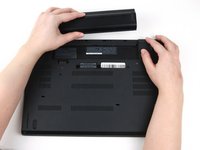
Use your other hand to slide the battery towards the back of the laptop.
-
Lift the battery up and away from the laptop.
-
-
-
-
-
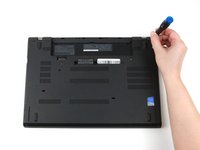
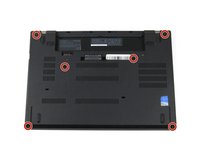
Use a Phillips #1 screwdriver to loosen the six captive screws on the bottom cover of the laptop.
-
-
-
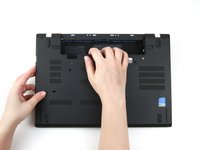
Use your hands to pull up on the back cover and release the plastic clips starting on the bottom side of the battery compartment.
-
Use your hands to pull up on the right side of the bottom cover to release the plastic clips.
-
Use your hands to pull up on the left side of the bottom cover to release the plastic clips.
-
-
-
-
-
Tool used on this step:Tweezers$4.99
-
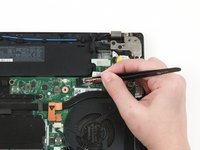
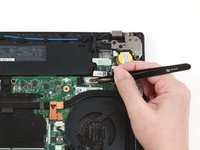
Use a pair of blunt nose tweezers to pull the white connector out of its socket.
-
-
-
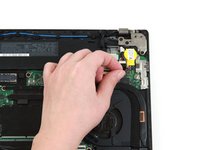
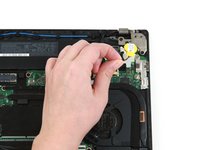
Grab the wire attached to the coin cell battery, and lift it up and out of the laptop.
-
-












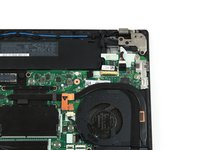
To reassemble your device, follow these instructions in reverse order.
Take your e-waste to an R2 or e-Stewards certified recycler.
Repair didn’t go as planned? Try some basic troubleshooting, or ask our Answers community for help.
Cancel: I did not complete this guide.
One other person completed this guide.


