Introduction
Use this guide to replace the bottom cover of your Lenovo ThinkPad T470 laptop.
The bottom cover encases the internal components of the laptop and provides proper ventilation for the fan. You may need to replace the bottom cover if it is cracked or physically damaged to the point where it is exposing the laptop’s internals.
Make sure to disable the internal battery, power down your device, and disconnect from any external power sources before you begin.
What you need
-
-
-
Place the laptop so that the bottom is facing upwards.
-
Slide the latch on the left side of the battery to the left until it clicks in place.
 Ask FixBot
-
-
-
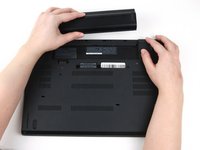
Slide the latch on the right side of the battery to the right and hold it in place with your thumb.
-
Use your other hand to slide the battery towards the back of the laptop.
-
Lift the battery up and away from the laptop.
-
-
-
-
-
-
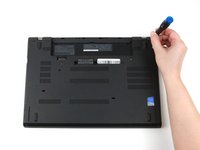
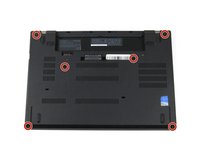
Use a Phillips #1 screwdriver to loosen the six captive screws on the bottom cover of the laptop.
-
-
-
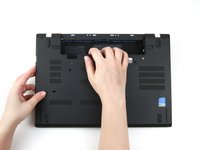
Use your hands to pull up on the back cover and release the plastic clips starting on the bottom side of the battery compartment.
-
Use your hands to pull up on the right side of the bottom cover to release the plastic clips.
-
Use your hands to pull up on the left side of the bottom cover to release the plastic clips.
-
-









To reassemble your device, follow these instructions in reverse order.
Take your e-waste to an R2 or e-Stewards certified recycler.
Repair didn’t go as planned? Try some basic troubleshooting, or ask our Answers community for help.
Cancel: I did not complete this guide.
3 other people completed this guide.


1 Guide Comment
What kind of screws do they use for the bottom cover panel of thinkpad t470?
