Introduction
This guide will show you how to replace the keyboard in your Lenovo ThinkPad T460 laptop.
A properly functioning keyboard will register keystrokes on the laptop’s display. Functioning keys will pop back up to their normal position after typing and will feel securely attached to the keyboard.
A keyboard that is malfunctioning may only register some keystrokes (or no keystrokes at all) on the laptop’s display. Certain keys may get stuck when pressed down or keycaps may feel loose and wobbly when typing.
If you suspect that your keyboard issues are software-related, visit this PCMag article for more information.
Make sure to disable the internal battery, power down your device, and disconnect from any external power sources before you begin.
What you need
-
-
-
Place the laptop so that the bottom is facing upwards.
-
Slide the latch on the left side of the battery to the left until it clicks in place.
 Ask FixBot
-
-
-
Slide the latch on the right side of the battery to the right and hold it in place with your thumb.
-
Use your other hand to slide the battery towards the back of the laptop.
-
Lift the battery up and away from the laptop.
-
-
-
-
-
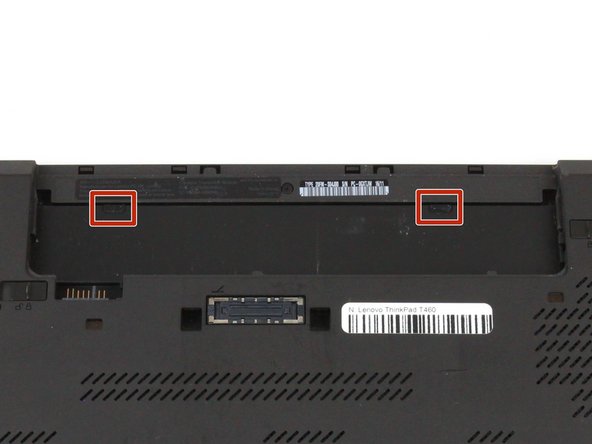
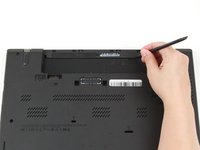
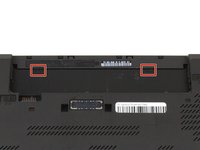
Use the pointed end of a spudger to pry the two rubber stoppers out of the battery compartment.
-
-
-
Place the laptop so that the top is facing upwards.
-
Open the lid of the laptop.
-
-
-
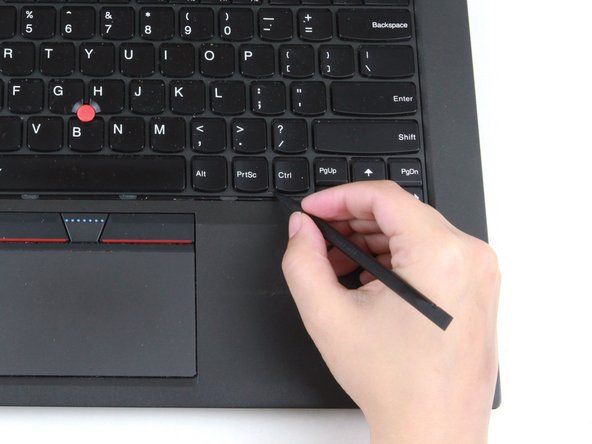
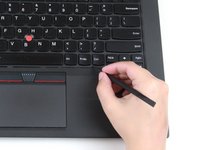
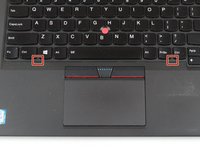
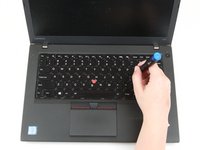
Use the pointed end of a spudger to push the keyboard towards the screen using the two notches on the bottom of the keyboard.
-
-
-
-
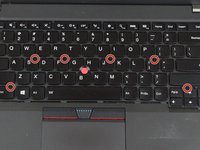
Loosen the six captive screws in the keyboard frame using a Phillips #0 screwdriver.
-
-
-
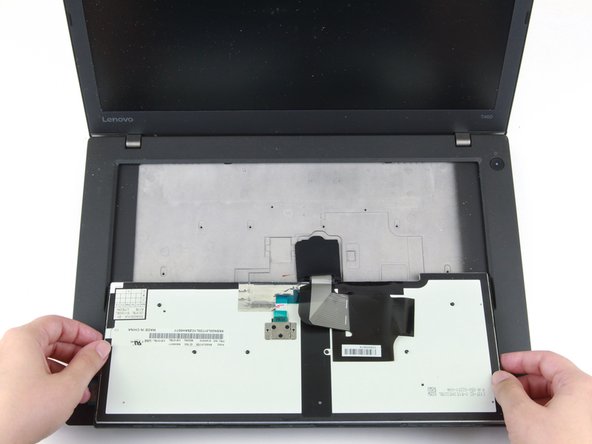
Use your hands to pull the keyboard up and towards you by a few millimeters to remove it from its tray.
-
-
-
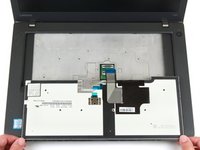
Grab the bottom edge of the keyboard with your hands, and flip the keyboard upside-down, so it rests on the bottom of the laptop.
-
-
Tool used on this step:Tweezers$4.99
-
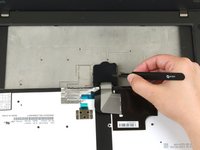
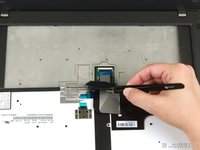
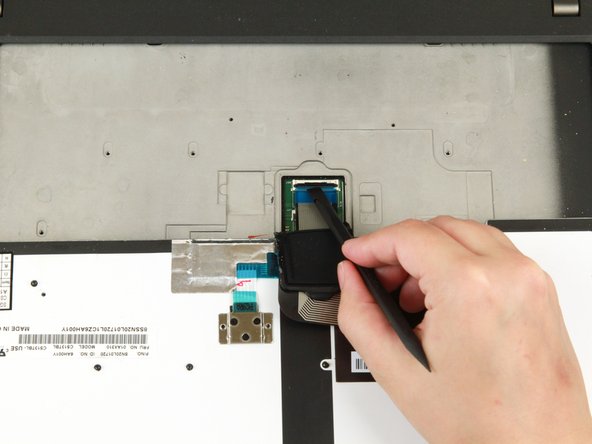
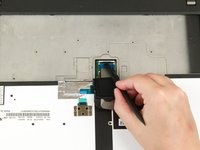
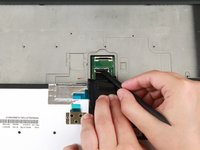
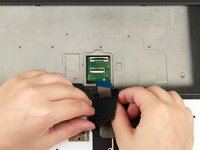
Use a pair of blunt-nosed tweezers to lift the black flap away from the cable connectors.
-
-
-
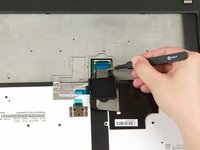
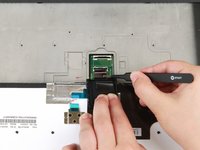
Use the flat end of a spudger to flip up the locking flap securing the ribbon cable.
-
-
-
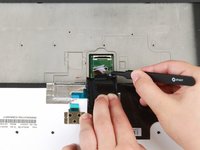
Use a pair of blunt-nosed tweezers to pull the ribbon cable out of its connector.
-
-
-
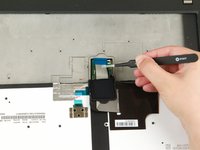
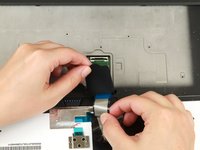
Use the flat end of a spudger to flip up the locking flap securing the bottom ribbon cable.
-
-
-
Use a pair of blunt-nosed tweezers to pull the ribbon cable out of its connector.
-
-
-
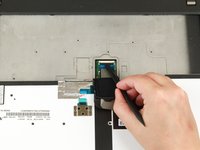
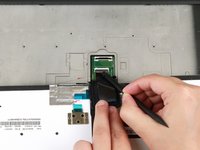
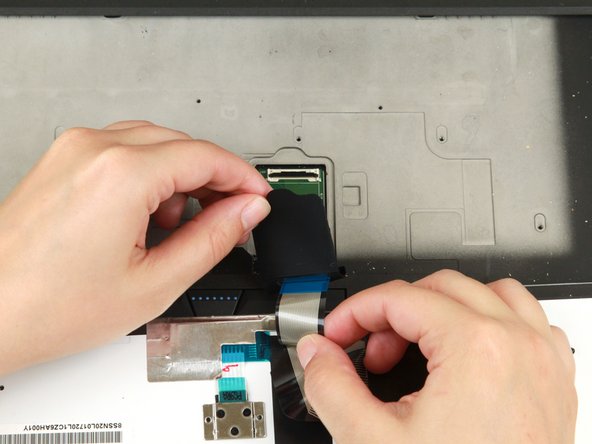
Pull the ribbon cables through the slot in the black flap.
-
Remove the black flap from the keyboard.
-
-



























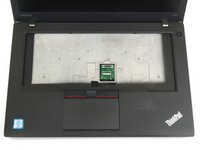
To reassemble your device, follow these instructions in reverse order.
Take your e-waste to an R2 or e-Stewards certified recycler.
Repair didn’t go as planned? Try some basic troubleshooting, or ask our Answers community for help.
Cancel: I did not complete this guide.
5 other people completed this guide.


1 Guide Comment
I would like to request a modification to this, to include the detail of removing the small foam gasket lining the top part of the keyboard (if one is present, it may not be on all of them but it was on mine) on the back(secured by a strip of blue tape across the length of the entire keyboard), this was not mentioned by this guide, or by the seller I purchased the product from(new part, same thing ifixit sells, p/n 01AX310). I would add this myself, but I am unfamiliar with the nuances of how the guides on here are supposed to be formatted, and where the appropriate location for it to be put would be. Thank you in advance.
