Free Shipping on Domestic Orders $75+

Lenovo ThinkPad T460 Bottom Cover Replacement

Views: 2.9K

View statistics:

Past 24 Hours:
3
Past 7 Days:
31
Past 30 Days:
100
All Time:
2,872
Comments: 1

1 comment on steps.

Completed: 0

No one has marked this guide "completed." Will you be the first?

Favorites: 0

No one has favorited (and subscribed to) this guide. Will you be the first?

Time Required: 10 minutes
Difficulty: Easy
Lenovo ThinkPad T460 Bottom Cover Replacement

Introduction

Go to step 1 ↓

Use this guide to replace the bottom cover of your Lenovo ThinkPad T460 laptop.

The bottom cover encases the internal components of the laptop and provides proper ventilation for the fan. You may need to replace the bottom cover if it is cracked or physically damaged to the point where it is exposing the laptop’s internals.

Make sure to disable the internal battery, power down your device, and disconnect from any external power sources before you begin.

What you need

Parts

Tools

  • Spudger
    4.9
  • Phillips #1 Screwdriver
    5
    1. Lenovo ThinkPad T460 Bottom Cover Replacement, External Battery: step 1, image 1 of 3 Lenovo ThinkPad T460 Bottom Cover Replacement, External Battery: step 1, image 2 of 3 Lenovo ThinkPad T460 Bottom Cover Replacement, External Battery: step 1, image 3 of 3
      • Before you begin this guide, make sure to disable the internal battery, power down your device, and disconnect from any external power sources.

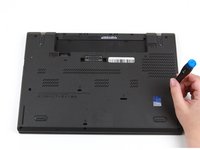
      • Place the laptop so that the bottom is facing upwards.

      • Slide the latch on the left side of the battery to the left until it clicks in place.

      Ask FixBot

      Add Comment

    2. Lenovo ThinkPad T460 Bottom Cover Replacement: step 2, image 1 of 3 Lenovo ThinkPad T460 Bottom Cover Replacement: step 2, image 2 of 3 Lenovo ThinkPad T460 Bottom Cover Replacement: step 2, image 3 of 3
      • Slide the latch on the right side of the battery to the right and hold it in place with your thumb.

      • Use your other hand to slide the battery towards the back of the laptop.

      • Lift the battery up and away from the laptop.

      Ask FixBot

      Add Comment

    1. Lenovo ThinkPad T460 Bottom Cover Replacement, Bottom Cover: step 3, image 1 of 2 Lenovo ThinkPad T460 Bottom Cover Replacement, Bottom Cover: step 3, image 2 of 2
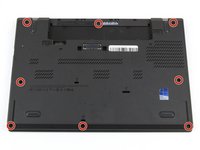
      • Loosen the eight captive screws in the bottom cover using a Phillips #1 screwdriver.

      Ask FixBot

      Add Comment

    2. Lenovo ThinkPad T460 Bottom Cover Replacement: step 4, image 1 of 3 Lenovo ThinkPad T460 Bottom Cover Replacement: step 4, image 2 of 3 Lenovo ThinkPad T460 Bottom Cover Replacement: step 4, image 3 of 3
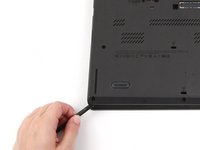
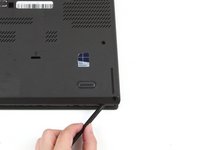
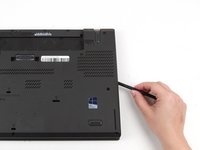
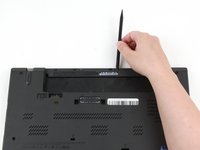
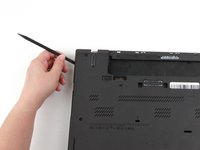
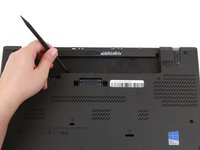
      • Insert the flat end of a spudger in between the bottom cover and the rest of the laptop, starting in the lower left corner.

      • Pry the lower left corner of the bottom cover up by a few millimeters.

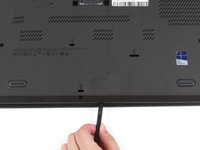
      • Slide the spudger along the bottom of the laptop to release the clips until you reach the lower right corner.

      • You may hear some snapping noises as the clips are released.

      Ask FixBot

      Add Comment

    3. Lenovo ThinkPad T460 Bottom Cover Replacement: step 5, image 1 of 2 Lenovo ThinkPad T460 Bottom Cover Replacement: step 5, image 2 of 2
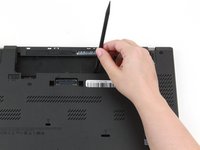
      • Slide the spudger along the right and top sides of the bottom cover to release the clips.

      • You may hear some snapping noises as the clips are released.

      • Potential for device damage: If the clips do not release easily, check to ensure that the captive screws are fully loosened. Forcing the clips to detach can crack the bottom cover.

      Ask FixBot

      Add Comment

    4. Lenovo ThinkPad T460 Bottom Cover Replacement: step 6, image 1 of 2 Lenovo ThinkPad T460 Bottom Cover Replacement: step 6, image 2 of 2
      • Use the spudger to pry the upper left corner up by a few millimeters.

      • Pry up the sections of the bottom cover with printed logos of the ports.

      • Potential for device damage: Prying inside the ports themselves can damage your laptop. Be sure to only pry up on the sections of the cover that extend past the ports.

      Ask FixBot

      Add Comment

    5. Lenovo ThinkPad T460 Bottom Cover Replacement: step 7, image 1 of 2 Lenovo ThinkPad T460 Bottom Cover Replacement: step 7, image 2 of 2
      • Use the spudger to pry up the bottom cover in the lower portion of the external battery compartment by a few millimeters.

      Ask FixBot

      Add Comment

    6. Lenovo ThinkPad T460 Bottom Cover Replacement: step 8, image 1 of 3 Lenovo ThinkPad T460 Bottom Cover Replacement: step 8, image 2 of 3 Lenovo ThinkPad T460 Bottom Cover Replacement: step 8, image 3 of 3
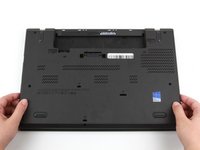
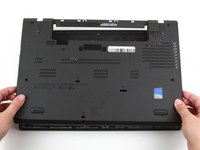
      • Use both hands to lift the bottom cover up and away from the laptop.

      Ask FixBot

      Add Comment

Conclusion

To reassemble your device, follow these instructions in reverse order.

Take your e-waste to an R2 or e-Stewards certified recycler.

Repair didn’t go as planned? Try some basic troubleshooting, or ask our Answers community for help.


Cancel: I did not complete this guide.

Kristen Gismondi

Member since: 11/12/14

109,552 Reputation

271 Guides authored

Team

iFixit Member of iFixit

Staff

121 Members

72,885 Guides authored

0 Guide Comments

Add Comment

View Statistics:

Past 24 Hours: 3

Past 7 Days: 31

Past 30 Days: 100

All Time: 2,872