Free Shipping on Domestic Orders $75+

Lenovo ThinkPad T440p RAM Replacement

What you need

  1. Lenovo ThinkPad T440p RAM Replacement, Battery: step 1, image 1 of 1
    • Flip the laptop so that the back is facing up.

    Ask FixBot

    Add Comment

  2. Lenovo ThinkPad T440p RAM Replacement: step 2, image 1 of 2 Lenovo ThinkPad T440p RAM Replacement: step 2, image 2 of 2
    • Slide the battery latches to the unlocked position.

    Ask FixBot

    Add Comment

  3. Lenovo ThinkPad T440p RAM Replacement: step 3, image 1 of 2 Lenovo ThinkPad T440p RAM Replacement: step 3, image 2 of 2
    • Slide the battery pack out of the battery slot.

    Ask FixBot

    Add Comment

  4. Lenovo ThinkPad T440p RAM Replacement, Back Cover: step 4, image 1 of 2 Lenovo ThinkPad T440p RAM Replacement, Back Cover: step 4, image 2 of 2
    • Use a Phillips #1 screwdriver to remove the two 8mm screws holding the back cover.

    Ask FixBot

    Add Comment

  5. Lenovo ThinkPad T440p RAM Replacement: step 5, image 1 of 1
    • Slide down the back cover.

    Ask FixBot

    Add Comment

  6. Lenovo ThinkPad T440p RAM Replacement: step 6, image 1 of 1
    • Remove the back cover.

    Ask FixBot

    Add Comment

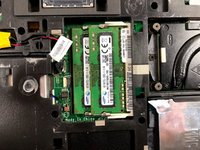
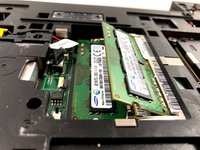
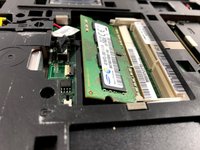
  7. Lenovo ThinkPad T440p RAM Replacement, RAM: step 7, image 1 of 3 Lenovo ThinkPad T440p RAM Replacement, RAM: step 7, image 2 of 3 Lenovo ThinkPad T440p RAM Replacement, RAM: step 7, image 3 of 3
    • In the first memory slot, use your fingertips to spread the two white tabs that are holding down the RAM. The RAM will raise to an angle.

    Ask FixBot

    Add Comment

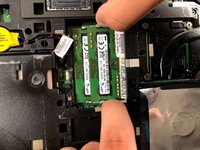
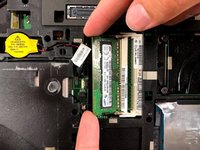
  8. Lenovo ThinkPad T440p RAM Replacement: step 8, image 1 of 1
    • Remove the RAM by holding on its edges.

    Ask FixBot

    Add Comment

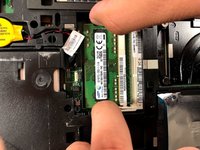
  9. Lenovo ThinkPad T440p RAM Replacement: step 9, image 1 of 3 Lenovo ThinkPad T440p RAM Replacement: step 9, image 2 of 3 Lenovo ThinkPad T440p RAM Replacement: step 9, image 3 of 3
    • Repeat steps 1 and 2 to remove the second RAM.

    Ask FixBot

    Add Comment

Conclusion

To reassemble your device, follow these instructions in reverse order.

Cancel: I did not complete this guide.

4 other people completed this guide.

Christian Abad

Member since: 03/20/19

1,679 Reputation

7 Guides authored

Team

0 Guide Comments

Add Comment

View Statistics:

Past 24 Hours: 1

Past 7 Days: 23

Past 30 Days: 75

All Time: 3,983