
Lenovo ThinkPad T440p Keyboard Replacement

Christian Abad and 2 other contributors
Last updated on Nov 29, 2023
Views: 9.2K
View statistics:
- Past 24 Hours:
- 7
- Past 7 Days:
- 35
- Past 30 Days:
- 142
- All Time:
- 9,213
Comments: 2
1 comment on steps, 1 guide comment.
Go to guide commentsCompleted: 11 12
11 people have marked this guide "completed." Will you be next?
12 people have marked this guide "completed." Including you — great job!
Favorites: 1 2
1 person has favorited (and subscribed to) this guide. Will you be next?
2 people have favorited (and subscribed to) this guide — including you!
Introduction
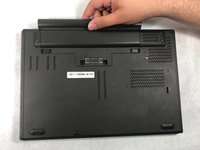
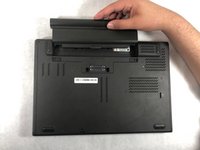
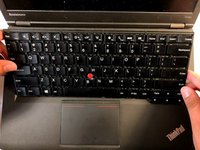
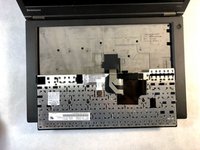
Go to step 1 ↓If keys are unresponsive or the whole keyboard is unresponsive you will most likely need to replace the keyboard for your Lenovo ThinkPad T440p. Replacing the keyboard can be quite tedious but will mainly consist of unscrewing screws and using your spudger to lift and remove cables. When removing the plastic cover, remove carefully.
What you need


-
-
-
-
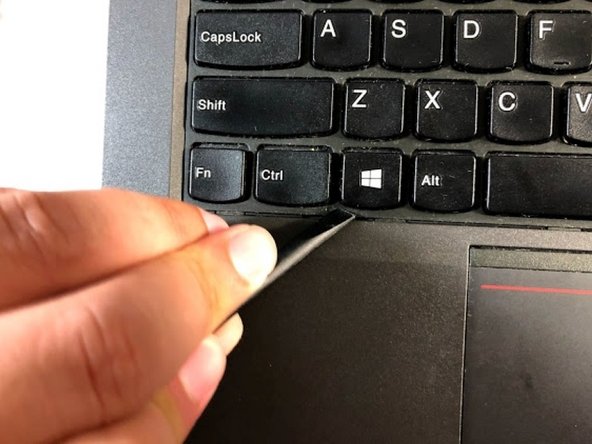
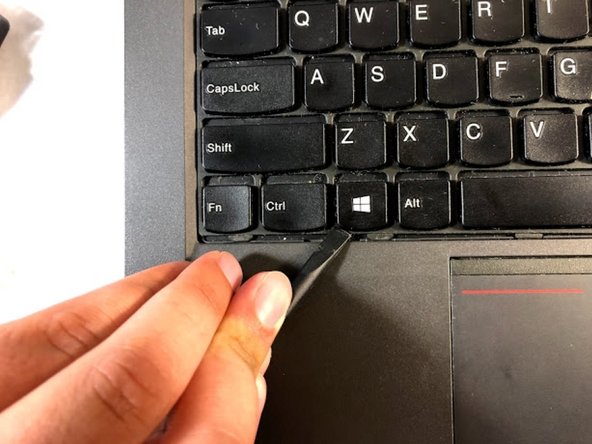
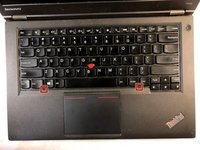
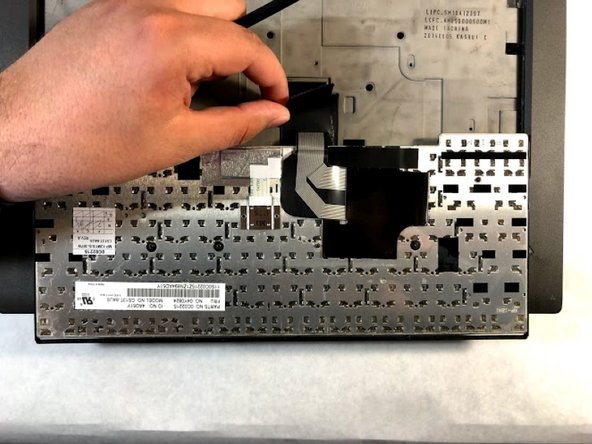
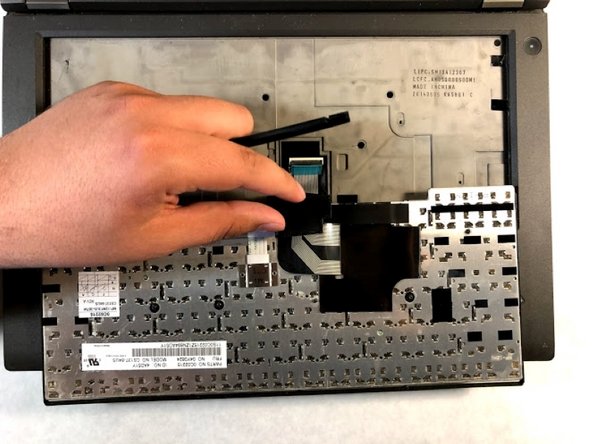
Using the spudger, move the plastic protector by pressing it down and forward in order to uncover the screws.
-
-
-
-
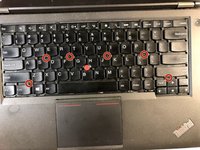
Unscrew the six screws that are attached to the keyboard by using a Phillips #00 screwdriver.
-
-

 Ask FixBot



















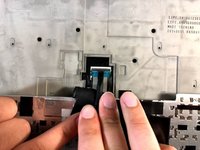
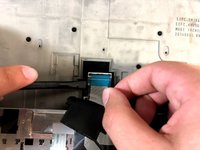
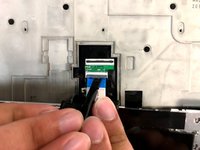

To reassemble your device, follow these instructions in reverse order.
Cancel: I did not complete this guide.
11 other people completed this guide.

Team

UMass Dartmouth, Team S6-G5, Peak Spring 2019 Member of UMass Dartmouth, Team S6-G5, Peak Spring 2019
UMASSD-PEAK-S19S6G5
3 Members
84 Guides authored
